| name | booking-dot-com |
| description | Comprehensive step-by-step workflow for navigating the Booking.com mobile site to search for destinations, select dates/occupancy, browse results, and extract detailed hotel information including pricing and facilities. |
Booking.com Navigation Skill
Overview
This skill guides you through the process of searching for and reviewing hotel accommodations on the Booking.com mobile site via Chrome.
Workflow
Phase 1: Accessing the Website
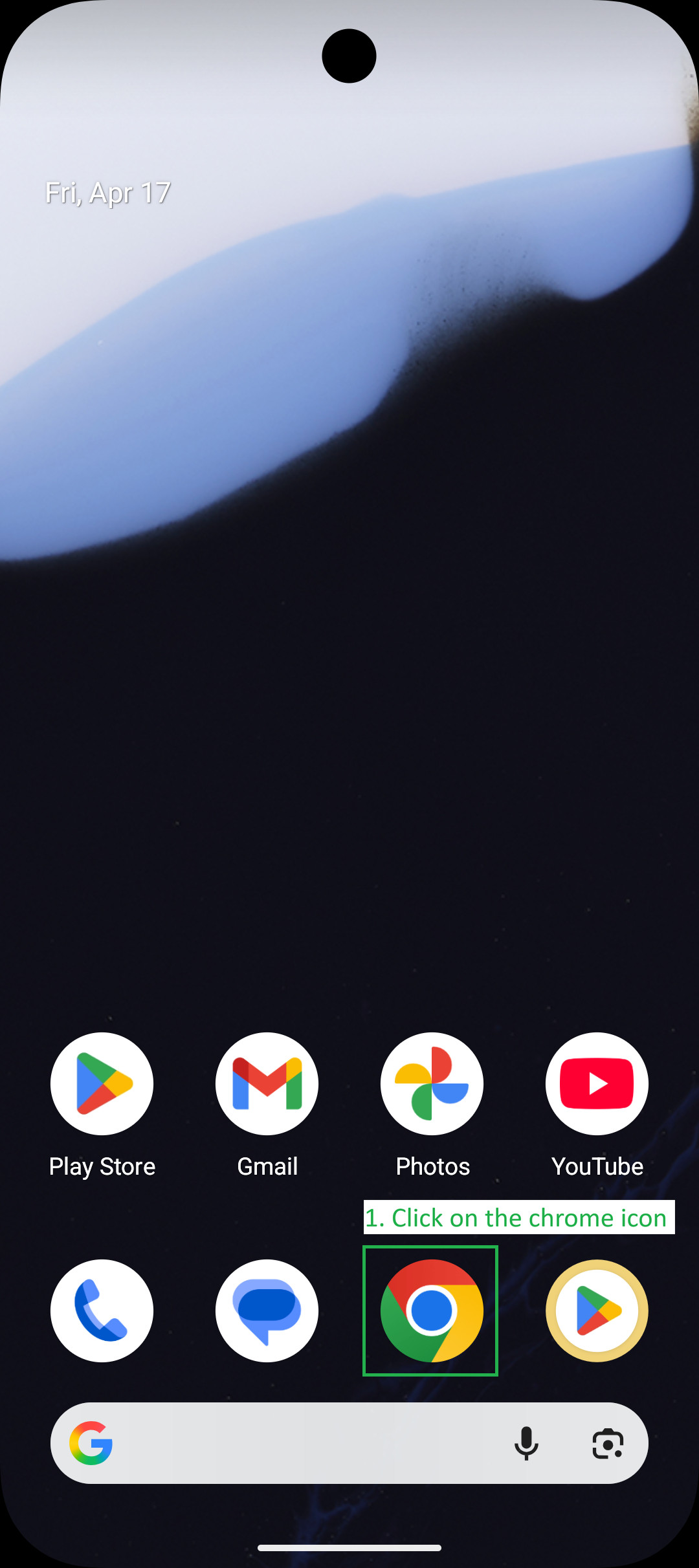
- Open Chrome: Tap the Chrome icon on the phone's home screen.
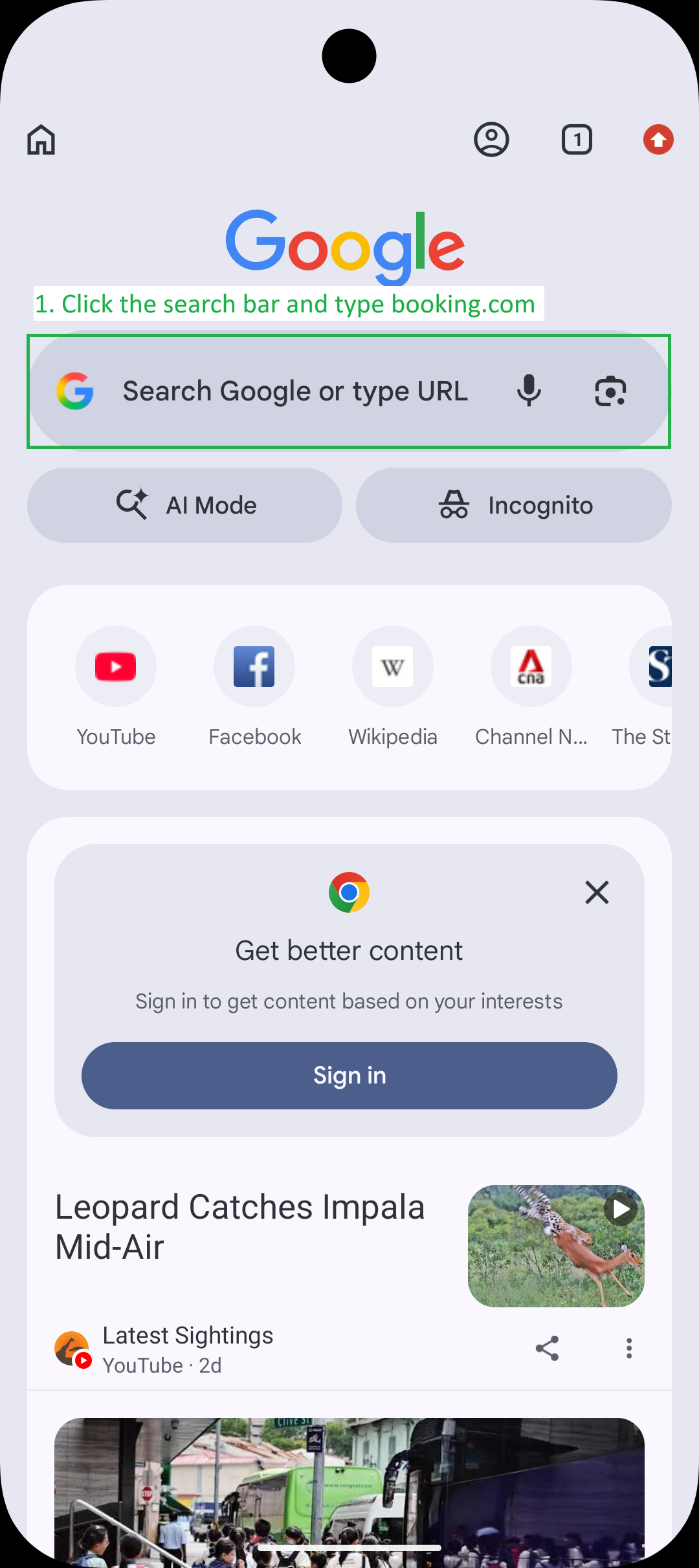
- Navigate to Search: Tap the search bar (labeled "Search Google or type URL").
[!IMPORTANT]
Do not click the Google icon itself; focus on the text field.
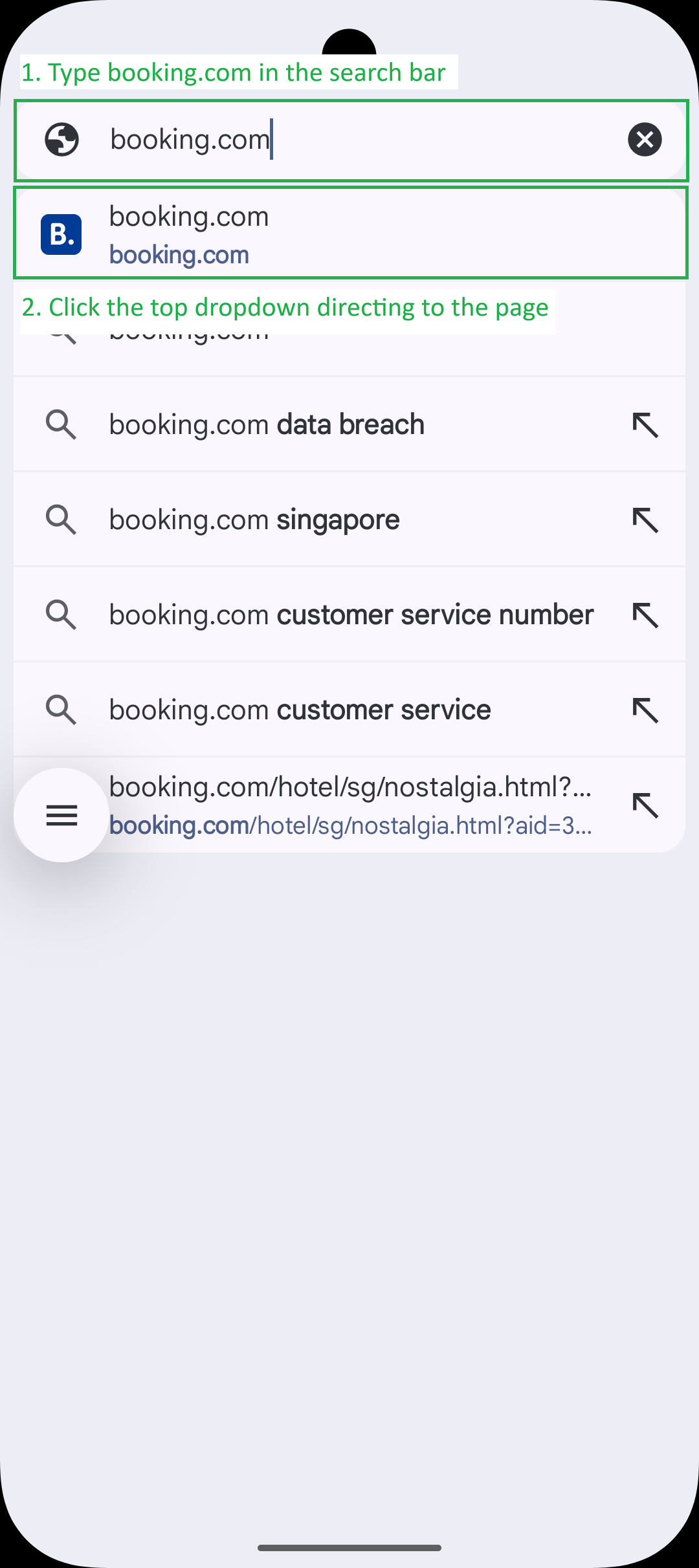
- Go to Booking.com: Type "booking.com" and press Enter, or select the official link from the results.
Phase 2: Configuring Search Parameters
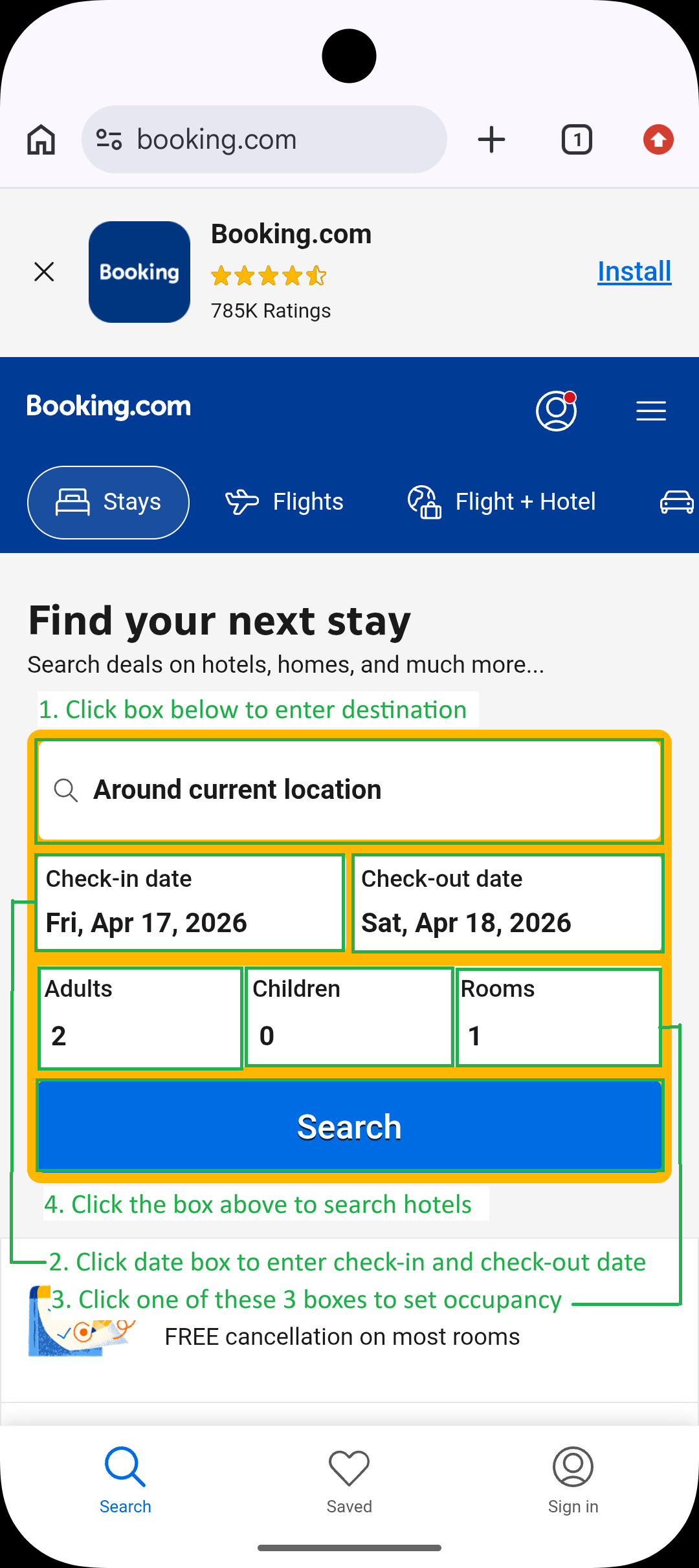
- Enter Destination: Tap the destination search bar (usually says "Around your location" or "Enter destination").
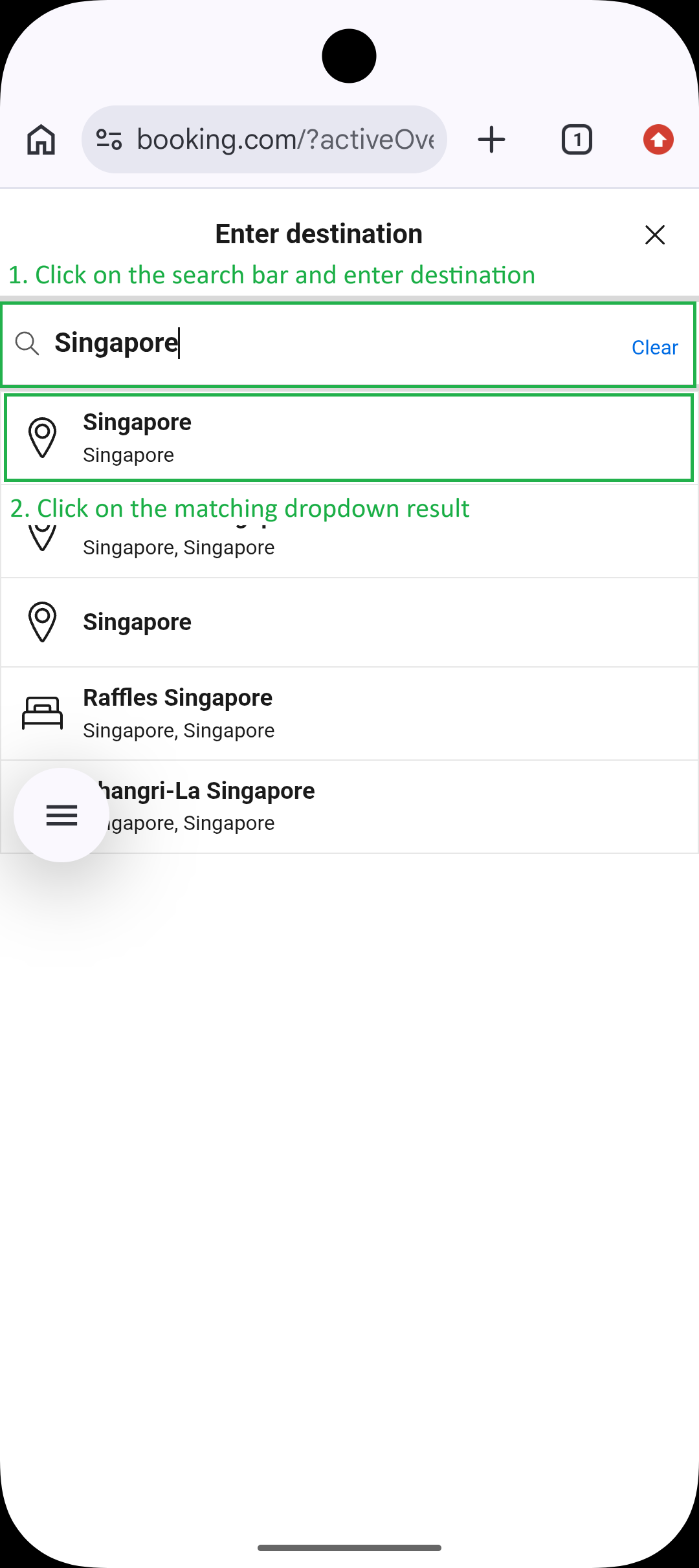
- Select Location: Type the destination name and select the correct match from the suggestions.
- Select Dates:
- The calendar usually opens automatically. Tap the Check-in date, then tap the Check-out date.
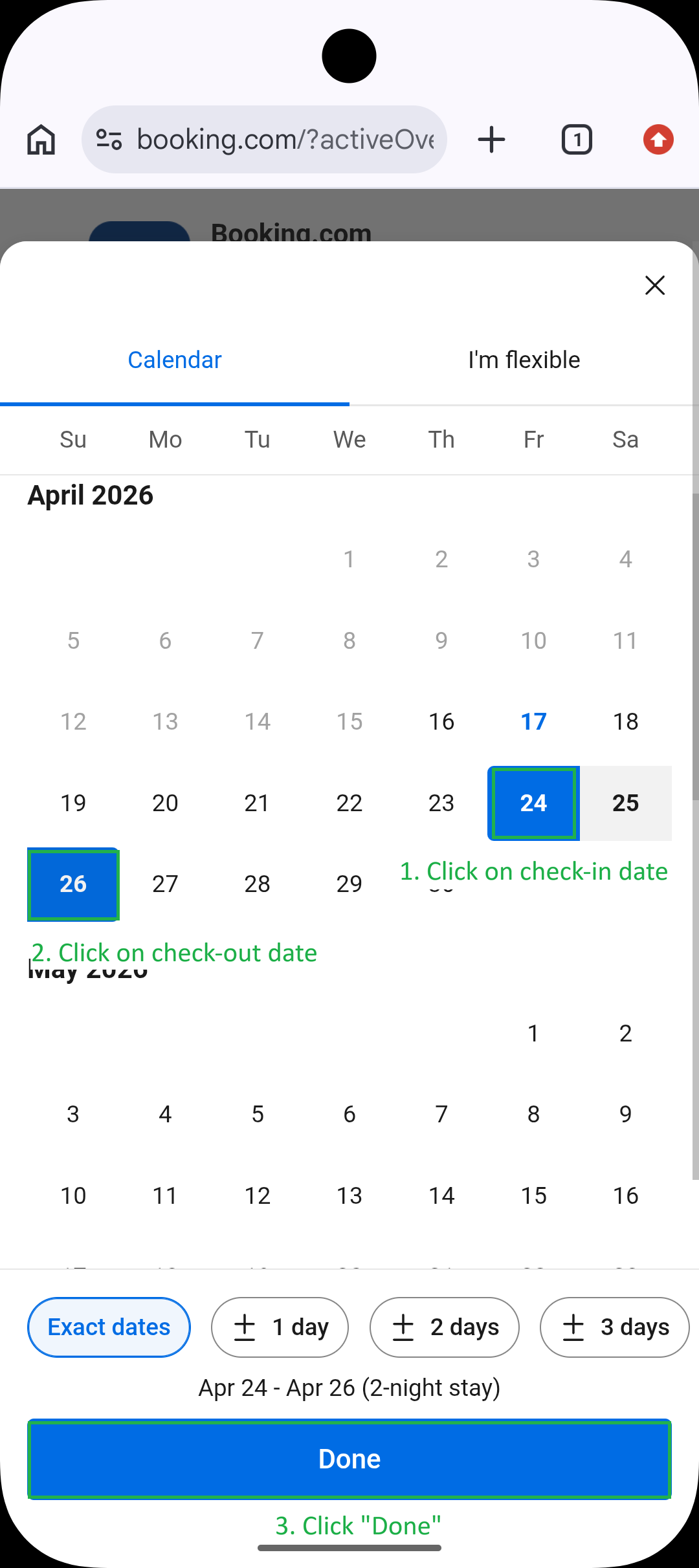
- If it doesn't open, tap the Check-in date box manually.
- Tap Done to confirm.
- Set Occupancy:
- Tap the box showing "Adults", "Children", or "Rooms".
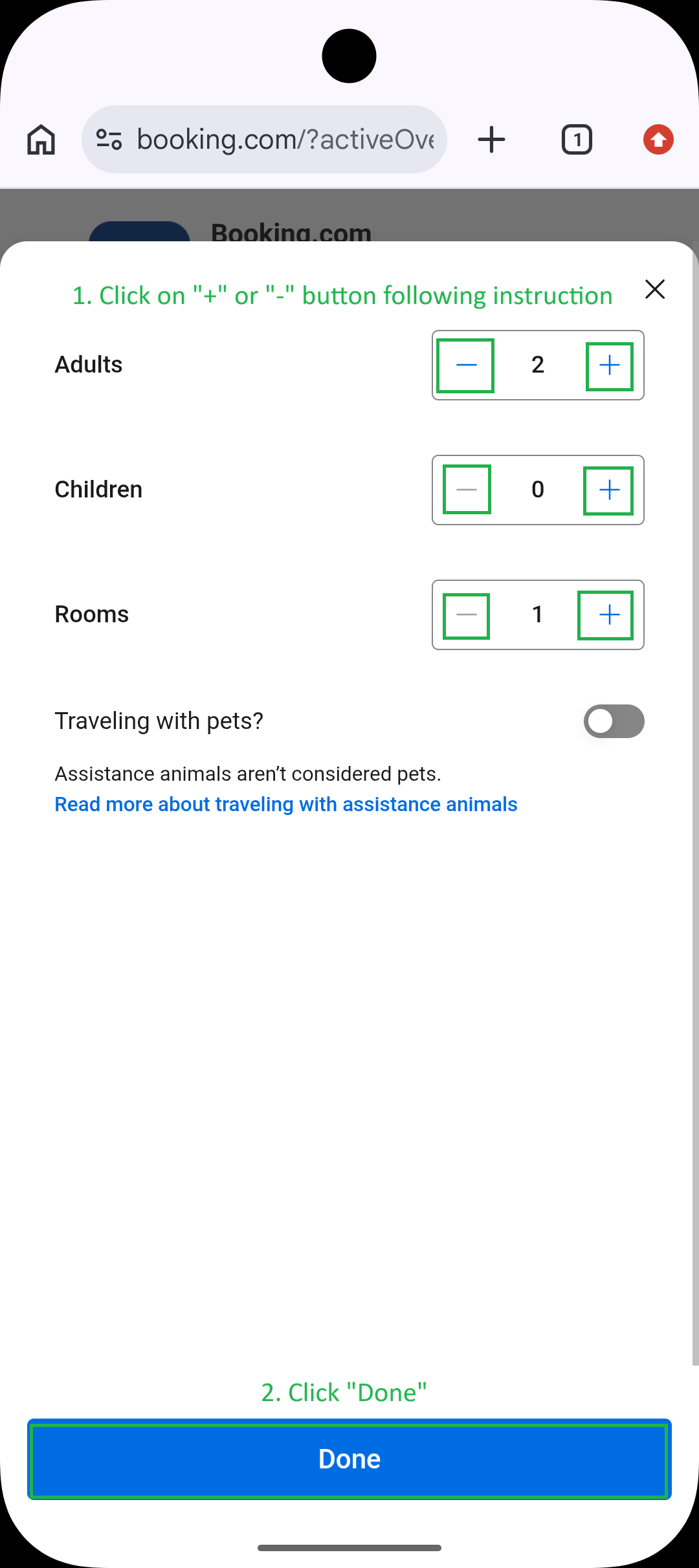
- Use the "+" or "-" buttons to adjust the counts as per instructions.
- Tap Done.
- Execute Search: Tap the Search button.
Phase 3: Browsing and Selection
- Browse Results: Scroll down the search results page to see matching hotels.
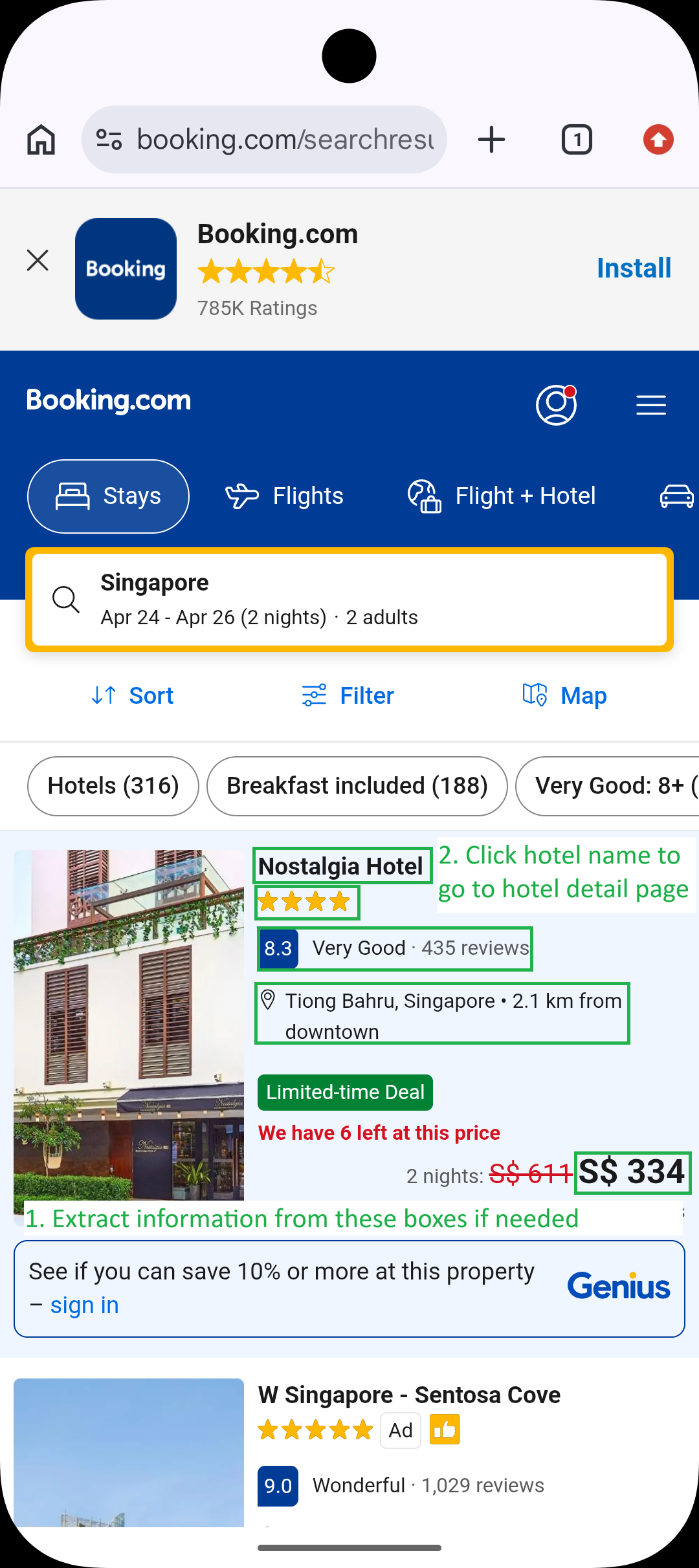
- Select Hotel: Tap on the hotel name or image to view its detailed page.
Phase 4: Extracting Hotel Details
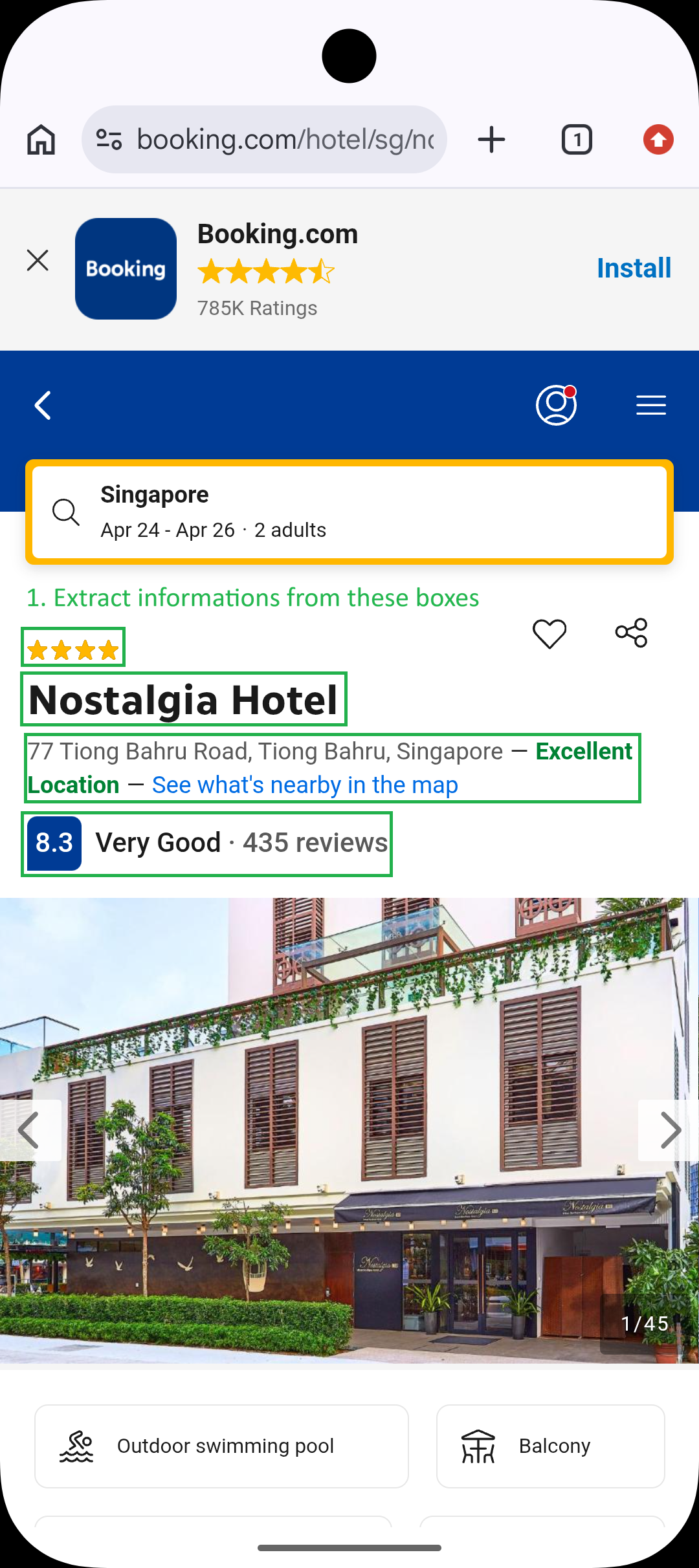
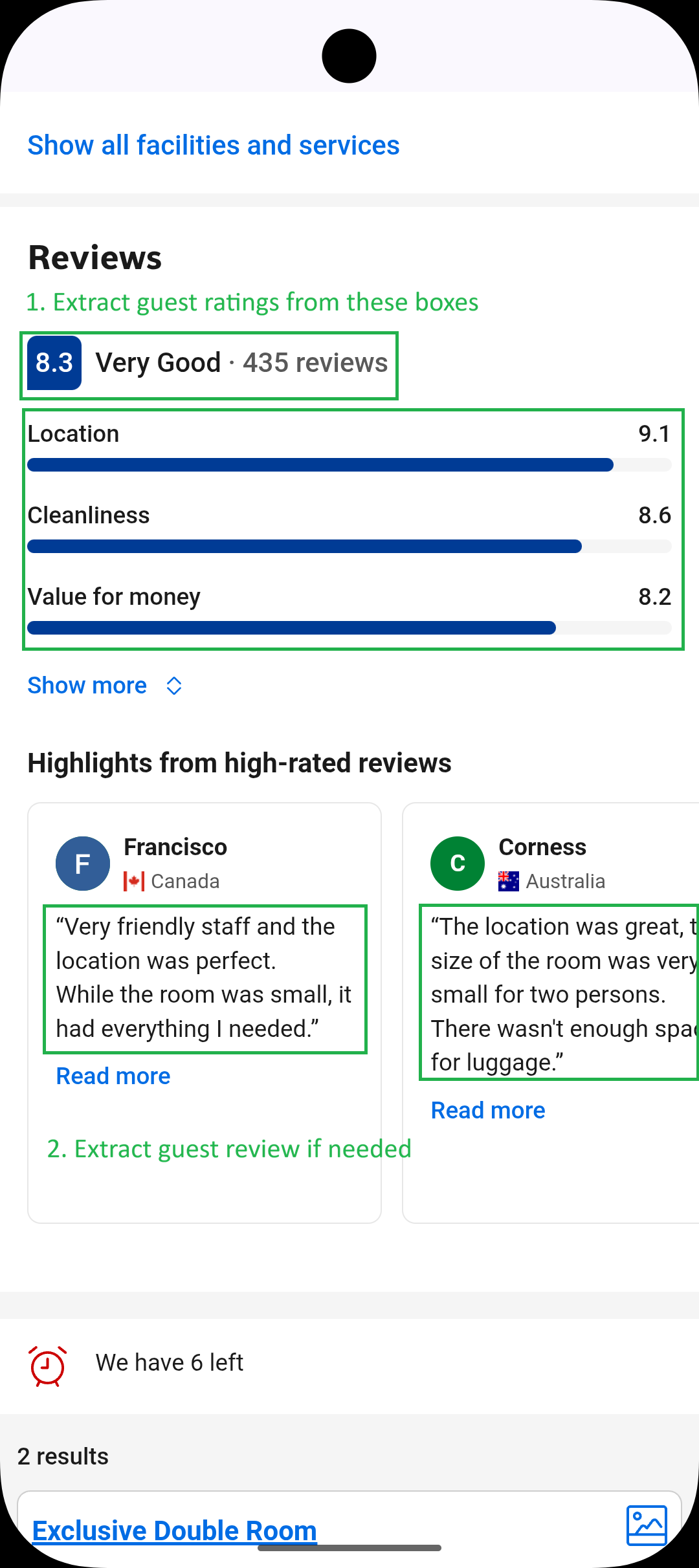
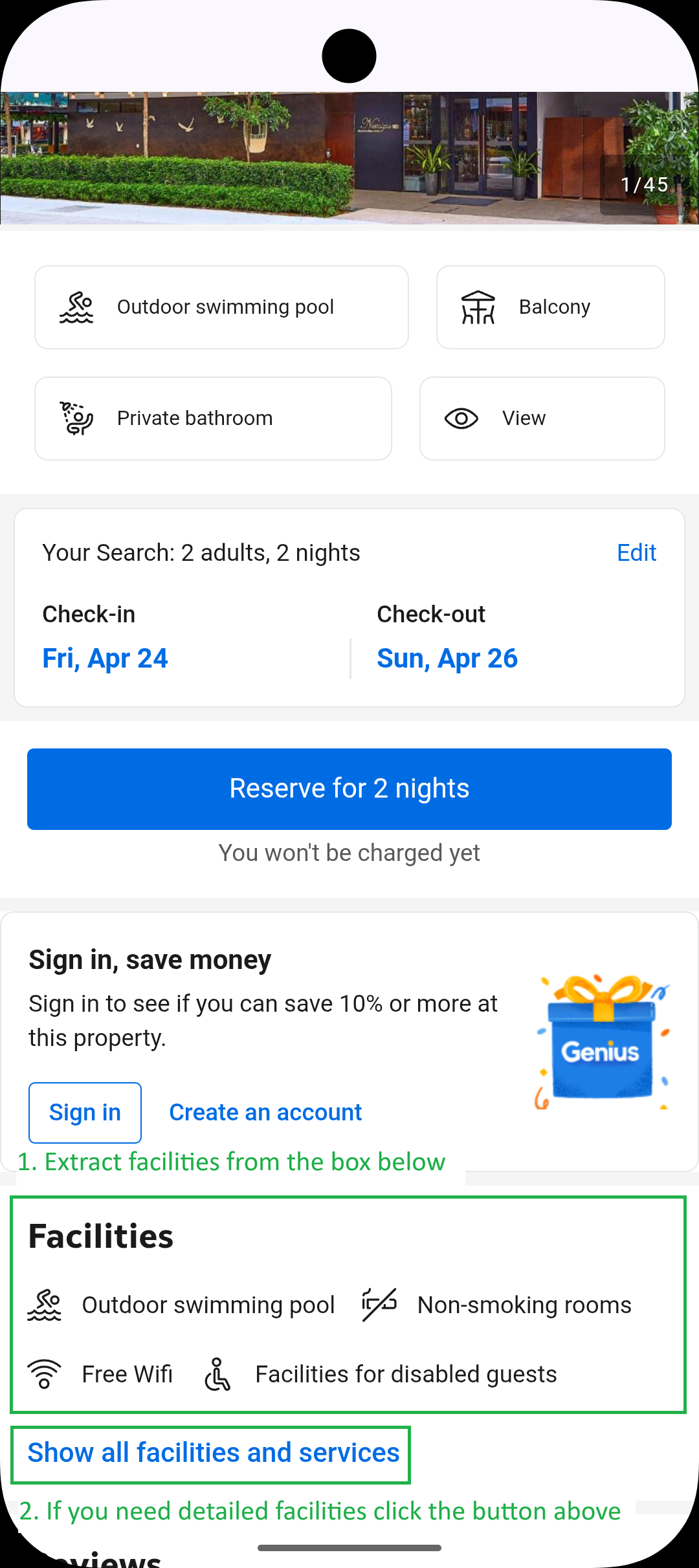
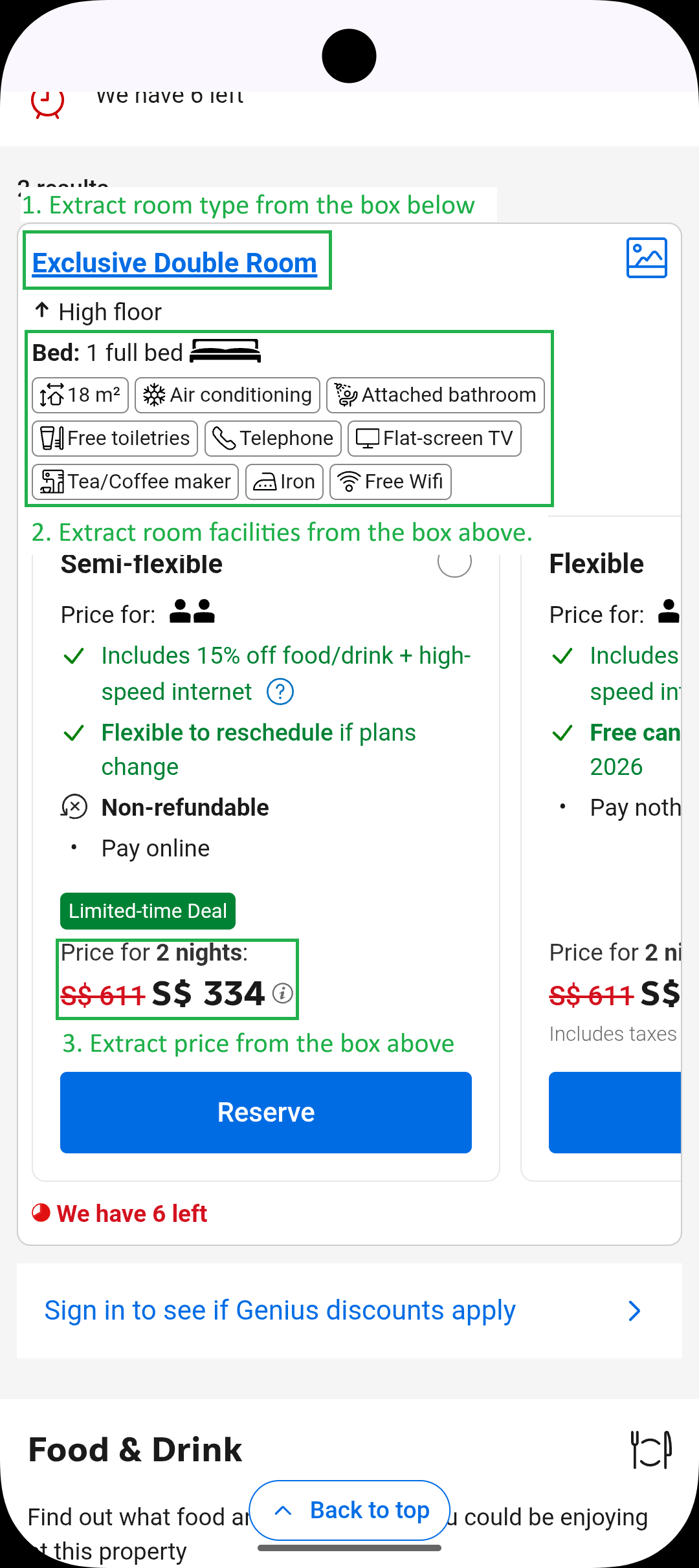
When asked for a summary, look for the following information on the hotel details page:
- Header Info: Name, location, rating, and review count are available at the top.
- Facilities: Scroll down once to find the facilities/amenities section.
- Pricing & Rooms: Scroll down twice to view specific room types and their prices.
Tips & Troubleshooting
- Dynamic Elements: UI elements may shift slightly. Always look for text labels like "Check-in" or "Search".
- Pop-ups: Close any "Sign in" or "Save big" pop-ups that might obstruct the view.
- Scroll for Visibility: If a button like "Done" or "Search" is not visible, it may be hidden by the on-screen keyboard; try scrolling or pressing the back button to dismiss the keyboard.
