| name | github-com |
| description | Navigate github.com in mobile Chrome to retrieve repository information (files, README, contributors, languages, releases, packages) and switch to desktop site mode for richer metadata (forks, stars). Use for in-browser research, not git CLI or GitHub API operations. |
GitHub.com (mobile) navigation skill
When to use this skill
Apply this workflow when you need to gather public repository information while interacting with GitHub’s mobile website in a phone browser (typically Chrome). This covers finding and reading repo content, locating contributors and language stats, and enabling desktop layout when the mobile UI hides details such as fork and star counts.
Do not treat this skill as instructions for git commands, GitHub CLI, or authenticated API usage unless the user explicitly asks for those.
Mobile vs desktop site
- Default mobile view is optimized for small screens. You can still open the file list, read
README.md, scroll to repository metadata at the bottom, and use the file overflow (⋮) menu next to a file name (e.g. download).
- Desktop site mode reuses GitHub’s wide layout: fork and star counts often appear near the top or in the right-hand column, and the full file tree / repository overview is easier to scan. Enable it when the user asks for forks, stars, or a layout that matches the desktop site.
Repository landing page (mobile)
-
File list and “View all files”
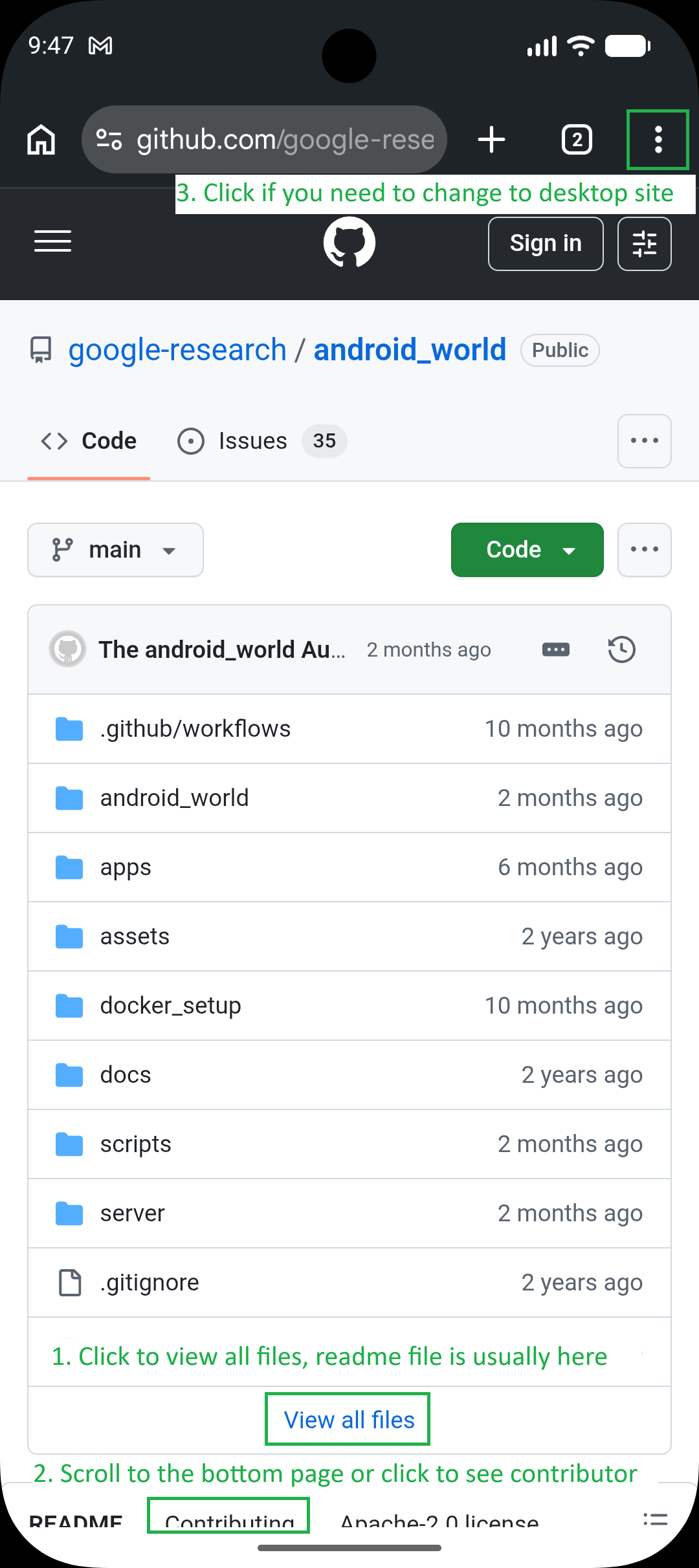
On the repository home, GitHub shows the latest commit context and a list of files and folders. Use “View all files” (or equivalent entry to the full tree) when you need to see everything in the repository root, not only the few items visible above the fold.
-
README
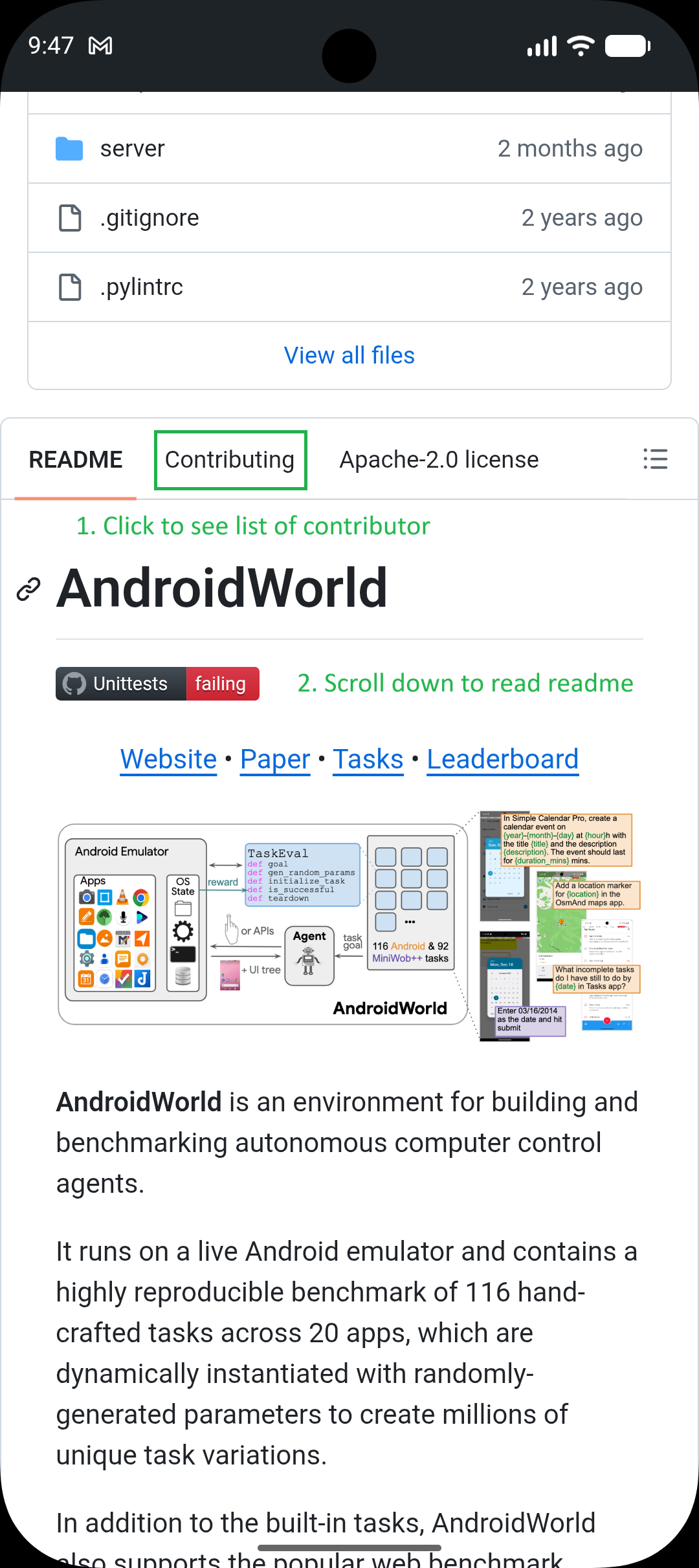
The README preview usually appears below the file list. Scroll down to read the full document; long READMEs require continued scrolling.
-
Contributing and lower sections
Scroll further to find UI affordances such as “Contributing” (or similar links to contribution guidance). The exact label may vary by repo; if the user asks for contributors, you can either scroll the landing page to the bottom or open Contributing and then scroll that page—contributor-related summaries often appear in the lower part of these views.
-
Bottom-of-page metadata
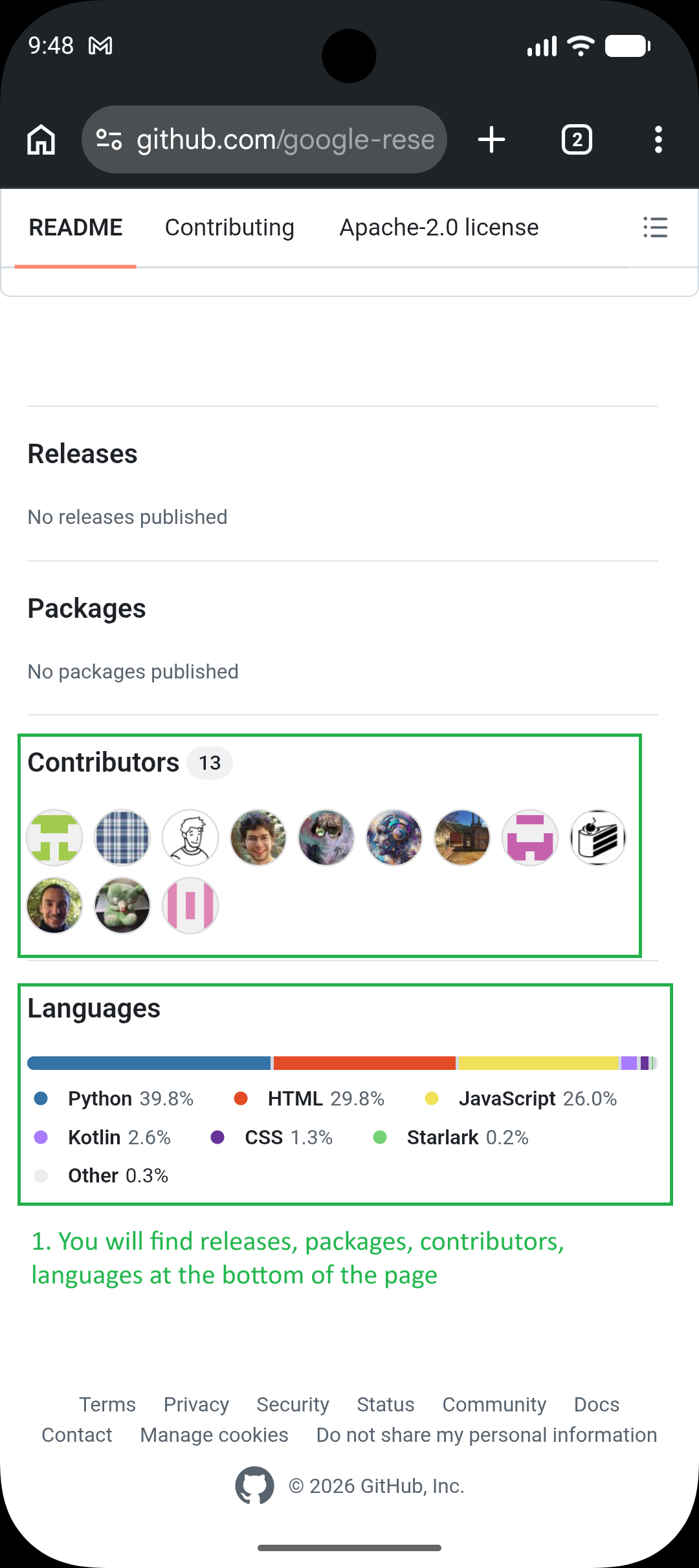
Near the bottom of the landing or Contributing-style pages, GitHub typically surfaces blocks such as Releases, Packages, Contributors, and Languages. Use this area to answer questions like “who contributes,” “what languages,” or “are there releases/packages,” without assuming every repo has all blocks populated.
Viewing a specific file (e.g. README.md)
-
Open the file
From the file list, tap a file name (for example README.md). GitHub navigates to the file view: rendered Markdown for .md files, or raw-oriented layout for other types.
-
Overflow menu (three dots)
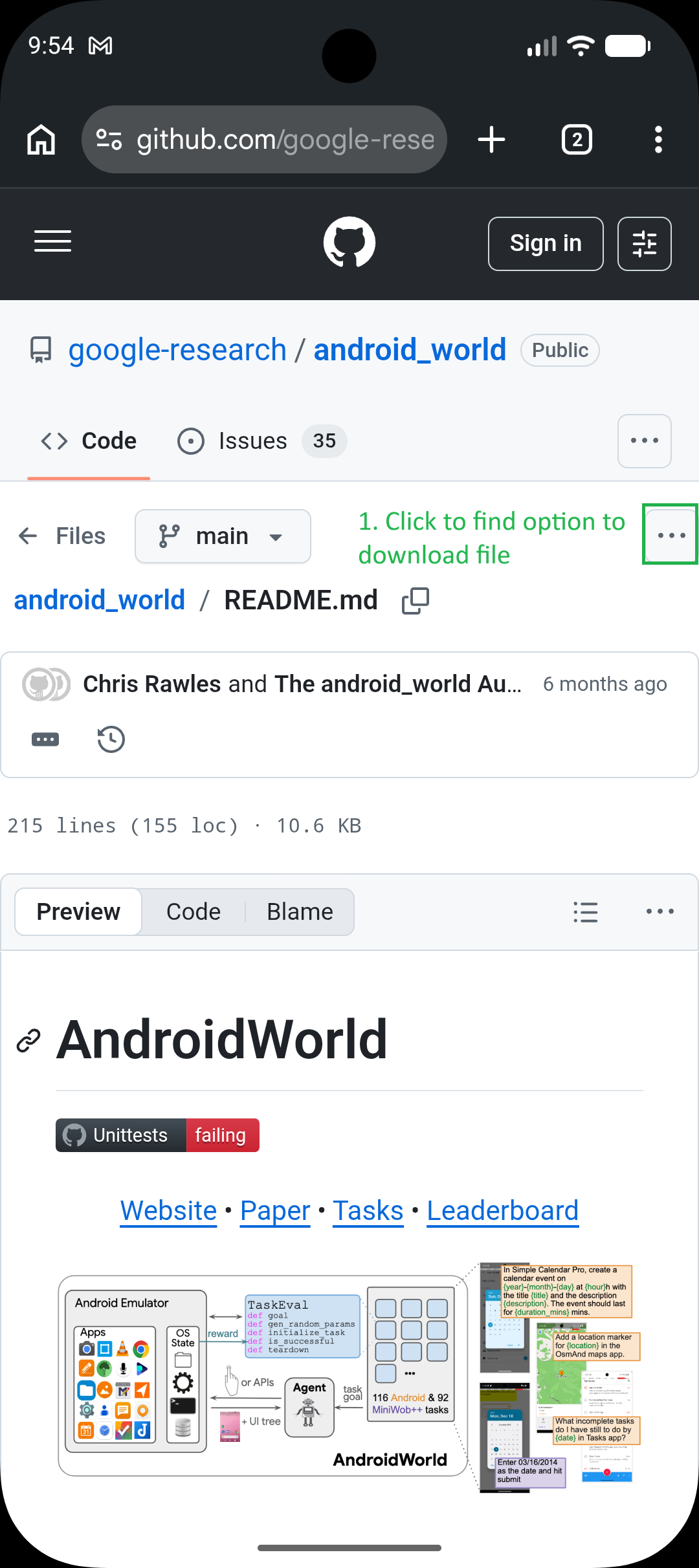
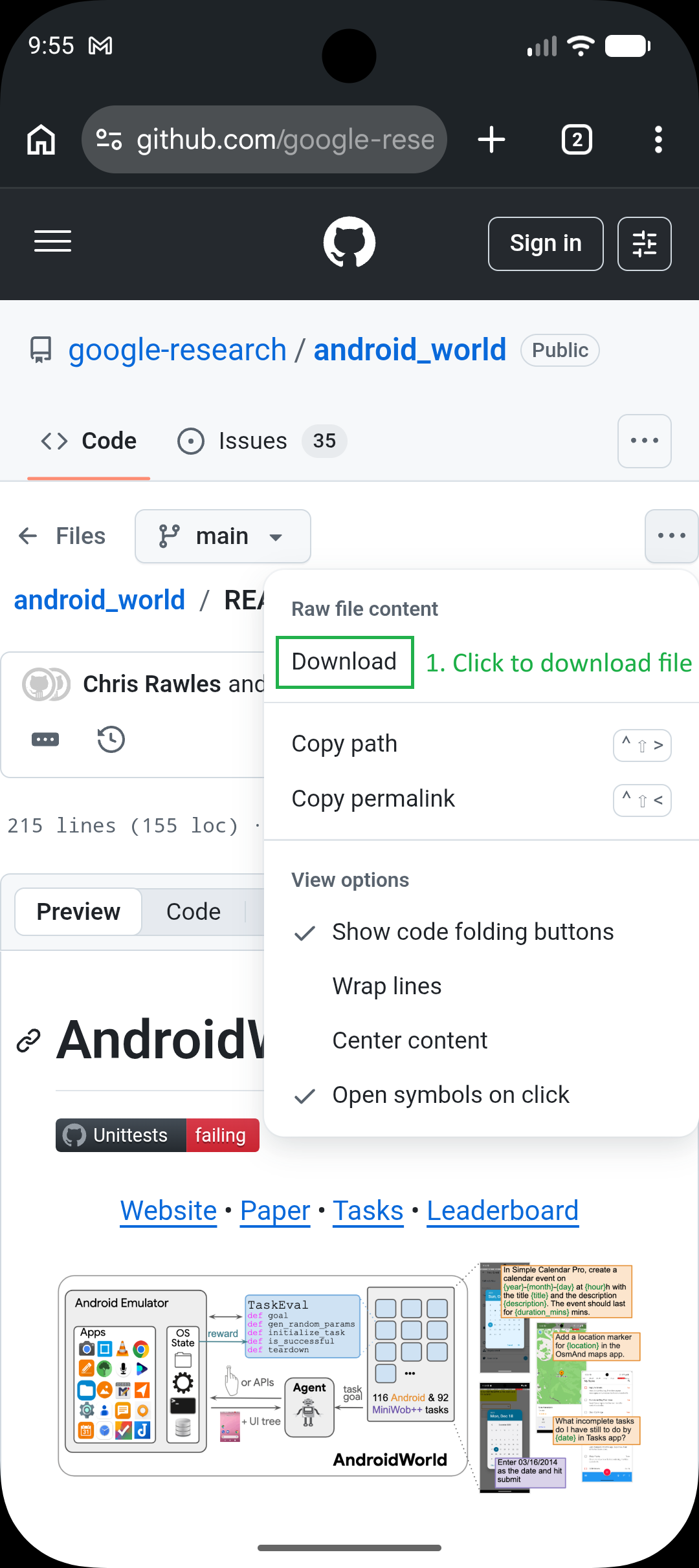
On the file screen, find the three-dot (⋮) control aligned with the file name / title bar (the horizontal bar that identifies the current file). Open it to access actions such as Download or other file-level options GitHub exposes on mobile.
-
Reading and copying content
Scroll vertically through the file body to read or extract the full text. For very long files, continue scrolling until the end of the rendered content.
Downloading the current file
From the file view, open the ⋮ menu next to the file title and choose Download (or the equivalent action) to save the currently displayed revision of that file. This is for single-file retrieval from the web UI, not for cloning the repository.
Enabling desktop site mode (Chrome on Android)
Use this when mobile layout omits information the user needs (commonly forks and stars, or a denser repository header).
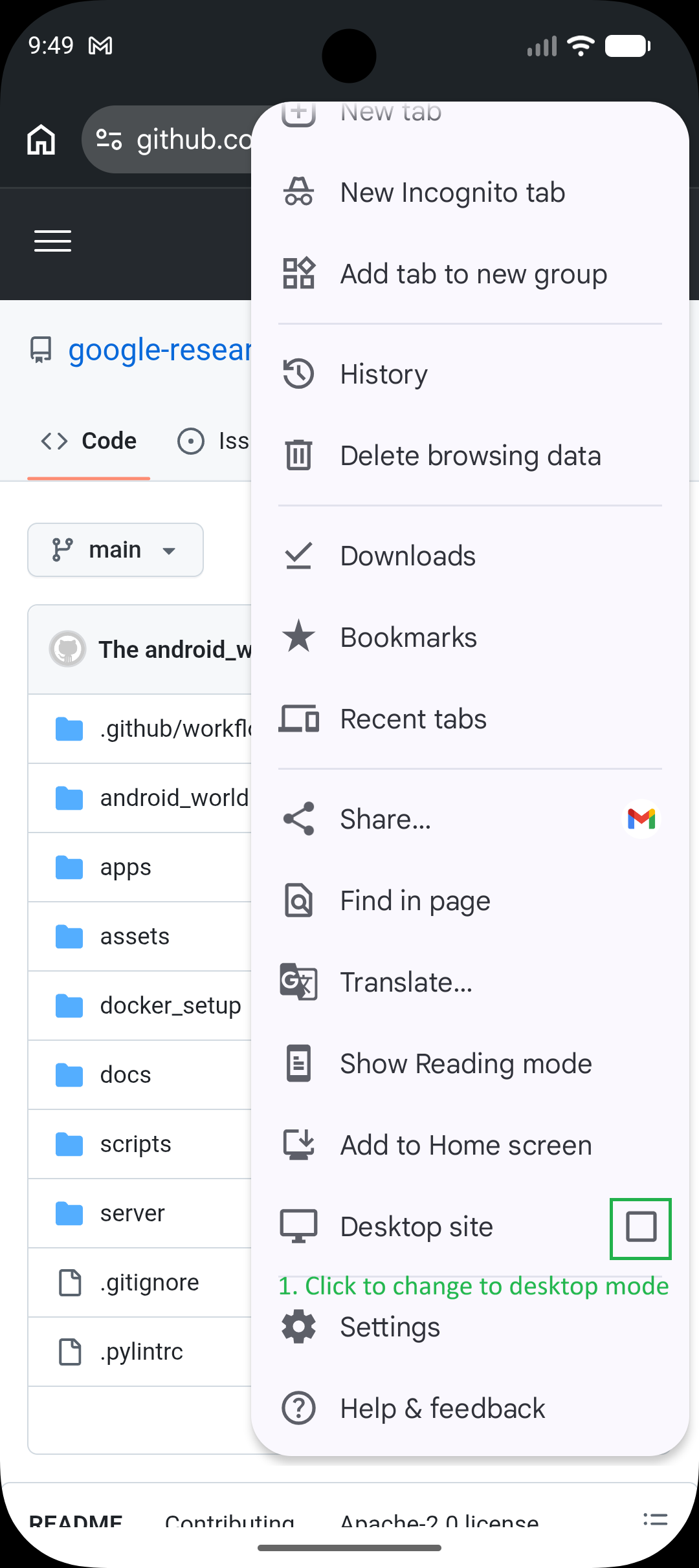
- Tap the three-dot menu in Chrome’s top-right corner (browser menu, not necessarily a control inside GitHub’s own header).
- In the dropdown, scroll until you find the “Desktop site” toggle (wording may be “Desktop site” or “Request desktop site” depending on Chrome version).
- Enable the checkbox / toggle. The tab reloads with a desktop-style viewport; GitHub may reflow so that stars, forks, and other header details appear similarly to the desktop website.
- To return to mobile layout, open the same menu and turn off desktop site.
Desktop site layout — what to look for
After desktop mode is active:
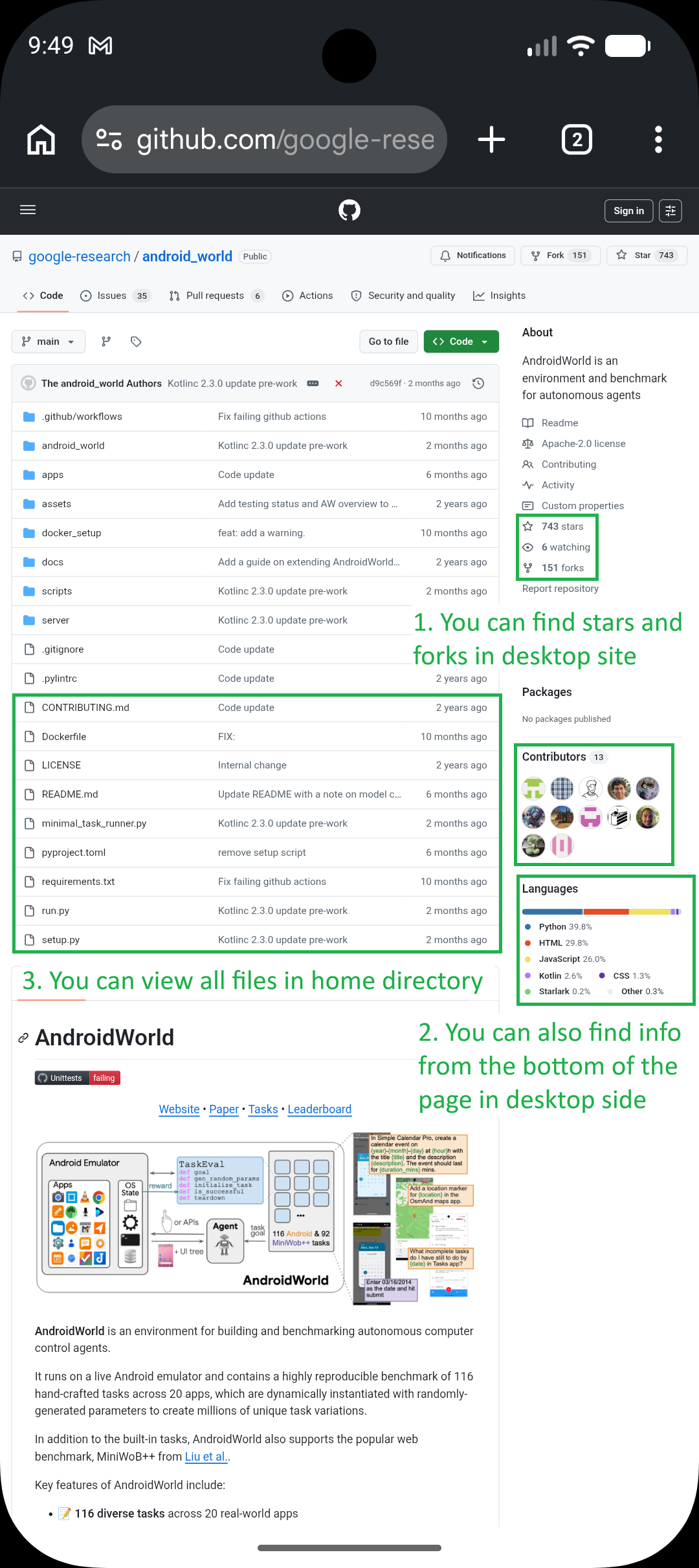
- Forks and stars usually appear in the repository header area, often on the right or adjacent to the repo title, depending on GitHub’s current design.
- Contributors and Languages may still appear in lower sections; compare with what you already saw on mobile to avoid duplicate scrolling.
- File list / “View all files” remains the entry point for browsing the tree from the repo home.
Retrieval checklist (no images required)
Use this as a mental map when answering user questions:
| User question | Where to look |
|---|
| Root files and folders | Landing → file list → View all files if needed |
| README content | Landing → scroll below file list; or open README.md |
| Releases / packages | Scroll to bottom of landing or related pages |
| Contributors / languages | Bottom sections; desktop mode may duplicate or clarify |
| Forks / stars | Prefer desktop site mode + repository header |
| Raw / download one file | File view → ⋮ next to file name → Download |
Tips and troubleshooting
- Labels move: GitHub updates copy and layout; rely on position (top file list, mid README, bottom metadata, ⋮ beside file name) and semantics (Contributors, Languages, Releases), not exact pixel locations.
- Missing blocks: Empty or hidden Releases / Packages is normal for some repos; report what is absent instead of inventing data.
- Two different “three-dot” menus: Chrome’s menu toggles desktop site; GitHub’s ⋮ on a file row opens file actions (e.g. download). Do not confuse them.
- Scope: This skill describes navigation and reading on github.com; it does not authorize bypassing rate limits, logging in as another user, or accessing private resources without credentials.
