| name | lit-and-vscode-extensions |
| description | Learn how to build a VSCode extension using a Lit web component, covering setup, template creation, component implementation, and extension activation. |
| metadata | {"url":"https://rodydavis.com/posts/lit-vscode-extension","last_modified":"Tue, 03 Feb 2026 20:04:18 GMT"} |
Lit and VSCode Extensions
In this article I will go over how to set up a Lit web component and use it to create a VSCode extension.
TLDR You can find the final source here.
Prerequisites
- Vscode
- Node >= 16
- Typescript
Getting Started
We can start off by navigating in terminal to the location of the project and run the following:
npm init @vitejs/app --template lit-ts
Then enter a project name lit-vscode-extension and now open the project in vscode and install the dependencies:
cd lit-vscode-extension
npm i -D @types/node
code .
Update the vite.config.ts with the following:
import { defineConfig } from "vite";
import { resolve } from "path";

export default defineConfig({
  base: "/lit-vscode-extension/",
  build: {
    outDir: "build",
    rollupOptions: {
      external: /^vscode/,
      input: {
        main: resolve(__dirname, "index.html"),
      },
      output: {
        entryFileNames: "[name].js",
      },
    },
  },
});
Open package.json and update it with the following:
{
  "name": "lit-vscode-extension",
  "description": "Lit VSCode Extension Example",
  "version": "0.0.1",
  "publisher": "rodydavis",
  "private": true,
  "license": "MIT",
  "repository": {
    "type": "git",
    "url": "https://github.com/rodydavis/lit-vscode-extension"
  },
  "engines": {
    "vscode": "^1.47.0"
  },
  "categories": [
    "Other"
  ],
  "activationEvents": [
    "onCommand:lit.start",
    "onCommand:lit.reset",
    "onWebviewPanel:lit"
  ],
  "main": "./build/extension.js",
  "contributes": {
    "commands": [
      {
        "command": "lit.start",
        "title": "Open Plugin",
        "category": "lit"
      },
      {
        "command": "lit.reset",
        "title": "Reset",
        "category": "lit"
      }
    ]
  },
  "scripts": {
    "dev": "vite",
    "build": "tsc && vite build",
    "ext": "tsc src/extension.ts --outdir build --skipLibCheck --module commonjs",
    "compile": "npm run build && npm run ext",
    "serve": "vite preview"
  },
  "dependencies": {
    "lit": "^2.0.0-rc.2"
  },
  "devDependencies": {
    "@types/node": "^15.12.4",
    "@types/vscode": "^1.57.0",
    "typescript": "^4.2.3",
    "vite": "^2.3.5"
  }
}
After the package.json is updated run npm i.
Template
Open up the index.html and update it with the following:
<!DOCTYPE html>
<html lang="en">
  <head>
    <meta charset="UTF-8" />
    <link rel="icon" type="image/svg+xml" href="/src/favicon.svg" />
    <meta name="viewport" content="width=device-width, initial-scale=1.0" />
    <title>Lit Example</title>
    <script type="module" src="/src/my-element.ts"></script>
  </head>
  <body>
    <my-element>
      <p>This is child content</p>
    </my-element>
  </body>
</html>
Web Component
Open up src/my-element.ts and update it with the following:
import { html, css, LitElement } from "lit";
import { customElement, property, state } from "lit/decorators.js";

@customElement("my-element")
export class MyElement extends LitElement {
  static styles = css`
    :host {
      display: block;
      border: solid 1px gray;
      padding: 16px;
      max-width: 800px;
    }
  `;

  @property() name = "World";
  @state() count = 0;

  render() {
    return html`
      <h1>Hello, ${this.name}!</h1>
      <button @click=${() => this.modify(1)} part="button">
        Click Count: ${this.count}
      </button>
      <slot></slot>
    `;
  }

  modify(val: number) {
    this.count += val;
  }

  reset() {
    this.count = 0;
  }

  async firstUpdated() {
    window.addEventListener(
      "message",
      (e: any) => {
        const message = e.data;
        const { command } = message;
        if (command === "reset") {
          this.reset();
        }
      },
      false
    );
  }
}
Here we are just modifying the example to include a message listener for communicating with the vscode extension, methods for updating the count, and updating the render method.
VSCode communicates with the plugin via post messages because the UI will be loaded in an iframe.
Now let's write the extension code in src/extension.ts. First start by adding top level declarations that will be referenced multiple times.
import * as vscode from "vscode";

const WEB_DIR: string = "build";
const WEB_SCRIPT: string = "main.js";
const TITLE: string = "Lit Example";
const TAG: string = "my-element";


const possible = [
  "ABCDEFGHIJKLMNOPQRSTUVWXYZ",
  "abcdefghijklmnopqrstuvwxyz",
  "0123456789",
].join("");

function getNonce() {
  let text = "";
  for (let i = 0; i < 32; i++) {
    const char = possible.charAt(Math.floor(Math.random() * possible.length));
    text += char;
  }
  return text;
}
We also are creating a getNonce method that will be used for making sure the scripts we load are the ones we passed in.
Now create a Panel that will contain the ui for our plugin:
class Panel {
  public static currentPanel: Panel | undefined;
  public static readonly viewType = "litExample";
  private _disposables: vscode.Disposable[] = [];

  public static createOrShow(extensionUri: vscode.Uri) {
    const column = vscode.window.activeTextEditor
      ? vscode.window.activeTextEditor.viewColumn
      : undefined;
    if (Panel.currentPanel) {
      Panel.currentPanel.panel.reveal(column);
      return;
    }
    const panel = vscode.window.createWebviewPanel(
      Panel.viewType,
      TITLE,
      column || vscode.ViewColumn.One,
      getWebviewOptions(extensionUri)
    );
    Panel.currentPanel = new Panel(panel, extensionUri);
  }

  public static revive(panel: vscode.WebviewPanel, extensionUri: vscode.Uri) {
    Panel.currentPanel = new Panel(panel, extensionUri);
  }

  private constructor(
    public readonly panel: vscode.WebviewPanel,
    public readonly extensionUri: vscode.Uri
  ) {
    this._update();
    this.panel.onDidDispose(() => this.dispose(), null, this._disposables);
    this.panel.onDidChangeViewState(
      (_) => {
        if (this.panel.visible) {
          this._update();
        }
      },
      null,
      this._disposables
    );
    this.panel.webview.onDidReceiveMessage(
      (message) => {
        switch (message.command) {
          case "alert":
            vscode.window.showErrorMessage(message.text);
            return;
        }
      },
      null,
      this._disposables
    );
  }

  public sendMessage(command: string) {
    this.panel.webview.postMessage({ command: command });
  }

  public dispose() {
    Panel.currentPanel = undefined;
    this.panel.dispose();
    while (this._disposables.length) {
      const x = this._disposables.pop();
      if (x) {
        x.dispose();
      }
    }
  }

  private _update() {
    const webview = this.panel.webview;
    webview.html = this._getHtmlForWebview(webview);
  }

  private _getHtmlForWebview(webview: vscode.Webview) {
    const scriptPathOnDisk = vscode.Uri.joinPath(
      this.extensionUri,
      WEB_DIR,
      WEB_SCRIPT
    );
    const scriptUri = webview.asWebviewUri(scriptPathOnDisk);
    const nonce = getNonce();

    const slot = "<p>This is child content</p>";

    return `<!DOCTYPE html>
			<html lang="en">
        <head>
          <meta charset="UTF-8">
          <meta name="viewport" content="width=device-width, initial-scale=1.0">
          <title>${TITLE}</title>
        </head>
        <body class="vscode-light">
          <${TAG} nonce="${nonce}" >
            ${slot}
          </${TAG}>
          <script nonce="${nonce}" type="module" src="${scriptUri}"></script>
        </body>
			</html>`;
  }
}
Notice how we are recreating the html and not using the index.html. This allows us to use the component for a deployed website but also the extension with separate app logic code.
Everything else is just boilerplate for managing the panel state and disposing when it is finished.
Now we can add the methods for loading our plugin and listening for the commands:
export function activate(context: vscode.ExtensionContext) {
  context.subscriptions.push(
    vscode.commands.registerCommand("lit.start", () => {
      Panel.createOrShow(context.extensionUri);
    })
  );

  context.subscriptions.push(
    vscode.commands.registerCommand("lit.reset", () => {
      if (Panel.currentPanel) {
        Panel.currentPanel.sendMessage("reset");
      }
    })
  );

  if (vscode.window.registerWebviewPanelSerializer) {
    vscode.window.registerWebviewPanelSerializer(Panel.viewType, {
      async deserializeWebviewPanel(
        webviewPanel: vscode.WebviewPanel,
        state: any
      ) {
        console.log(`Received state: ${state}`);
        webviewPanel.webview.options = getWebviewOptions(context.extensionUri);
        Panel.revive(webviewPanel, context.extensionUri);
      },
    });
  }
}

function getWebviewOptions(extensionUri: vscode.Uri): vscode.WebviewOptions {
  return {
    enableScripts: true,
    localResourceRoots: [vscode.Uri.joinPath(extensionUri, WEB_DIR)],
  };
}
Here we are loading the extension and passing messages when the lit.reset command. We are also returning the getWebviewOptions options which enableScripts is set to true so we can run the injected js.
The final code should look like the follow:
import * as vscode from "vscode";

const WEB_DIR: string = "build";
const WEB_SCRIPT: string = "main.js";
const TITLE: string = "Lit Example";
const TAG: string = "my-element";

export function activate(context: vscode.ExtensionContext) {
  context.subscriptions.push(
    vscode.commands.registerCommand("lit.start", () => {
      Panel.createOrShow(context.extensionUri);
    })
  );

  context.subscriptions.push(
    vscode.commands.registerCommand("lit.reset", () => {
      if (Panel.currentPanel) {
        Panel.currentPanel.sendMessage("reset");
      }
    })
  );

  if (vscode.window.registerWebviewPanelSerializer) {
    vscode.window.registerWebviewPanelSerializer(Panel.viewType, {
      async deserializeWebviewPanel(
        webviewPanel: vscode.WebviewPanel,
        state: any
      ) {
        console.log(`Received state: ${state}`);
        webviewPanel.webview.options = getWebviewOptions(context.extensionUri);
        Panel.revive(webviewPanel, context.extensionUri);
      },
    });
  }
}

function getWebviewOptions(extensionUri: vscode.Uri): vscode.WebviewOptions {
  return {
    enableScripts: true,
    localResourceRoots: [vscode.Uri.joinPath(extensionUri, WEB_DIR)],
  };
}

class Panel {
  public static currentPanel: Panel | undefined;
  public static readonly viewType = "litExample";
  private _disposables: vscode.Disposable[] = [];

  public static createOrShow(extensionUri: vscode.Uri) {
    const column = vscode.window.activeTextEditor
      ? vscode.window.activeTextEditor.viewColumn
      : undefined;
    if (Panel.currentPanel) {
      Panel.currentPanel.panel.reveal(column);
      return;
    }
    const panel = vscode.window.createWebviewPanel(
      Panel.viewType,
      TITLE,
      column || vscode.ViewColumn.One,
      getWebviewOptions(extensionUri)
    );
    Panel.currentPanel = new Panel(panel, extensionUri);
  }

  public static revive(panel: vscode.WebviewPanel, extensionUri: vscode.Uri) {
    Panel.currentPanel = new Panel(panel, extensionUri);
  }

  private constructor(
    public readonly panel: vscode.WebviewPanel,
    public readonly extensionUri: vscode.Uri
  ) {
    this._update();
    this.panel.onDidDispose(() => this.dispose(), null, this._disposables);
    this.panel.onDidChangeViewState(
      (_) => {
        if (this.panel.visible) {
          this._update();
        }
      },
      null,
      this._disposables
    );
    this.panel.webview.onDidReceiveMessage(
      (message) => {
        switch (message.command) {
          case "alert":
            vscode.window.showErrorMessage(message.text);
            return;
        }
      },
      null,
      this._disposables
    );
  }

  public sendMessage(command: string) {
    this.panel.webview.postMessage({ command: command });
  }

  public dispose() {
    Panel.currentPanel = undefined;
    this.panel.dispose();
    while (this._disposables.length) {
      const x = this._disposables.pop();
      if (x) {
        x.dispose();
      }
    }
  }

  private _update() {
    const webview = this.panel.webview;
    webview.html = this._getHtmlForWebview(webview);
  }

  private _getHtmlForWebview(webview: vscode.Webview) {
    const scriptPathOnDisk = vscode.Uri.joinPath(
      this.extensionUri,
      WEB_DIR,
      WEB_SCRIPT
    );
    const scriptUri = webview.asWebviewUri(scriptPathOnDisk);
    const nonce = getNonce();

    const slot = "<p>This is child content</p>";

    const htmlSource = `
    <!DOCTYPE html>
    <html lang="en">
      <head>
        <meta charset="UTF-8">
        <meta name="viewport" content="width=device-width, initial-scale=1.0">
        <title>${TITLE}</title>
      </head>
      <body class="vscode-light">
        <${TAG} nonce="${nonce}" >
          ${slot}
        </${TAG}>
        <script nonce="${nonce}" type="module" src="${scriptUri}"></script>
      </body>
    </html>`;

    return htmlSource;
  }
}

const possible = [
  "ABCDEFGHIJKLMNOPQRSTUVWXYZ",
  "abcdefghijklmnopqrstuvwxyz",
  "0123456789",
].join("");

function getNonce() {
  let text = "";
  for (let i = 0; i < 32; i++) {
    const char = possible.charAt(Math.floor(Math.random() * possible.length));
    text += char;
  }
  return text;
}
Running
Make sure to install the dependencies by running npm i.
To build the extension run npm run compile.
To open the extension and debug hit F5.
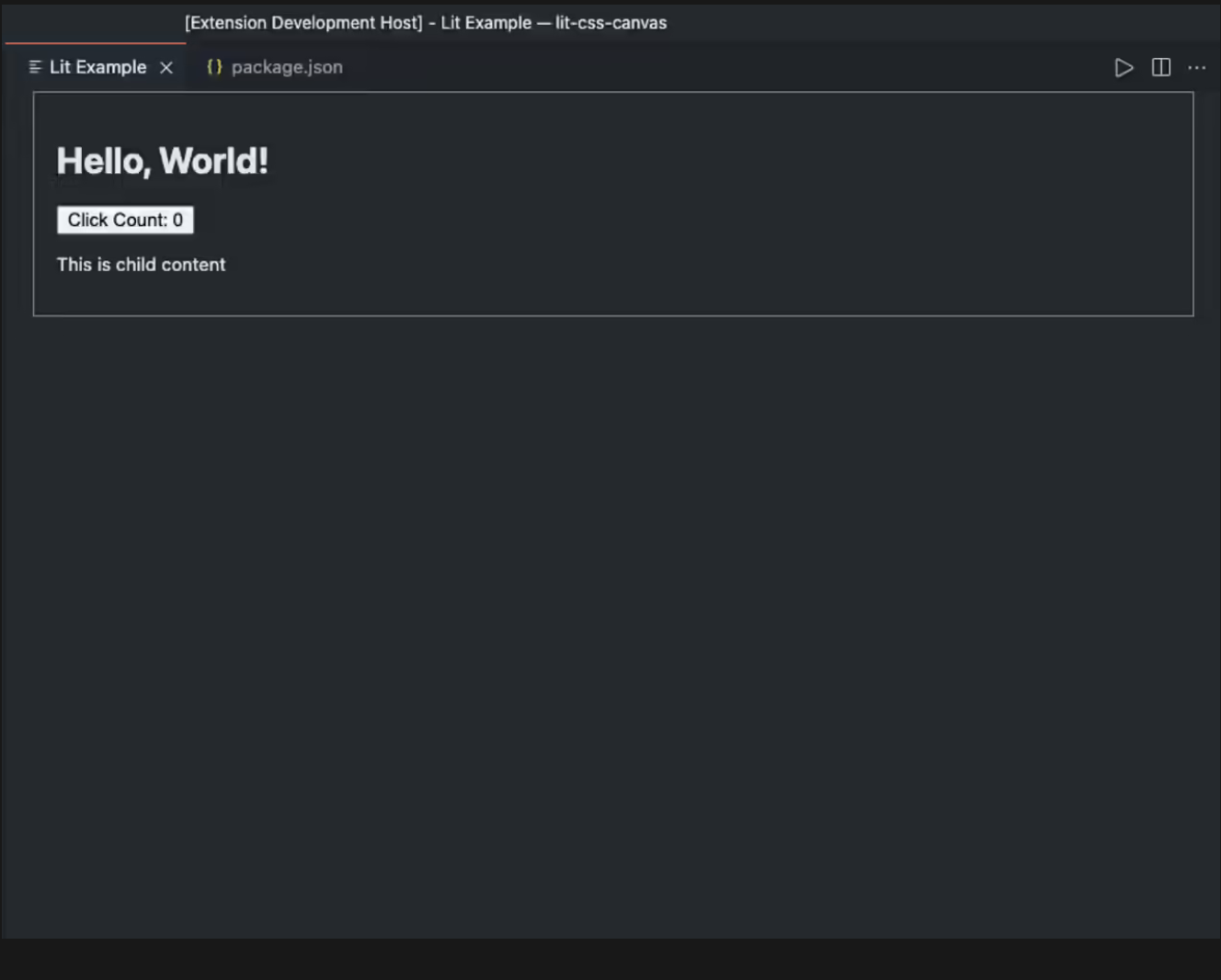
To run the commands to open the extension run lit: open plugin or lit: reset:

To debug the extension when it is open run Developer: Open Webview Developer Tools from the command pallet.

Conclusion
If you want to learn more about building a vscode extension you can read more here and for Lit you can read the docs here.
