<!-- Generated by ./gradlew generateReadme. Do not edit this file. -->
<!-- topic_top -->
<!-- Generated by docs/topics/top.md. Do not edit this file. -->
# Roborazzi
**Make JVM Android Integration Test Visible**
## Roborazzi now supports [Robolectric Native Graphics (RNG)](https://github.com/robolectric/robolectric/releases/tag/robolectric-4.10) and enables screenshot testing.📣
## Why Choose Roborazzi?
### Why is screenshot testing important?
Screenshot testing is key to validate your app's appearance and functionality. It efficiently
detects visual issues and tests the app as users would use it, making it easier to spot problems.
It's quicker than writing many assert statements, ensuring your app looks right and behaves
correctly.
### What are JVM tests and why test with JVM instead of on Android?
JVM tests, also known as local tests, are placed in the test/ directory and are run on a developer's
PC or CI environment. On the other hand, device tests, also known as Instrumentation tests, are
written in the androidTest/ directory and are run on real devices or emulators. Device testing can
result in frequent failures due to the device environment, leading to false negatives. These
failures are often hard to reproduce, making them tough to resolve.
### Paparazzi and Roborazzi: A Comparison
Paparazzi is a great tool for visualizing displays within the JVM. However, it's incompatible with
Robolectric, which also mocks the Android framework.
Roborazzi fills this gap. It integrates with Robolectric, allowing tests to run with Hilt and
interact with components. Essentially, Roborazzi enhances Paparazzi's capabilities, providing a more
efficient and reliable testing process by capturing screenshots with Robolectric.
**Leveraging Roborazzi in Test Architecture: An Example**
<img src="https://github.com/takahirom/roborazzi/assets/1386930/937a96a4-f637-4029-87e1-c1bb94abc8ae" width="320" />
**Integrating Roborazzi into the Architecture: An Example from DroidKaigi 2023 App**
In the DroidKaigi 2023 app, Roborazzi was introduced from the early stages of development as part of the architectural design. This integration allowed the team to verify changes throughout the development process. The specific architectural decisions and how they were implemented can be found [README](https://github.com/DroidKaigi/conference-app-2023#screenshot-testing-with-robolectric-native-graphics-rng-and-roborazzi).
## Using Roborazzi documentation with AI coding agents
Roborazzi ships its documentation as an installable [agent skill](https://skills.sh/). Running the
following command installs the docs into your AI coding agent (Claude Code, Cursor, Codex,
[Android Studio Agent Mode](https://developer.android.com/studio/gemini/skills), Antigravity,
Gemini CLI, etc.),
so the agent can look up Roborazzi setup and usage while working on your project:
```bash
npx skills add takahirom/roborazzi
```
<!-- end -->
<!-- topic_try_it_out -->
<!-- Generated by docs/topics/try_it_out.md. Do not edit this file. -->
# Try it out
Available on Maven Central.
## Add Robolectric
This is an example of adding Robolectric to your project:
https://github.com/takahirom/roborazzi-usage-examples/compare/b697...5c12
This library is dependent on Robolectric. Please see below to add Robolectric.
https://robolectric.org/getting-started/
## Add Roborazzi
This is an example of adding Roborazzi to your project:
https://github.com/takahirom/roborazzi-usage-examples/commit/3a02
To take screenshots, please use Robolectric 4.10 alpha 1 or later and please
add `@GraphicsMode(GraphicsMode.Mode.NATIVE)` to your test class.
```kotlin
@GraphicsMode(GraphicsMode.Mode.NATIVE)
```
<!-- end -->
<!-- topic_build_setup -->
<!-- Generated by docs/topics/build_setup.md. Do not edit this file. -->
# Build setup
Roborazzi is available on maven central.
This plugin simply creates Gradle tasks record, verify, compare and passes the configuration to the
test.
**build.gradle.kts**
<table>
<tr><td>plugins</td><td>buildscript</td></tr>
<tr><td>
Define plugin in root build.gradle.kts
```kotlin
plugins {
...
id("io.github.takahirom.roborazzi") version "[version]" apply false
}
```
Apply plugin in module build.gradle.kts
```kotlin
plugins {
...
id("io.github.takahirom.roborazzi")
}
```
</td><td>
root build.gradle.kts
```kotlin
buildscript {
dependencies {
...
classpath("io.github.takahirom.roborazzi:roborazzi-gradle-plugin:[version]")
}
}
```
module build.gradle.kts
```kotlin
plugins {
...
id("io.github.takahirom.roborazzi")
}
```
</td></tr>
</table>
<details>
<summary>build.gradle version</summary>
<table>
<tr><td>plugins</td><td>buildscript</td></tr>
<tr><td>
Define plugin in root build.gradle
```groovy
plugins {
...
id "io.github.takahirom.roborazzi" version "[version]" apply false
}
```
Apply plugin in module build.gradle
```groovy
plugins {
...
id 'io.github.takahirom.roborazzi'
}
```
</td><td>
root build.gradle
```groovy
buildscript {
dependencies {
...
classpath "io.github.takahirom.roborazzi:roborazzi-gradle-plugin:[version]"
}
}
```
module build.gradle
```groovy
apply plugin: "io.github.takahirom.roborazzi"
```
</td></tr>
</table>
</details>
## Add dependencies
| Description | Dependencies |
|-----------------|--------------------------------------------------------------------------------------|
| Core functions | `testImplementation("io.github.takahirom.roborazzi:roborazzi:[version]")` |
| Jetpack Compose | `testImplementation("io.github.takahirom.roborazzi:roborazzi-compose:[version]")` |
| JUnit rules | `testImplementation("io.github.takahirom.roborazzi:roborazzi-junit-rule:[version]")` |
## Run tasks
<table>
<tr>
<td> Use Roborazzi task </td> <td> Use default unit test task </td> <td> Description </td>
</tr>
<tr>
<td>
`./gradlew recordRoborazziDebug`
</td><td>
`./gradlew testDebugUnitTest` after adding `roborazzi.test.record=true` to your gradle.properties file.
or
`./gradlew testDebugUnitTest -Proborazzi.test.record=true`
</td><td>
Record a screenshot
Default output directory is `build/outputs/roborazzi`
You can check a report under `build/reports/roborazzi/index.html`
</td>
</tr>
<tr>
<td>
`./gradlew compareRoborazziDebug`
</td><td>
`./gradlew testDebugUnitTest` after adding `roborazzi.test.compare=true` to your gradle.properties file.
or
`./gradlew testDebugUnitTest -Proborazzi.test.compare=true`
</td><td>
Review changes made to an image. This action will
compare the current image with the saved one, generating a comparison image labeled
as `[original]_compare.png`. It also produces a JSON file containing the diff information, which can
be found under `build/test-results/roborazzi`.
</td>
</tr>
<tr>
<td>
`./gradlew verifyRoborazziDebug`
</td><td>
`./gradlew testDebugUnitTest` after adding `roborazzi.test.verify=true` to your gradle.properties file.
or
`./gradlew testDebugUnitTest -Proborazzi.test.verify=true`
</td><td>
Validate changes made to an image. If there is any difference between the current image and the
saved one, the test will fail.
</td>
</tr>
<tr>
<td>
`./gradlew verifyAndRecordRoborazziDebug`
</td><td>
`./gradlew testDebugUnitTest` after adding `roborazzi.test.verify=true` and `roborazzi.test.record=true` to your gradle.properties file.
or
`./gradlew testDebugUnitTest -Proborazzi.test.verify=true -Proborazzi.test.record=true`
</td><td>
This task will first verify the images and, if differences are detected, it will record a new
baseline.
</td>
</tr>
<tr>
<td>
`./gradlew clearRoborazziDebug`
</td><td>
This is not a test task.
</td><td>
Note: This is an experimental task.
This task will clear the saved images. This task also deletes the cached images.
Please be careful when using this task.
</td>
</tr>
</table>
The comparison image, saved as `[original]_compare.png`, is shown below:
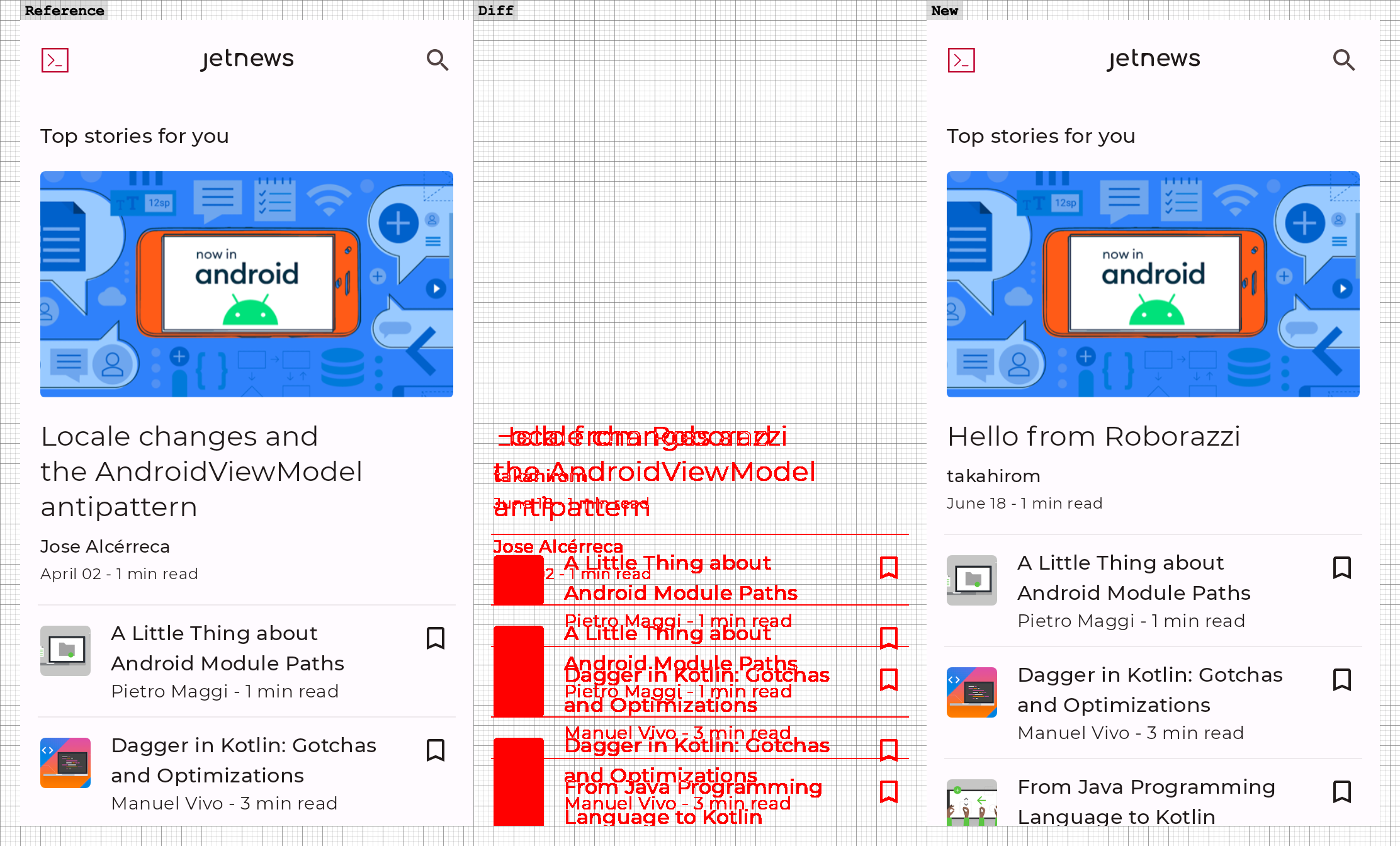
You can check the test report in `build/reports/roborazzi/index.html`
<img width="400" alt="image" src="https://github.com/takahirom/roborazzi/assets/1386930/7834a436-1927-438d-8656-61f583ae3f48" />
This
uses [JetNew from Compose Samples](https://github.com/android/compose-samples/tree/main/JetNews).
You can check the pull request introducing Roborazzi to the
compose-samples [here](https://github.com/takahirom/compose-samples/pull/1/files).
## Gradle DSL Options (Optional)
Roborazzi uses `module/build/outputs/roborazzi` as the default directory for reference images and comparison images. You can customize these paths in your `build.gradle` file:
```kotlin
roborazzi {
// Directory for reference images
outputDir.set(file("src/screenshots"))
// Directory for comparison images (Experimental option)
compare {
outputDir.set(file("build/outputs/screenshots_comparison"))
}
}
```
> [!NOTE]
> By default, when you use `captureRoboImage("image.png")`, the image will be saved as `module/image.png`.
> You can customize the file path strategy for the recorded image. The default strategy is `relativePathFromCurrentDirectory`. If you select `relativePathFromRoborazziContextOutputDirectory`, the file will be saved in the output directory specified by `roborazzi.outputDir`.
> This can be configured in your `gradle.properties` file:
>
> ```properties
> roborazzi.record.filePathStrategy=relativePathFromRoborazziContextOutputDirectory
> ```
### Separate output directories per variant/target (Experimental)
By default, every Roborazzi task shares a single output directory (`build/outputs/roborazzi`) and a single intermediate directory (`build/intermediates/roborazzi`). When multiple Roborazzi test tasks run in a single Gradle invocation (for example `check`, or Kotlin Multiplatform's `allTests`), their directory reads and writes can race with each other. On Gradle 9 this can hard-fail with `Cannot access input property 'roborazziImageInput'` (see [#830](https://github.com/takahirom/roborazzi/issues/830)).
Enabling `separateOutputDirs` gives each task slug its own subdirectory, so the tasks never share a directory:
```kotlin
roborazzi {
// Experimental
separateOutputDirs.set(true)
}
```
The unit of separation is the `recordRoborazzi<Slug>` slug:
- Android: the variant name, e.g. `build/outputs/roborazzi/debug/`, `build/outputs/roborazzi/release/`.
- Kotlin Multiplatform: the target (× test run) name, e.g. `build/outputs/roborazzi/desktop/`.
The intermediate directory is separated the same way (e.g. `build/intermediates/roborazzi/debug/`). If you set a custom `outputDir`, the per-slug subdirectory is created under it.
> [!IMPORTANT]
> Enabling this option changes where golden images are stored. Existing users must re-record (or manually move) their goldens into the new per-slug subdirectory, otherwise verification will not find them. This is opt-in and defaults to `false`, so existing behavior is unchanged unless you enable it.
>
> This also partially addresses requests for per-flavor/variant subdirectories ([#804](https://github.com/takahirom/roborazzi/issues/804), [#731](https://github.com/takahirom/roborazzi/issues/731)).
<!-- end -->
<!-- topic_how_to_use -->
<!-- Generated by docs/topics/how_to_use.md. Do not edit this file. -->
# How to use
## Take a screenshot manually
You can take a screenshot by calling captureRoboImage().
app/src/test/java/../ManualTest.kt
```kotlin
import androidx.compose.ui.test.junit4.createAndroidComposeRule
import androidx.test.core.app.ActivityScenario
import androidx.test.espresso.Espresso.onView
import androidx.test.ext.junit.runners.AndroidJUnit4
import org.junit.Test
import org.junit.runner.RunWith
import org.robolectric.annotation.GraphicsMode
// All you need to do is use the captureRoboImage function in the test!
import com.github.takahirom.roborazzi.captureRoboImage
// Tips: You can use Robolectric while using AndroidJUnit4
@RunWith(AndroidJUnit4::class)
// Enable Robolectric Native Graphics (RNG)
@GraphicsMode(GraphicsMode.Mode.NATIVE)
class ManualTest {
@get:Rule
val composeTestRule = createAndroidComposeRule<MainActivity>()
@Test
fun captureRoboImageSample() {
// Tips: You can use Robolectric with Espresso API
// launch
ActivityScenario.launch(MainActivity::class.java)
// Capture screen
onView(ViewMatchers.isRoot())
// If you don't specify a screenshot file name, Roborazzi will automatically use the method name as the file name for you.
// The format of the file name will be as follows:
// build/outputs/roborazzi/com_..._ManualTest_captureRoboImageSample.png
.captureRoboImage()
// Capture Jetpack Compose Node
composeTestRule.onNodeWithTag("AddBoxButton")
.onParent()
.captureRoboImage("build/compose.png")
}
}
```
Roborazzi supports the following APIs.
<table>
<tr><td>Capture</td><td>Code</td></tr>
<tr><td>
✅ Jetpack Compose's onNode()
</td><td>
```kotlin
composeTestRule.onNodeWithTag("AddBoxButton")
.captureRoboImage()
```
</td></tr>
<tr><td>
✅ Espresso's onView()
</td><td>
```kotlin
onView(ViewMatchers.isRoot())
.captureRoboImage()
```
```kotlin
onView(withId(R.id.button_first))
.captureRoboImage()
```
</td></tr>
<tr><td>
✅ View
</td><td>
```kotlin
val view: View = composeTestRule.activity.findViewById<View>(R.id.button_second)
view.captureRoboImage()
```
</td></tr>
<tr><td>
✅ Jetpack Compose lambda
</td><td>
```kotlin
captureRoboImage() {
Text("Hello Compose!")
}
```
</td></tr>
<tr><td>
Experimental🧪<br/>
✅ Captures the entire screen, including dialogs
</td><td>
```kotlin
captureScreenRoboImage()
```
</td></tr>
<tr><td>
✅ Bitmap
</td><td>
```kotlin
val bitmap: Bitmap = createBitmap(100, 100, Bitmap.Config.ARGB_8888)
.apply {
applyCanvas {
drawColor(android.graphics.Color.YELLOW)
}
}
bitmap.captureRoboImage()
```
</td></tr>
</table>
## Device configuration
You can configure the device by using the `@Config` annotation and `RobolectricDeviceQualifiers`.
<table>
<tr><td>Configuration</td><td>Code</td></tr>
<tr><td>
✅ Predefined device configuration
</td><td>
You can change the device configuration by adding `@Config` to the class or method.
```kotlin
@RunWith(AndroidJUnit4::class)
@GraphicsMode(GraphicsMode.Mode.NATIVE)
@Config(qualifiers = RobolectricDeviceQualifiers.Pixel5)
class RoborazziTest {
```
```kotlin
@Test
@Config(qualifiers = RobolectricDeviceQualifiers.Pixel5)
fun test() {
```
</td></tr>
<tr><td>
✅ Night mode
</td><td>
```kotlin
@Config(qualifiers = "+night")
```
</td></tr>
<tr><td>
✅ Locale
</td><td>
```kotlin
@Config(qualifiers = "+ja")
```
</td></tr>
<tr><td>
✅ Screen size
</td><td>
```kotlin
@Config(qualifiers = RobolectricDeviceQualifiers.MediumTablet)
```
</td></tr>
</table>
## Integrate to your GitHub Actions
See [Integrate to your GitHub Actions](https://takahirom.github.io/roborazzi/github-actions.html)
for CI workflows that store, verify, and compare screenshots.
## RoborazziRule (Optional)
RoborazziRule is a JUnit rule for Roborazzi.
RoborazziRule is **optional**. You can use `captureRoboImage()` without this rule.
RoborazziRule has two features.
1. Provide context such as `RoborazziOptions` and `outputDirectoryPath` etc for `captureRoboImage()`.
2. Capture screenshots for each test when specifying RoborazziRule.options.captureType.
For example, The following code generates an output file
named `**custom_outputDirectoryPath**/**custom_outputFileProvider**-com.github.takahirom.roborazzi.sample.RuleTestWithPath.captureRoboImage.png` :
```kotlin
@RunWith(AndroidJUnit4::class)
@GraphicsMode(GraphicsMode.Mode.NATIVE)
class RuleTestWithPath {
@get:Rule
val roborazziRule = RoborazziRule(
options = Options(
outputDirectoryPath = "$DEFAULT_ROBORAZZI_OUTPUT_DIR_PATH/custom_outputDirectoryPath",
outputFileProvider = { description, outputDirectory, fileExtension ->
File(
outputDirectory,
"custom_outputFileProvider-${description.testClass.name}.${description.methodName}.$fileExtension"
)
}
),
)
@Test
fun captureRoboImage() {
launch(MainActivity::class.java)
// The file will be saved using the rule's outputDirectoryPath and outputFileProvider
onView(isRoot()).captureRoboImage()
}
}
```
To record test interactions as animated images (`captureRoboGif()`, `recordRoboVideo()`),
see [Capture GIFs and videos](https://takahirom.github.io/roborazzi/gif-and-video.html).
### RoborazziRule options
`RoborazziRule.Options` has:
- `captureType` — what the rule captures per test: `None` (default; the rule only provides
context), `LastImage`, `AllImage` (an image per layout change, like `TestClass_method_0.png`),
or `Gif`. The image-generating types take `onlyFail = true` to capture only when the test
fails. Annotate a test with `@RoborazziRule.Ignore` to exclude it from these capture types.
- `outputDirectoryPath` / `outputFileProvider` — where output files go and how they are named.
- `roborazziOptions` — the `RoborazziOptions` provided to `captureRoboImage()` in the test.
See [RoborazziRule](https://github.com/takahirom/roborazzi/blob/main/roborazzi-junit-rule/src/main/java/com/github/takahirom/roborazzi/RoborazziRule.kt)
for the full definition.
#### Image comparator custom settings
When comparing images, you may encounter differences due to minor changes related to antialiasing. You can use the options below to avoid this.
```kotlin
@get:Rule
val roborazziRule = RoborazziRule(
options = RoborazziRule.Options(
roborazziOptions = RoborazziOptions(
compareOptions = RoborazziOptions.CompareOptions(
changeThreshold = 0.01, // For 1% accepted difference
imageComparator = SimpleImageComparator(
maxDistance = 0.007F, // 0.001F is default value from Differ
vShift = 2, // Increasing the shift can help resolve antialiasing issues
hShift = 2 // Increasing the shift can help resolve antialiasing issues
)
)
)
)
)
```
## Experimental WebP support and other image formats
You can set `roborazzi.record.image.extension` to `webp` in your `gradle.properties` file to generate WebP images.
```kotlin
roborazzi.record.image.extension=webp
```
WebP is a lossy image format by default, which can make managing image differences challenging. To address this, we provide a lossless WebP image comparison feature.
To enable WebP support, add `testImplementation("io.github.darkxanter:webp-imageio:0.3.3")` to your `build.gradle.kts` file.
```kotlin
onView(ViewMatchers.withId(R.id.textview_first))
.captureRoboImage(
roborazziOptions = RoborazziOptions(
recordOptions = RoborazziOptions.RecordOptions(
imageIoFormat = LosslessWebPImageIoFormat(),
),
)
)
```
You can also use other image formats by implementing your own `AwtImageWriter` and `AwtImageLoader`.
```kotlin
data class JvmImageIoFormat(
val awtImageWriter: AwtImageWriter,
val awtImageLoader: AwtImageLoader
) : ImageIoFormat
```
## Dump mode
If you are having trouble debugging your test, try Dump mode as follows.
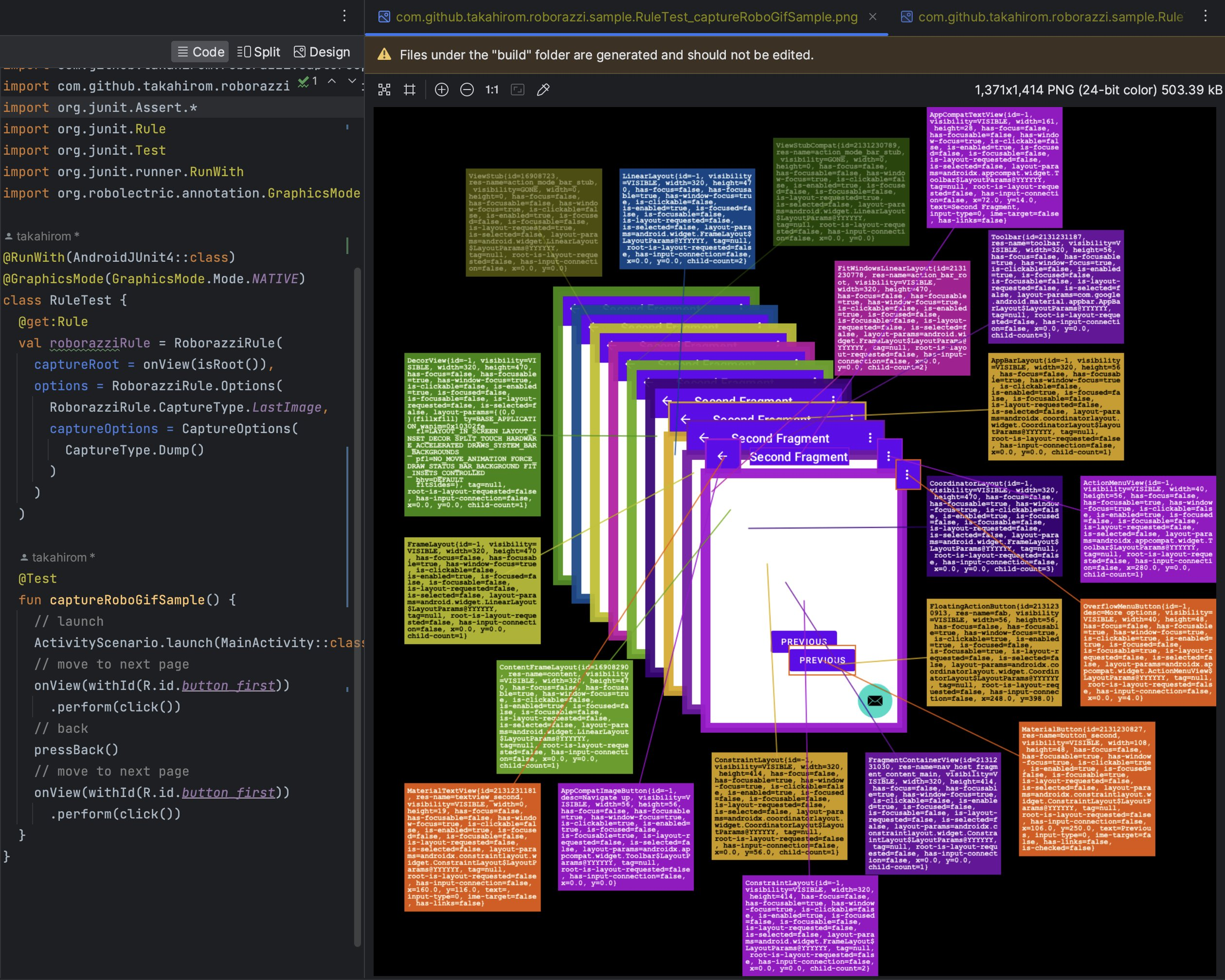
For a machine-readable version of the UI tree for tools and AI agents, see
[UI tree dump (JSON)](https://takahirom.github.io/roborazzi/ui-tree-dump.html).
## Accessibility Check
Roborazzi Accessibility Checks is a library that integrates accessibility checks into Roborazzi.
Please refer to [Accessibility Check](https://github.com/takahirom/roborazzi/blob/main/roborazzi-accessibility-check/README.md)
## Roborazzi options
Please check out [RoborazziOptions](https://github.com/takahirom/roborazzi/blob/main/include-build/roborazzi-core/src/commonJvmMain/kotlin/com/github/takahirom/roborazzi/RoborazziOptions.kt) for available Roborazzi options.
<!-- end -->
<!-- topic_ui_tree_dump -->
<!-- Generated by docs/topics/ui_tree_dump.md. Do not edit this file. -->
# UI tree dump (JSON)
While [Dump mode](https://takahirom.github.io/roborazzi/how-to-use.html#dump-mode)
renders the UI tree *into an image* for humans, **UI tree dump** writes a
machine-readable JSON **sidecar** next to the screenshot it describes, for tools
and AI agents to read. When enabled, capturing `MyTest.png` also writes
`MyTest.uitree.json` (the Compose semantics + View hierarchy of the current run)
and, by default, an annotated `MyTest.annotated.png` (see
[Annotated image](#annotated-image-set-of-mark) below).
The sidecar is written on record and compare/verify, next to the image the task
writes: `MyTest.uitree.json` on record, and `MyTest_actual.uitree.json` in the
compare output directory on compare/verify (an unchanged verify still writes it).
The sidecar is **informational only**: it never participates in image diffing and
never fails verification. Bitmap-based `captureRoboImage(Bitmap...)` captures
(which have no component tree) do not produce one.
Supported on Android/Robolectric, Compose Desktop, and Compose iOS, with identical
output.
## Enabling it
Via the Gradle property (no code change):
```shell
./gradlew recordRoborazziDebug -Proborazzi.dumpUiTree=true
```
Or per capture via `RoborazziOptions`:
```kotlin
onView(ViewMatchers.isRoot())
.captureRoboImage(
roborazziOptions = RoborazziOptions(
uiTreeDumpOptions = UiTreeDumpOptions()
)
)
```
## Format
```json
{ "schemaVersion": 1, "capture": { "imageWidth": 220, "imageHeight": 100, "scale": 1.0 }, "root":
{ "type": "view", "className": "androidx.compose.ui.platform.ComposeView", "bounds": [0, 0, 220, 100], "children": [
{ "n": 1, "type": "compose", "testTag": "login_button", "bounds": [16, 24, 204, 72], "properties": { "Role": "Button", "Text": "Login" }, "actions": ["OnClick"], "flags": ["MergeDescendants"] },
{ "n": 2, "type": "compose", "bounds": [16, 80, 204, 96], "properties": { "Text": "Forgot password?" } } ] }
}
```
The format is deliberately grep-first: one node per line with all of its scalar
attributes, so a single `grep` finds a node and its coordinates.
* `bounds` is `[left, top, right, bottom]` in **RAW (unscaled) window pixel**
coordinates; the root `capture` object carries the output `imageWidth`/
`imageHeight` and `scale`. Map to image pixels with
`image = (raw − root.bounds origin) × capture.scale` — the root origin is
`0, 0` for full-screen captures.
* Empty/default fields are omitted (no empty maps/lists, no `visibility` when the
node is visible).
* `n` is a sequential (1-based, pre-order) number on *annotatable* nodes only —
visible nodes with a test tag, a `Text`/`ContentDescription`, or an action; a
numbered `MergeDescendants` node's descendants are skipped.
* Output is **deterministic**: the same UI produces byte-identical JSON (no
timestamps, no hashes).
## Annotated image (Set-of-Mark)
"Set-of-Mark" refers to a prompting technique for vision-language models:
overlaying numbered marks on image regions lets a model refer to a region
unambiguously by its number ([Yang et al., 2023](https://arxiv.org/abs/2310.11441)).
<img width="440" alt="Annotated Set-of-Mark image" src="https://github.com/user-attachments/assets/208593c3-cd2b-4c0a-ae5b-e7cf6cd0260e" />
Written by default next to the screenshot — a copy of the output with every
numbered node drawn as a labelled box — under the same naming as the sidecar:
`MyTest.annotated.png` on record, `MyTest_actual.annotated.png` on compare/verify
(an unchanged verify annotates the identical golden).
Each box's number is the same `n` as in the JSON, so an agent can point at
"element #3" and look up `"n": 3` for its exact bounds, properties, and actions.
The annotated image is a **display artifact of the current run only** — never
compared, never failing a capture, never treated as a golden. Opt out with
`UiTreeDumpOptions(annotateImage = false)`.
## Primary use case: letting an AI agent prove its UI fixes
AI agents are bad at judging small layout changes from screenshots — ask one to
"add margin above the button" and it will often claim "fixed" when nothing moved.
The deterministic UI tree gives it exact coordinates to check instead, so the
agent can read the button's bounds before and after and prove the change actually
landed.
1. Record and read the node line:
```shell
./gradlew recordRoborazziDebug -Proborazzi.dumpUiTree=true
grep login_button build/outputs/roborazzi/MyTest.uitree.json
# { "n": 1, "testTag": "login_button", "bounds": [16, 24, 204, 72], ... }
```
`bounds` is `[left, top, right, bottom]`, so the top edge is at `24`.
2. Make the change, keeping that `before` value in context.
3. Re-record (it overwrites the sidecar in place) and grep the same line:
```text
# { "n": 1, "testTag": "login_button", "bounds": [16, 32, 204, 80], ... }
```
Top moved `24 → 32` — the button provably sits 8px lower. (To prove a *gap*,
also compare the sibling above: its `bottom` vs this `top`.) Because the output
is deterministic, any change in the numbers is a real layout change, not noise.
<!-- end -->
<!-- topic_github_actions -->
<!-- Generated by docs/topics/github_actions.md. Do not edit this file. -->
# Integrate to your GitHub Actions
It is easy to integrate Roborazzi to your GitHub Actions.
## Add a job to store screenshots
```yaml
name: store screenshots
on:
push
env:
GRADLE_OPTS: "-Dorg.gradle.jvmargs=-Xmx6g -Dorg.gradle.daemon=false -Dkotlin.incremental=false"
jobs:
test:
runs-on: macos-latest
steps:
- uses: actions/checkout@v4
- uses: actions/setup-java@v4
with:
distribution: 'zulu'
java-version: 19
- name: Setup Gradle
uses: gradle/actions/setup-gradle@v4
- name: test
run: |
# Create screenshots
./gradlew app:recordRoborazziDebug --stacktrace
# Upload screenshots to GitHub Actions Artifacts
- uses: actions/upload-artifact@v4
with:
name: screenshots
path: app/build/outputs/roborazzi
retention-days: 30
```
## Add a job to verify screenshots
```yaml
name: verify test
on:
push
env:
GRADLE_OPTS: "-Dorg.gradle.jvmargs=-Xmx6g -Dorg.gradle.daemon=false -Dkotlin.incremental=false"
jobs:
test:
runs-on: macos-latest
steps:
- uses: actions/checkout@v4
- uses: actions/setup-java@v4
with:
distribution: 'zulu'
java-version: 19
- name: Setup Gradle
uses: gradle/actions/setup-gradle@v4
# Download screenshots from main branch
- uses: dawidd6/action-download-artifact@v6
with:
name: screenshots
path: app/build/outputs/roborazzi
workflow: test.yaml
branch: main
- name: verify test
id: verify-test
run: |
# If there is a difference between the screenshots, the test will fail.
./gradlew app:verifyRoborazziDebug --stacktrace
- uses: actions/upload-artifact@v4
if: ${{ always() }}
with:
name: screenshot-diff
path: app/build/outputs/roborazzi
retention-days: 30
- uses: actions/upload-artifact@v4
if: ${{ always() }}
with:
name: screenshot-diff-reports
path: app/build/reports
retention-days: 30
- uses: actions/upload-artifact@v4
if: ${{ always() }}
with:
name: screenshot-diff-test-results
path: app/build/test-results
retention-days: 30
```
## Advanced workflow Sample: Compare Snapshot Results on Pull Requests
For those who are looking for a more advanced example, we have prepared a sample repository that
demonstrates how to use Roborazzi to compare snapshot results on GitHub pull requests. This sample
showcases the integration of Roborazzi with GitHub Actions workflows, making it easy to visualize
and review the differences between snapshots directly in the pull request comments.
Check out
the [roborazzi-compare-on-github-comment-sample](https://github.com/takahirom/roborazzi-compare-on-github-comment-sample)
repository to see this powerful feature in action and learn how to implement it in your own
projects.
Example of the comment
<img alt="Example of a Roborazzi screenshot comparison comment on a GitHub pull request" src="https://user-images.githubusercontent.com/1386930/236480693-80483cde-53fe-4c04-ba1f-2352e14b5f15.png" width="600" />
<!-- end -->
<!-- topic_gif_and_video -->
<!-- Generated by docs/topics/gif_and_video.md. Do not edit this file. -->
# Capture GIFs and videos
Roborazzi can record test interactions as animated images: `captureRoboGif()`
captures visually distinct states as a GIF, and `recordRoboVideo()` records
animations frame by frame over virtual time.
## Generate gif image
```kotlin
@Test
fun captureRoboGifSample() {
onView(ViewMatchers.isRoot())
.captureRoboGif("build/test.gif") {
// launch
ActivityScenario.launch(MainActivity::class.java)
// move to next page
onView(withId(R.id.button_first))
.perform(click())
// back
pressBack()
// move to next page
onView(withId(R.id.button_first))
.perform(click())
}
}
```
<img alt="GIF of the test interactions captured by captureRoboGif" width="350" src="https://user-images.githubusercontent.com/1386930/226362212-35d34c9e-6df1-4671-8949-10fad7ad98c9.gif" />
## Generate gif with test rule
> **Note**
> You **don't need to use RoborazziRule** if you're using captureRoboGif().
With the JUnit test rule, you do not need to name the gif image,
and if you prefer, you can output the gif image **only if the test fails**.
This test will output this file.
`build/outputs/roborazzi/com.github.takahirom.roborazzi.sample.RuleTestWithOnlyFail_captureRoboGifSampleFail.gif`
```kotlin
@RunWith(AndroidJUnit4::class)
@GraphicsMode(GraphicsMode.Mode.NATIVE)
class RuleTestWithOnlyFail {
@get:Rule
val roborazziRule = RoborazziRule(
captureRoot = onView(isRoot()),
options = Options(
captureType = RoborazziRule.CaptureType.Gif(
onlyFail = true
),
)
)
@Test
fun captureRoboGifSampleFail() {
// launch
ActivityScenario.launch(MainActivity::class.java)
// move to next page
onView(withId(R.id.button_first))
.perform(click())
// should fail because the button does not exist
// Due to failure, the gif image will be saved in the outputs folder.
onView(withId(R.id.button_first))
.perform(click())
}
}
```
## Generate Jetpack Compose gif with test rule
Test target
```kotlin
@Composable
fun SampleComposableFunction() {
var count by remember { mutableStateOf(0) }
Column(
Modifier
.size(300.dp)
) {
Box(
Modifier
.testTag("AddBoxButton")
.size(50.dp)
.clickable {
count++
}
)
(0..count).forEach {
Box(
Modifier
.size(30.dp)
)
}
}
}
```
Test (Just add RoborazziRule)
```kotlin
@RunWith(AndroidJUnit4::class)
@GraphicsMode(GraphicsMode.Mode.NATIVE)
class ComposeTest {
@get:Rule
val composeTestRule = createAndroidComposeRule<ComponentActivity>()
@get:Rule
val roborazziRule = RoborazziRule(
composeRule = composeTestRule,
captureRoot = composeTestRule.onRoot(),
options = RoborazziRule.Options(
RoborazziRule.CaptureType.Gif()
)
)
@Test
fun composable() {
composeTestRule.setContent {
SampleComposableFunction()
}
(0 until 3).forEach { _ ->
composeTestRule
.onNodeWithTag("AddBoxButton")
.performClick()
}
}
}
```

## Record a video of the UI (experimental)
`recordRoboVideo()` records how the UI evolves over virtual time -- animations, transitions,
gestures and any other time-driven change -- as an animated image that plays back in real time.
Unlike `captureRoboGif()`, which only records visually distinct states with a fixed 1-second
delay, it pauses the Compose main clock and drives it frame by frame, so intermediate animation
frames are captured with faithful timing. Interactions in the block run with the clock paused;
call `delay()` in the scope to advance virtual time while frames are recorded. After the block
returns, recording continues until the UI settles, so a block that only performs a click still
records the whole animation the click starts.
```kotlin
@OptIn(ExperimentalRoborazziApi::class)
@Test
fun recordVideo() {
composeTestRule.setContent {
AnimatedBoxContent()
}
composeTestRule.onNodeWithTag("root")
.recordRoboVideo(
composeRule = composeTestRule,
filePath = "build/outputs/roborazzi/video.gif",
videoOptions = RoboVideoOptions(fps = 10),
) {
composeTestRule.onNodeWithTag("toggle").performClick()
delay(300)
composeTestRule.onNodeWithTag("toggle").performClick()
delay(300)
}
}
```
- `RoboVideoOptions`: `fps` (default `10`), `settleTimeoutMillis` (additional virtual time to
keep recording while the UI is still changing after the block ends; default `3000`), and
`backgroundColor` (ARGB fill for the fixed recording viewport when frames have different
sizes; default white).
- **Output format is chosen by the file extension:** `.gif` produces a GIF (256 colors; the
default), `.png` a lossless, full-color APNG (Animated PNG) -- prefer `.png` when color
fidelity matters. Only these animated-image formats are supported for now; the "video" name
was chosen deliberately so real video formats (e.g. mp4) can be added later without renaming
the API.
- GIF stores frame delays in centiseconds (10ms resolution), so prefer an `fps` whose frame step
(`1000 / fps`) is a multiple of 10ms (e.g. 10, 20, 25, 50) for exact GIF timing. APNG encodes
the step exactly.
- The API is experimental (`@ExperimentalRoborazziApi`) and currently only supports recording:
when the Roborazzi task runs in compare/verify mode it is a complete no-op -- the block is not
executed and no image is recorded or verified.
`recordScreenRoboVideo()` records all window roots instead of a single node, mirroring how
`captureScreenRoboImage()` relates to `captureRoboImage()`. Prefer it when you want a stable,
device-sized viewport for every frame, or to capture window overlays such as dialogs added
mid-recording or touch/tap indicators, which live on separate window roots and are invisible to a
node-scoped recording. Usage is the same, just without node scoping:
```kotlin
recordScreenRoboVideo(
composeRule = composeTestRule,
filePath = "build/outputs/roborazzi/video_screen.gif",
videoOptions = RoboVideoOptions(fps = 10),
) {
composeTestRule.onNodeWithTag("toggle").performClick()
delay(300)
}
```
Because the recorder idles the Robolectric main Looper in lockstep with the Compose main clock,
suspend-based gesture drivers make progress while frames are recorded. For example, you can drive
a swipe with [saket/touch-robot](https://github.com/saket/touch-robot) from a `LaunchedEffect`,
use `recordScreenRoboVideo()` so the touch indicator overlay is captured, and just pump virtual
time in the block:
```kotlin
composeTestRule.setContent {
// A composable whose LaunchedEffect drives a touch-robot swipe on the root.
DraggableBoxContent()
}
recordScreenRoboVideo(
composeRule = composeTestRule,
filePath = "build/outputs/roborazzi/swipe.gif",
) {
// Pump virtual time so the LaunchedEffect gesture progresses while frames are captured.
delay(1000)
}
```
<!-- end -->
<!-- topic_preview_support -->
<!-- Generated by docs/topics/preview_support.md. Do not edit this file. -->
# Experimental Compose Preview Support
Roborazzi provides support for generating screenshot tests and easy setup for Jetpack Compose Preview.
This support uses [ComposablePreviewScanner](https://github.com/sergio-sastre/ComposablePreviewScanner) to scan the Composable Previews in your project.
## Generate Compose Preview screenshot tests
You first need to add the Roborazzi plugin to your project. Please refer to the [setup guide](https://takahirom.github.io/roborazzi/build-setup.html) for more information.
Then you can enable the Compose Preview screenshot test generation feature by adding the following configuration to your `build.gradle.kts` file:
```kotlin
roborazzi {
generateComposePreviewRobolectricTests {
enable = true
}
}
```
The plugin will not automatically change your settings or add dependencies to prevent conflicts with your existing setup. However, it will provide instructions on what to do next, such as adding dependencies and required code. You can also check the [sample project](https://github.com/takahirom/roborazzi/tree/main/sample-generate-preview-tests) for a complete example.
After that, you can run the `recordRoborazziDebug` task to generate screenshots using the generated tests, as described in the [setup guide](https://takahirom.github.io/roborazzi/build-setup.html).
### Customizing the Preview screenshot test
You can customize the generated test by adding the following configuration to your `build.gradle.kts` file:
```kotlin
roborazzi {
@OptIn(ExperimentalRoborazziApi::class)
generateComposePreviewRobolectricTests {
enable = true
// The package names to scan for Composable Previews.
packages = listOf("com.example")
// robolectricConfig will be passed to Robolectric's @Config annotation in the generated test class.
// See https://robolectric.org/configuring/ for more information.
robolectricConfig = mapOf(
"sdk" to "[32]",
"qualifiers" to "RobolectricDeviceQualifiers.Pixel5",
)
// If true, the private previews will be included in the test.
includePrivatePreviews = true
// The fully qualified class name of the custom test class that implements [com.github.takahirom.roborazzi.ComposePreviewTester].
testerQualifiedClassName = "com.example.MyCustomComposePreviewTester"
// The number of test classes to generate. Set this to match maxParallelForks for parallel test execution.
generatedTestClassCount = 4
// Experimental: render at a lower density to make the tests faster and the images smaller.
// See "Making the tests faster with renderScale" below.
// renderScale = 1.0 / 3
// Filter previews by annotation. See "Filtering previews by annotation" below.
annotationFilter = AnnotationFilter.Filter.RoboPreviewInclude
}
}
```
#### Advanced: Custom ComposePreviewTester Implementation
You can create a custom `ComposePreviewTester` to control the screenshot capture behavior, such as setting a custom image comparison threshold.
Note that `AndroidComposePreviewTester` is a final class, so you can't subclass it. Instead, use Kotlin class delegation and pass a custom `Capturer` to its constructor. Also, your tester class must have a parameterless constructor because the plugin instantiates it via reflection:
```kotlin
import com.dropbox.differ.SimpleImageComparator
import com.github.takahirom.roborazzi.*
import com.github.takahirom.roborazzi.ComposePreviewTester.TestParameter.JUnit4TestParameter.AndroidPreviewJUnit4TestParameter
@OptIn(ExperimentalRoborazziApi::class)
class MyCustomComposePreviewTester :
ComposePreviewTester<AndroidPreviewJUnit4TestParameter> by AndroidComposePreviewTester(
capturer = { parameter ->
val customOptions = parameter.roborazziOptions.copy(
compareOptions = parameter.roborazziOptions.compareOptions.copy(
// Set custom comparison threshold (0.0 = exact match, 1.0 = ignore differences)
imageComparator = SimpleImageComparator(maxDistance = 0.01f)
)
)
AndroidComposePreviewTester.DefaultCapturer().capture(
parameter.copy(roborazziOptions = customOptions)
)
}
)
```
If you need to customize more than the capture behavior, such as the scan options or the test lifecycle, you can override `options()` or `test()` in the delegating class.
`Options` is how the Gradle extension reaches your tester: the generated test assigns the configured values to `ComposePreviewTester.defaultOptionsFromPlugin`, and the default `options()` returns them. So when you override `options()`, derive the result with `super.options().copy(...)` instead of constructing a new `Options`, otherwise every setting the plugin configured is silently replaced by defaults. The same applies if you implement `test()` or the capture yourself: read the values from `options()` rather than assuming defaults.
Two settings need extra care with a custom tester:
- `includePrivatePreviews` and `annotationFilter` are consumed by `testParameters()`. Because a custom tester usually overrides it, the plugin rejects the combination unless you set `useScanOptionParametersInTester = true` and read `options().scanOptions` yourself.
- `renderScale` (see [Making the tests faster with `renderScale`](#making-the-tests-faster-with-renderscale)) is consumed at capture time, so the class-delegation pattern above keeps working. If you override `test()` yourself, see the `renderScale` property documentation for what to pass to `preview.toRoborazziComposeOptions(renderScale)`. A tester that drops the value fails the generated test with an explanation, so a silently unscaled screenshot is not possible.
Then reference your custom tester in the Gradle configuration:
```kotlin
roborazzi {
@OptIn(ExperimentalRoborazziApi::class)
generateComposePreviewRobolectricTests {
enable = true
testerQualifiedClassName = "com.example.MyCustomComposePreviewTester"
}
}
```
> [!NOTE]
> If you are using Groovy DSL instead of Kotlin DSL, you need to use the set method for each assignment:
> ```kotlin
> generateComposePreviewRobolectricTests.enable.set(true)
> generateComposePreviewRobolectricTests.packages.set(["com.example"])
> ```
### Making the tests faster with `renderScale`
If the generated tests are slow or the recorded images are large, `renderScale` is the knob for it.
A value below 1.0 renders every preview at a lower device density, so fewer pixels are rendered:
the tests spend less time rendering and the images take less space. What you pay for it is
fidelity, so it pays off on previews that stay readable at the smaller size.
What the scale does and does not change — density-qualified resources, raw-pixel drawing, the dpi
rounding, when it is applied — is documented on the `renderScale` property itself, which your IDE
shows as you type it.
`renderScale` is not the same as `resizeScale`:
| Property | When it applies | What it changes |
| --- | --- | --- |
| `renderScale` | Before Compose renders | Device density. Logical dp dimensions are preserved, so a smaller surface is rendered. Density-qualified resources (`drawable-hdpi` and so on) may resolve differently. |
| `resizeScale` (`RoborazziOptions.RecordOptions`, `roborazzi.record.resizeScale`) | After the screenshot is captured | Downsamples the captured bitmap. Rendering cost is unchanged. |
Both change the recorded image dimensions at the same output paths, so existing golden images have to be recorded again after you set either of them.
In the Groovy DSL, write the value as a `double` literal: `renderScale = 0.5d`. A bare `0.5` is a `BigDecimal` and fails to convert.
To scale a single preview differently, annotate it with `@RoboComposePreviewOptions(renderScale = ...)`. This is useful when only a few previews are large enough to be worth the loss of fidelity:
```kotlin
@RoboComposePreviewOptions(renderScale = 0.5)
@Preview(device = "spec:width=1280dp,height=800dp,dpi=240")
@Composable
fun TabletPreview() {
}
```
Previews without the annotation keep the scale configured in the Gradle extension.
### Filtering previews by annotation
`annotationFilter` controls which previews are captured (requires the `roborazzi-annotations` dependency).
By default it is `AnnotationFilter.Filter.RoboPreviewExclude`, so previews annotated with
`@RoboPreviewExclude` are skipped. Set it to `RoboPreviewInclude` to capture **only** previews
annotated with `@RoboPreviewInclude`:
```kotlin
roborazzi {
@OptIn(ExperimentalRoborazziApi::class)
generateComposePreviewRobolectricTests {
enable = true
packages = listOf("com.example")
annotationFilter = AnnotationFilter.Filter.RoboPreviewInclude
}
}
```
To filter by your own annotations, pass their fully qualified class names
(use the JVM binary name with `$` for nested classes, e.g. `com.example.Outer$Inner`):
```kotlin
// Set either one, not both
annotationFilter = AnnotationFilter.Exclude("com.example.MyExcludeAnnotation")
annotationFilter = AnnotationFilter.Include("com.example.MyIncludeAnnotation")
```
### Compose Multiplatform previews
The Compose Preview support also works with Compose Multiplatform common previews (`@Preview` in `commonMain`). You can scan them with the `CommonComposablePreviewScanner` from the ComposablePreviewScanner `common` artifact in a custom tester; the generated tests run as Android unit tests with Robolectric. See the [multiplatform sample project](https://github.com/takahirom/roborazzi/tree/main/sample-generate-preview-tests-multiplatform) for a complete setup.
## Experimental Compose Desktop Preview Support
Roborazzi can also generate preview screenshot tests for the Compose Desktop (JVM)
target, without Robolectric. Previews are scanned with ComposablePreviewScanner's
`android` artifact, which is a pure-JVM jar: it finds the multiplatform
`androidx.compose.ui.tooling.preview.Preview` annotation on the classpath, so previews
declared in `commonMain` are captured too.
### Robolectric or Desktop — trade-offs
- **Fidelity**: Robolectric renders with the Android framework; desktop renders with the
host's Skia, so the same preview produces different images — goldens are per-platform.
- **Speed**: desktop tests run roughly 4–6x faster than the Robolectric ones ([benchmark](https://github.com/takahirom/roborazzi/pull/903)).
- **Adoption cost**: requires a Kotlin JVM target — a Kotlin Multiplatform `jvm()`
target or a plain `org.jetbrains.kotlin.jvm` project. For an Android-only project
that means a KMP migration first — stick with the Robolectric preview tests there.
Desktop tests shine for already-multiplatform code and Desktop-only apps.
Enable it in your `build.gradle.kts`:
```kotlin
roborazzi {
@OptIn(ExperimentalRoborazziApi::class)
generateComposePreviewDesktopTests {
enable = true
packages = listOf("com.example")
// Required only when the project has multiple Kotlin JVM targets:
// targetName = "desktop"
}
}
```
Add the dependencies to the JVM target's test source set. If your previews use the
Roborazzi marker annotations (`@RoboPreviewExclude`, `@RoboComposePreviewOptions`, ...),
also add `roborazzi-annotations` to the source set that declares the previews
(usually `commonMain` — test dependencies do not flow into main source sets):
```kotlin
kotlin {
sourceSets {
val commonMain by getting {
dependencies {
// Only needed when previews use the Roborazzi marker annotations
implementation("io.github.takahirom.roborazzi:roborazzi-annotations:[version]")
}
}
val desktopTest by getting {
dependencies {
implementation("io.github.takahirom.roborazzi:roborazzi-compose-desktop-preview-scanner-support:[version]")
implementation("io.github.sergio-sastre.ComposablePreviewScanner:android:[version]")
implementation("junit:junit:4.13.2")
}
}
}
}
```
Plain JVM projects (`org.jetbrains.kotlin.jvm`) are also supported: add the same
dependencies with `testImplementation(...)` and use the `Jvm` task names
(`recordRoborazziJvm`, `compareRoborazziJvm`, `verifyRoborazziJvm`).
Then run the desktop Roborazzi tasks:
```shell
./gradlew recordRoborazziDesktop
./gradlew compareRoborazziDesktop
./gradlew verifyRoborazziDesktop
```
Note: ComposablePreviewScanner is published with JVM 17 metadata, so the desktop
target needs to target JVM 17 (or relax the test classpath's `TargetJvmVersion`
attribute). See the [desktop multiplatform sample](https://github.com/takahirom/roborazzi/tree/main/sample-compose-desktop-multiplatform)
for a complete setup, including manual usage of the tester API without the generator.
### Screenshot naming and mixed modules
Desktop preview screenshots use the same file names as the Robolectric preview tests
(fully qualified class name + method name + preview parameter suffix), so the same
preview produces the same file name on both platforms. If one module enables **both**
`generateComposePreviewRobolectricTests` and `generateComposePreviewDesktopTests`, the
two sets of screenshots would overwrite each other in the shared output directory, so
Roborazzi fails with a configuration error unless
[`separateOutputDirs`](https://takahirom.github.io/roborazzi/build-setup.html#separate-output-directories-per-varianttarget-experimental)
is enabled, which gives each task its own subdirectory.
### Customizing the desktop tester
`DefaultDesktopComposePreviewTester` accepts a `Capturer` whose receiver is the raw
`ComposeUiTest` scope, so anything possible inside `runDesktopComposeUiTest` — clock
control, interactions, wrapping the content in a theme — stays possible:
```kotlin
@OptIn(ExperimentalRoborazziApi::class, ExperimentalTestApi::class)
class MyDesktopPreviewTester : DesktopComposePreviewTester by DefaultDesktopComposePreviewTester(
capturer = DefaultDesktopComposePreviewTester.Capturer { parameter ->
setContent { MyTheme { parameter.preview() } }
// Keep @RoboComposePreviewOptions manualClockOptions working: without this,
// time-suffixed captures would all show the initial state.
advanceMainClockFor(parameter)
onRoot().captureRoboImage(parameter.filePath, parameter.roborazziOptions)
}
)
```
Reference your tester in the Gradle configuration with
`testerQualifiedClassName = "com.example.MyDesktopPreviewTester"` (the class needs a
parameterless constructor). If you need to change scanning or file naming as well,
implement `DesktopComposePreviewTester` by delegating to the default tester and
override the corresponding method (`testParameters()` / `test()`).
To wrap each generated test in a JUnit `TestRule` (a `TestWatcher`, retry rule, etc.),
override `options()` and provide a `testRuleFactory`:
```kotlin
@OptIn(ExperimentalRoborazziApi::class, InternalRoborazziApi::class)
class MyDesktopPreviewTester : DesktopComposePreviewTester by DefaultDesktopComposePreviewTester() {
override fun options(): DesktopComposePreviewTester.Options =
DesktopComposePreviewTester.defaultOptionsFromPlugin.copy(
testLifecycleOptions = DesktopComposePreviewTester.Options.JUnit4TestLifecycleOptions(
testRuleFactory = { MyWatcherRule() }
)
)
}
```
Unlike the Robolectric tester there is no compose rule factory: Compose Desktop's test
harness is function-scoped (`runDesktopComposeUiTest`), not rule-based.
### Feature parity with the Android preview support
| Feature | Android (Robolectric) | Compose Desktop |
|---|---|---|
| Generated preview tests | ✅ | ✅ |
| `packages`, `includePrivatePreviews`, `testerQualifiedClassName`, `generatedTestClassCount` | ✅ | ✅ |
| `annotationFilter` (`@RoboPreviewInclude` / `@RoboPreviewExclude`) | ✅ | ✅ |
| `@PreviewParameter` (`PreviewParameterProvider`, one capture per value) | ✅ | ✅ |
| `@RoboComposePreviewOptions` (`manualClockOptions`, one test per variation) | ✅ | ✅ |
| Custom JUnit `TestRule` around generated tests (`testRuleFactory`) | ✅ | ✅ |
| Compose rule factory (`composeRuleFactory`) | ✅ | Not applicable (function-scoped harness) |
| `@Preview` annotation options (`widthDp`/`heightDp`, `fontScale`, `showBackground`/`backgroundColor`, `locale`, `uiMode` dark bit) | ✅ (see below) | ✅ |
| `@Preview(device = ...)` | ✅ | Not applicable (no device configuration on desktop) |
| `robolectricConfig` (device qualifiers, SDK) | ✅ | Not applicable |
On Compose Desktop the `@Preview` annotation options are applied as follows:
- `widthDp`/`heightDp`: the preview is wrapped in a fixed-size box (density is `1`, so 1dp equals 1px). When neither is specified the preview still renders wrap-content.
- `fontScale`: applied through `LocalDensity` (density stays `1`), because `DeviceConfigurationOverride.FontScale` is unsupported on desktop.
- `showBackground`/`backgroundColor`: draws a background behind the preview, defaulting to white when `showBackground = true` but no color is given.
- `locale`: sets `java.util.Locale.getDefault()` for the capture and restores it afterwards. Accepts `"ja"`, `"ja-rJP"`, and `"ja-JP"` forms.
- `uiMode`: only the night bit is honored (dark mode via `LocalSystemTheme`); other configuration bits are ignored.
- `device`: not applicable, as desktop has no device configuration.
## Annotation-based Capture Control
To enable fine-grained control over screenshot timing in Compose Previews, add the annotations dependency:
```gradle
testImplementation("io.github.takahirom.roborazzi:roborazzi-annotations:[version]")
```
Use `@RoboComposePreviewOptions` to configure time-based captures:
```kotlin
@RoboComposePreviewOptions(
manualClockOptions = [ManualClockOptions(advanceTimeMillis = 516L)]
)
@Preview
@Composable
fun DelayedPreview() {
var visible by remember { mutableStateOf(false) }
LaunchedEffect(Unit) {
delay(500)
visible = true
}
if (visible) {
Text("Content appears after 500ms")
}
}
```
This annotation enables capturing screenshots at specific time intervals, particularly useful for testing animated components or delayed state changes.
## PreviewWrapper support
Previews annotated with [`@PreviewWrapper`](https://developer.android.com/reference/kotlin/androidx/compose/ui/tooling/preview/PreviewWrapper) (Compose UI 1.11+) are automatically wrapped by ComposablePreviewScanner 0.9.0 or later, so the wrapper's content, such as a theme or background, appears in the screenshots without any extra setup:
```kotlin
class MyWrapperProvider : PreviewWrapperProvider {
@Composable
override fun Wrap(content: @Composable () -> Unit) {
MyTheme { content() }
}
}
@PreviewWrapper(MyWrapperProvider::class)
@Preview
@Composable
fun WrappedPreview() { ... }
```
## Manually adding Compose Preview screenshot tests
Roborazzi provides a helper function for ComposablePreviewScanner.
You can add the following dependency to your project to use the helper function:
`testImplementation("io.github.takahirom.roborazzi:roborazzi-compose-preview-scanner-support:[version]")`
Then you can use the `ComposablePreview<AndroidPreviewInfo>.captureRoboImage()` function to capture the Composable Preview using the settings in Preview annotations.
To obtain the `ComposablePreview` object, please refer to [ComposablePreviewScanner](https://github.com/sergio-sastre/ComposablePreviewScanner).
```kotlin
fun ComposablePreview<AndroidPreviewInfo>.captureRoboImage(
filePath: String,
roborazziOptions: RoborazziOptions
)
```
### The supported `@Preview` annotation options
Currently, we don't support all the annotation options provided by the Compose Preview.
You can check the supported annotations in the [source code](https://github.com/takahirom/roborazzi/blob/0810ceb7133e6ec38472046cb741242a5ef6ab9e/roborazzi-compose-preview-scanner-support/src/main/java/com/github/takahirom/roborazzi/RoborazziPreviewScannerSupport.kt#L27).
We are looking forward to your contributions to support more annotation options.
<!-- end -->
<!-- topic_ai_powered_image_assertion -->
<!-- Generated by docs/topics/ai_powered_image_assertion.md. Do not edit this file. -->
# Experimental AI-Powered Image Assertion
Roborazzi supports AI-powered image assertion.
AI-powered image assertion is an experimental feature. Screenshot tests are a great way to verify your app's UI, but verifying the content of the images can be a tedious and time-consuming task. This manual effort reduces scalability. Roborazzi can help automate this process through AI-powered image assertion, making it more efficient and scalable.
There are two library modules: `io.github.takahirom.roborazzi:roborazzi-ai-gemini` and `io.github.takahirom.roborazzi:roborazzi-ai-openai` for AI-powered image assertion.
`roborazzi-ai-gemini` leverages [Gemini](https://gemini.google.com/) and [generative-ai-kmp](https://github.com/PatilShreyas/generative-ai-kmp), while `roborazzi-ai-openai` utilizes the [OpenAI API](https://platform.openai.com/) through raw HTTP API calls implemented with Ktor and KotlinX Serialization
```kotlin
...
@get:Rule
val composeTestRule = createAndroidComposeRule<MainActivity>()
@get:Rule
val roborazziRule = RoborazziRule(
options = RoborazziRule.Options(
roborazziOptions = RoborazziOptions(
compareOptions = RoborazziOptions.CompareOptions(
aiAssertionOptions = AiAssertionOptions(
aiAssertionModel = GeminiAiAssertionModel(
// DO NOT HARDCODE your API key in your code.
// This is an example passing API Key through unitTests.all{ environment(key, value) }
apiKey = System.getenv("gemini_api_key") ?: ""
),
)
)
)
)
)
@Test
fun captureWithAi() {
ROBORAZZI_DEBUG = true
onView(ViewMatchers.isRoot())
.captureRoboImage(
roborazziOptions = provideRoborazziContext().options.addedAiAssertions(
AiAssertionOptions.AiAssertion(
assertionPrompt = "it should have PREVIOUS button",
requiredFulfillmentPercent = 90,
),
AiAssertionOptions.AiAssertion(
assertionPrompt = "it should show First Fragment",
requiredFulfillmentPercent = 90,
)
)
)
}
```
## Behavior of AI-Powered Image Assertion
AI-Powered Image Assertion runs only when the images are different. If the images are the same, AI-Powered Image Assertion is skipped.
This is because AI-Powered Image Assertion can be slow and expensive.
## Manual Image Assertion
You can use manual image assertion with Roborazzi. This allows you to utilize local LLMs or other LLMs. Manual Image Assertion doesn't require adding any dependencies other than Roborazzi itself.
You must provide the `AiAssertionModel` to `RoborazziOptions` to use manual image assertion.
```kotlin
interface AiAssertionModel {
fun assert(
referenceImageFilePath: String,
comparisonImageFilePath: String,
actualImageFilePath: String,
aiAssertionOptions: AiAssertionOptions
): AiAssertionResults
fun assert(
targetImages: TargetImages,
aiAssertionOptions: AiAssertionOptions
): AiAssertionResults
}
```
```kotlin
compareOptions = RoborazziOptions.CompareOptions(
aiAssertionOptions = AiAssertionOptions(
aiAssertionModel = object : AiAssertionOptions.AiAssertionModel {
override fun assert(
referenceImageFilePath: String,
comparisonImageFilePath: String,
actualImageFilePath: String,
aiAssertionOptions: AiAssertionOptions
): AiAssertionResults {
// You can use any LLMs here to create AiAssertionResults
return AiAssertionResults(
aiAssertionResults = aiAssertionOptions.aiAssertions.map { assertion ->
AiAssertionResult(
assertionPrompt = assertion.assertionPrompt,
fulfillmentPercent = 100,
requiredFulfillmentPercent = assertion.requiredFulfillmentPercent,
failIfNotFulfilled = assertion.failIfNotFulfilled,
explanation = "This is a manual test.",
)
}
)
}
override fun assert(
targetImages: TargetImages,
aiAssertionOptions: AiAssertionOptions
): AiAssertionResults {
// targetImages.images holds the images to assert (e.g. targetImages.images.first().filePath)
return AiAssertionResults(
aiAssertionResults = aiAssertionOptions.aiAssertions.map { assertion ->
AiAssertionResult(
assertionPrompt = assertion.assertionPrompt,
fulfillmentPercent = 100,
requiredFulfillmentPercent = assertion.requiredFulfillmentPercent,
failIfNotFulfilled = assertion.failIfNotFulfilled,
explanation = "This is a manual test.",
)
}
)
}
},
aiAssertions = listOf(
AiAssertionOptions.AiAssertion(
assertionPrompt = "it should have PREVIOUS button",
requiredFulfillmentPercent = 90,
),
),
)
)
...
```
<!-- end -->
<!-- topic_idea_plugin -->
<!-- Generated by docs/topics/idea_plugin.md. Do not edit this file. -->
# Roborazzi IntelliJ IDEA and Android Studio Plugin
[https://plugins.jetbrains.com/plugin/24561-roborazzi](https://plugins.jetbrains.com/plugin/24561-roborazzi)
Demo of Roborazzi IntelliJ IDEA and Android Studio Plugin.
[https://github.com/takahirom/roborazzi/assets/1386930/bd3e8106-1971-4ec4-b764-3f1831999228](https://github.com/takahirom/roborazzi/assets/1386930/bd3e8106-1971-4ec4-b764-3f1831999228)
The Roborazzi plugin enhances your development workflow by automatically displaying screenshots related to Roborazzi's screenshot tests within IntelliJ IDEA. Easily view and verify visual outputs directly in your IDE, streamlining your testing and development process.
<!-- end -->
<!-- topic_compose_multiplatform -->
<!-- Generated by docs/topics/compose_multiplatform.md. Do not edit this file. -->
# Multiplatform support
## Experimental feature: iOS support
Roborazzi supports Compose Multiplatform iOS. You can use Roborazzi with Compose iOS as follows:
Gradle settings
```kotlin
plugins {
kotlin("multiplatform")
id("org.jetbrains.compose")
id("io.github.takahirom.roborazzi")
}
kotlin {
sourceSets {
...
val appleTest by getting {
dependencies {
implementation("io.github.takahirom.roborazzi:roborazzi-compose-ios:[version]") // Use 1.13.0 or higher
implementation(kotlin("test"))
}
}
...
```
Test with Roborazzi
```kotlin
class IosTest {
@OptIn(ExperimentalTestApi::class)
@Test
fun test() {
runComposeUiTest {
setContent {
MaterialTheme {
Column {
Button(onClick = { }) {
Text("Hello World")
}
Box(
modifier = Modifier
.background(Color.Red.copy(alpha = 0.5f), MaterialTheme.shapes.small)
.size(100.dp),
)
}
}
}
// iOS uses the same RoborazziOptions as the other targets. For example,
// allow up to 1% of pixels to differ before a comparison fails.
val roborazziOptions = RoborazziOptions(
compareOptions = RoborazziOptions.CompareOptions(changeThreshold = 0.01F),
)
// Unlike the JVM, iOS has no automatic file-name generation, so filePath
// is required for every capture.
onRoot().captureRoboImage(this, filePath = "ios.png", roborazziOptions = roborazziOptions)
onNodeWithText("Hello World").captureRoboImage(
this,
filePath = "ios_button.png",
roborazziOptions = roborazziOptions,
)
}
}
}
```
Then, you can run the Gradle tasks for iOS Support, just like you do for Android Support.
```
./gradlew recordRoborazzi[SourceSet]
```
```
./gradlew recordRoborazziIosSimulatorArm64
./gradlew compareRoborazziIosSimulatorArm64
./gradlew verifyRoborazziIosSimulatorArm64
...
```
The currently implemented features for iOS support are as follows:
| Feature | status |
|---|---|
| Record | supported |
| Compare | supported |
| Verify | supported |
| Report | supported |
| Dropbox/Differ comparison | supported |
| threshold / resultValidator | supported |
| diffPercentage | supported |
| resizing image (resizeScale) | supported |
| context data | supported (user-supplied only; the automatically-added default context data such as the test class name is JVM-only) |
| custom reporter | supported |
| ComparisonStyle | supported (Simple and Grid; Grid falls back to Simple when the density is unavailable) |
| RoborazziRecordFilePathStrategy | 🆖 (filePath is required; a relative path always resolves against the output directory) |
| automatic file naming | 🆖 (filePath is required) |
| image format | PNG only (WebP encoding is not supported on iOS) |
| pixelBitConfig | 🆖 (Rgb565 falls back to Argb8888 with a warning; CoreGraphics has no 5-6-5 format) |
| dump | n/a (Robolectric-only concept) |
| applyDeviceCrop | n/a (Robolectric-only concept) |
| UI tree dump JSON sidecar (`uiTreeDumpOptions`) | supported (record writes `MyTest.uitree.json` next to the golden; compare/verify writes `MyTest_actual.uitree.json` in the compare output directory — the same `_actual` basename contract as the other platforms) |
| UI tree annotated image (`annotateImage`) | supported (drawn with UIKit/CoreGraphics; `MyTest.annotated.png` / `MyTest_actual.annotated.png`, matching the Android/Desktop look) |
> **Note on translucent pixels:** the iOS canvas stores pixels premultiplied (a CoreGraphics constraint), so translucent colors lose precision proportional to `255 / alpha` (opaque pixels are lossless). The loss is deterministic, so comparing identically-produced images is unaffected; only cross-source comparisons of low-alpha content may need a small threshold.
iOS runs on the same shared pipeline as the JVM and Compose Desktop targets
(`RoborazziOptions` → `processOutputImageAndReport` → `RoboCanvas`), so the image
comparator, threshold / `resultValidator`, `resizeScale`, context data, custom
reporters, and the `reference | diff | new` comparison output (including
`ComparisonStyle.Grid`) all behave the same way. A few platform-specific
features remain unsupported (see the table above); contributions are welcome.
## Experimental feature: Compose Desktop support
Roborazzi supports Compose Desktop. You can use Roborazzi with Compose Desktop as follows:
Gradle settings
```kotlin
plugins {
kotlin("multiplatform")
id("org.jetbrains.compose")
id("io.github.takahirom.roborazzi")
}
kotlin {
// You can use your source set name
jvm("desktop")
sourceSets {
...
val desktopTest by getting {
dependencies {
implementation("io.github.takahirom.roborazzi:roborazzi-compose-desktop:[version]") // Use 1.6.0-alpha-2 or higher
implementation(kotlin("test"))
}
}
...
```
Test target Composable function
```kotlin
@Composable
fun App() {
var text by remember { mutableStateOf("Hello, World!") }
MaterialTheme {
Button(
modifier = Modifier.testTag("button"),
onClick = {
text = "Hello, Desktop!"
}) {
Text(
style = MaterialTheme.typography.h2,
text = text
)
}
}
}
```
Test with Roborazzi
```kotlin
class MainKmpTest {
@OptIn(ExperimentalTestApi::class)
@Test
fun test() = runDesktopComposeUiTest {
setContent {
App()
}
val roborazziOptions = RoborazziOptions(
recordOptions = RoborazziOptions.RecordOptions(
resizeScale = 0.5
),
compareOptions = RoborazziOptions.CompareOptions(
changeThreshold = 0F
)
)
onRoot().captureRoboImage(roborazziOptions = roborazziOptions)
onNodeWithTag("button").performClick()
onRoot().captureRoboImage(roborazziOptions = roborazziOptions)
}
}
```
Then, you can run the Gradle tasks for Desktop Support, just like you do for Android Support.
```
./gradlew recordRoborazzi[SourceSet]
```
```
./gradlew recordRoborazziDesktop
./gradlew compareRoborazziDesktop
./gradlew verifyRoborazziDesktop
...
```
If you use the Kotlin JVM plugin, the task will be `recordRoborazzi**Jvm**`.
Compose Desktop has **full [UI tree dump](https://takahirom.github.io/roborazzi/ui-tree-dump.html)
support**: enabling `uiTreeDumpOptions` (or `-Proborazzi.dumpUiTree=true`) on a
`SemanticsNodeInteraction.captureRoboImage` writes both the `MyTest.uitree.json`
sidecar and (by default) the annotated `MyTest.annotated.png`, with the same
naming and `_actual` basename semantics as Android.
The sample image
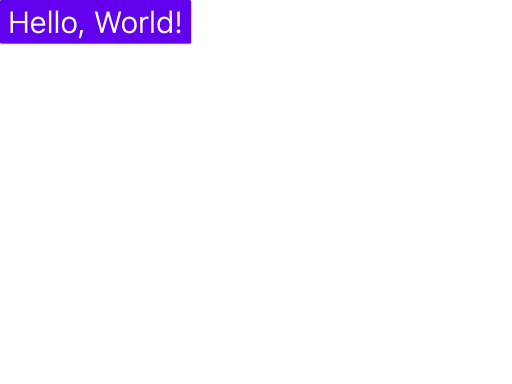
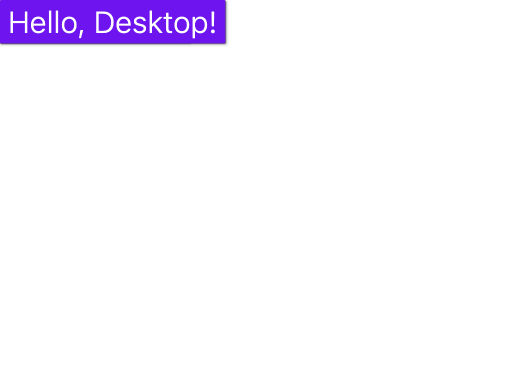
<!-- end -->
<!-- topic_gradle_properties_options -->
<!-- Generated by docs/topics/gradle_properties_options.md. Do not edit this file. -->
# Roborazzi gradle.properties Options and Recommendations
You can configure the following options in your `gradle.properties` file.
You can also use `-P` to set the options in the command line. For example, `./gradlew test -Proborazzi.test.record=true`.
## roborazzi.test
This option enables you to configure the behavior of Roborazzi. By default, all settings are set to false.
For the tasks these properties correspond to, see [Build setup](https://takahirom.github.io/roborazzi/build-setup.html).
```properties
roborazzi.test.record=true
# roborazzi.test.compare=true
# roborazzi.test.verify=true
```
## roborazzi.record
### roborazzi.record.resizeScale
This option lets you set the resize scale for the image being recorded. The default value is 1.0.
```properties
roborazzi.record.resizeScale=0.5
```
### roborazzi.record.filePathStrategy
This setting allows you to specify the file path strategy for the recorded image. The default strategy is `relativePathFromCurrentDirectory`. If you choose `relativePathFromRoborazziContextOutputDirectory`, the file will be saved in the output directory specified by `roborazzi.outputDir`.
```properties
roborazzi.record.filePathStrategy=relativePathFromRoborazziContextOutputDirectory
```
### roborazzi.record.namingStrategy
This option enables you to define the naming strategy for the recorded image. The default strategy is `testPackageAndClassAndMethod`.
- If you choose `testPackageAndClassAndMethod`, the file name will be `com.example.MyTest.testMethod.png`.
- If you choose `escapedTestPackageAndClassAndMethod`, the file name will be `com_example_MyTest.testMethod.png`.
- If you choose `testClassAndMethod`, the file name will be `MyTest.testMethod.png`.
- If you choose `testPackageDirAndClassAndMethod`, the file will be saved as `com.example/MyTest.testMethod.png` (the package becomes a single directory level).
- If you choose `testNestedPackageDirAndClassAndMethod`, the file will be saved as `com/example/MyTest.testMethod.png` (the package becomes nested directories).
```properties
roborazzi.record.namingStrategy=testClassAndMethod
```
## roborazzi.cleanupOldScreenshots
This option allows you to clean up old screenshots. By default, this option is set to false.
The reason why Roborazzi does not delete old screenshots by default is that Roborazzi doesn't know if you are running filtered tests or not. If you are running filtered tests, Roborazzi will delete the screenshots that are not related to the current test run.
```properties
roborazzi.cleanupOldScreenshots=true
```
## roborazzi.dumpUiTree
This option enables the [UI tree dump (JSON)](https://takahirom.github.io/roborazzi/ui-tree-dump.html).
When set to `true`, each captured screenshot gets a machine-readable
`.uitree.json` sidecar written next to the image it describes
(`MyTest.uitree.json` on record, `MyTest_actual.uitree.json` on compare/verify).
By default this option is set to false. The sidecar is informational only: it
never participates in image diffing and never fails verification.
```properties
roborazzi.dumpUiTree=true
```
## Robolectric Options
### robolectric.pixelCopyRenderMode
I recommend setting `it.systemProperties["robolectric.pixelCopyRenderMode"] = "hardware"` in your `build.gradle` file to enhance the accuracy of your screenshots. For more details, please refer to the [issue](https://github.com/takahirom/roborazzi/issues/296).
```kotlin
android {
testOptions {
...
unitTests {
isIncludeAndroidResources = true
isReturnDefaultValues = true
all {
it.systemProperties["robolectric.pixelCopyRenderMode"] = "hardware"
}
}
}
}
```
<!-- end -->
<!-- topic_faq -->
<!-- Generated by docs/topics/faq.md. Do not edit this file. -->
# FAQ
## Q: How can I run only screenshot tests using Roborazzi?
**A:** To run only screenshot tests, you can configure your project with the following:
```groovy
android {
testOptions {
unitTests {
all {
// -Pscreenshot to filter screenshot tests
it.useJUnit {
if (project.hasProperty("screenshot")) {
includeCategories("io.github.takahirom.roborazzi.testing.category.ScreenshotTests")
}
}
}
}
}
}
```
Include the `-Pscreenshot` property, and only the screenshot tests will be run.
Note: This feature is not provided in the Roborazzi library itself, to keep it simple and utilize JUnit's built-in features for test filtering.
You can also annotate your tests like this:
```kotlin
/**
* You can filter ScreenshotTests using -Pscreenshot parameter
*/
interface ScreenshotTests
@Test
@Category(ScreenshotTests::class)
fun checkLaunchShot() {
onRoot().captureRoboImage(roborazziOptions = roborazziOptions)
}
```
This allows you to create a category of screenshot tests and filter them using the `-Pscreenshot` property, thus making it easier to run only those specific tests.
## Q: How can I execute screenshot tests using Android Studio's Run button?
A: To execute screenshot tests using Android Studio's Run button, configure your project as follows:
`gradle.properties`
```groovy
roborazzi.test.record=true
```
After that, you can execute screenshot tests using either Android Studio's Run or Debug button as you normally would.
## Q: My screenshot tests are not capturing images. What could be the issue?
**A:** If your screenshot tests are not capturing images, there may be several patterns that are causing this issue. Please follow these troubleshooting steps:
- **Enable Debugging**: Set `ROBORAZZI_DEBUG = true` to see logs.
- **Check Plugin**: Ensure that the plugin is properly applied.
- **Run Task**: Verify that the `recordRoborazziDebug` task is running.
- **Call Method**: Confirm that `captureRoboImage()` is being called.
## Q: Can I run Roborazzi with Bazel?
**A:** As of now, there is no direct support for running Roborazzi with Bazel. However, it is possible to do so. Please refer to the following comment for more details:
[Roborazzi Bazel Support Comment](https://github.com/takahirom/roborazzi/issues/63#issuecomment-1531990825)
## Q: My tests are being skipped or, conversely, are being run when they should be skipped. How can I handle caching to address this?
**A:** The behavior you are experiencing may be related to caching issues. Although it's
experimental, you can set the `outputDir` parameter in your `build.gradle` file to handle caching
and improve the stability of your tests. This parameter allows you to specify the output directory
for your screenshots, which can help in managing the cache. Here is how you can set it up:
If you use the default output directory(module/build/outputs/roborazzi), specifying the `outputDir`
parameter is not necessary. For more reference, you can check
out [the issue](https://github.com/takahirom/roborazzi/issues/193#issuecomment-1782073746).
```gradle
roborazzi {
outputDir = "src/your/screenshot/folder"
}
```
If the caching problems appear when several Roborazzi test tasks run in a single
Gradle invocation (for example `check` or Kotlin Multiplatform's `allTests`), the tasks
may be racing over the shared output directory. In that case you can enable the
experimental `separateOutputDirs` option so each variant/target gets its own directory.
See [Separate output directories per variant/target](build_setup.md#separate-output-directories-per-variant-target-experimental).
## Q: Why do my screenshot tests fail inconsistently across different operating systems like macOS, Ubuntu, and Windows?
**A:** This is a known issue caused by variations in how graphics libraries render components on different platforms.
As we've seen with [Now in Android](https://github.com/android/nowinandroid/issues/1242#issuecomment-2032962982), there are no guarantees for identical rendering across all environments.
To ensure more consistent results, consider configuring your continuous integration (CI) environment to both record and test screenshots. This setup minimizes discrepancies by using the same settings and resources for all tests.
## Q: The images taken from Roborazzi seem broken
**A:** First, please check if you are using the correct version of the Android SDK. Consider using API level 28 or higher because it seems that Robolectric Native Graphics doesn't work properly on older SDK versions.
You can specify the SDK version like `@Config(sdk = [33])` or by using `robolectric.properties` with `sdk=33`.
[https://robolectric.org/configuring/](https://robolectric.org/configuring/)
If your images are mostly fine but there are some drawing issues like shadows or shape graphics, you can try using Robolectric's Hardware Rendering mode. Please refer to [this issue](https://github.com/takahirom/roborazzi/issues/255#issuecomment-1972838571).
## Q: I am seeing Out Of Memory errors.
**A:** You may solve this by using `unitTests.maxHeapSize` to adjust the unit test heap size as follows:
```groovy
android {
...
testOptions {
unitTests.all {
maxHeapSize = "4096m"
}
}
}
```
It is discussed in [this issue](https://github.com/takahirom/roborazzi/issues/272).
Additionally, it might be worth trying to run your tests with VisualVM to monitor memory usage and identify potential leaks.
## Q: [IDEA Plugin] Roborazzi Gradle task is not displayed in Tool Window.
**A:** It is discussed in [this issue](https://github.com/takahirom/roborazzi/issues/493).
To enable the display of Roborazzi tasks, please enable ***Configure all Gradle tasks during Gradle Sync (this can make Gradle Sync slower)*** in the Settings | Experimental | Gradle.
<img alt="Android Studio setting to enable Configure all Gradle tasks during Gradle Sync" src="https://github.com/user-attachments/assets/67fbb2a8-6b2a-458c-bb31-99025f1c1cab" width="800" />
<!-- end -->
### LICENSE
```
Copyright 2023 takahirom
Copyright 2019 Square, Inc.
Copyright The Android Open Source Project
Licensed under the Apache License, Version 2.0 (the "License");
you may not use this file except in compliance with the License.
You may obtain a copy of the License at
http://www.apache.org/licenses/LICENSE-2.0
Unless required by applicable law or agreed to in writing, software
distributed under the License is distributed on an "AS IS" BASIS,
WITHOUT WARRANTIES OR CONDITIONS OF ANY KIND, either express or implied.
See the License for the specific language governing permissions and
limitations under the License.
```