# Terminal Control
Control, inspect, test, and capture real terminal applications for agents and TUI review.
[](https://crates.io/crates/terminal-control)
[](https://github.com/anomalyco/terminal-control/actions/workflows/ci.yml)
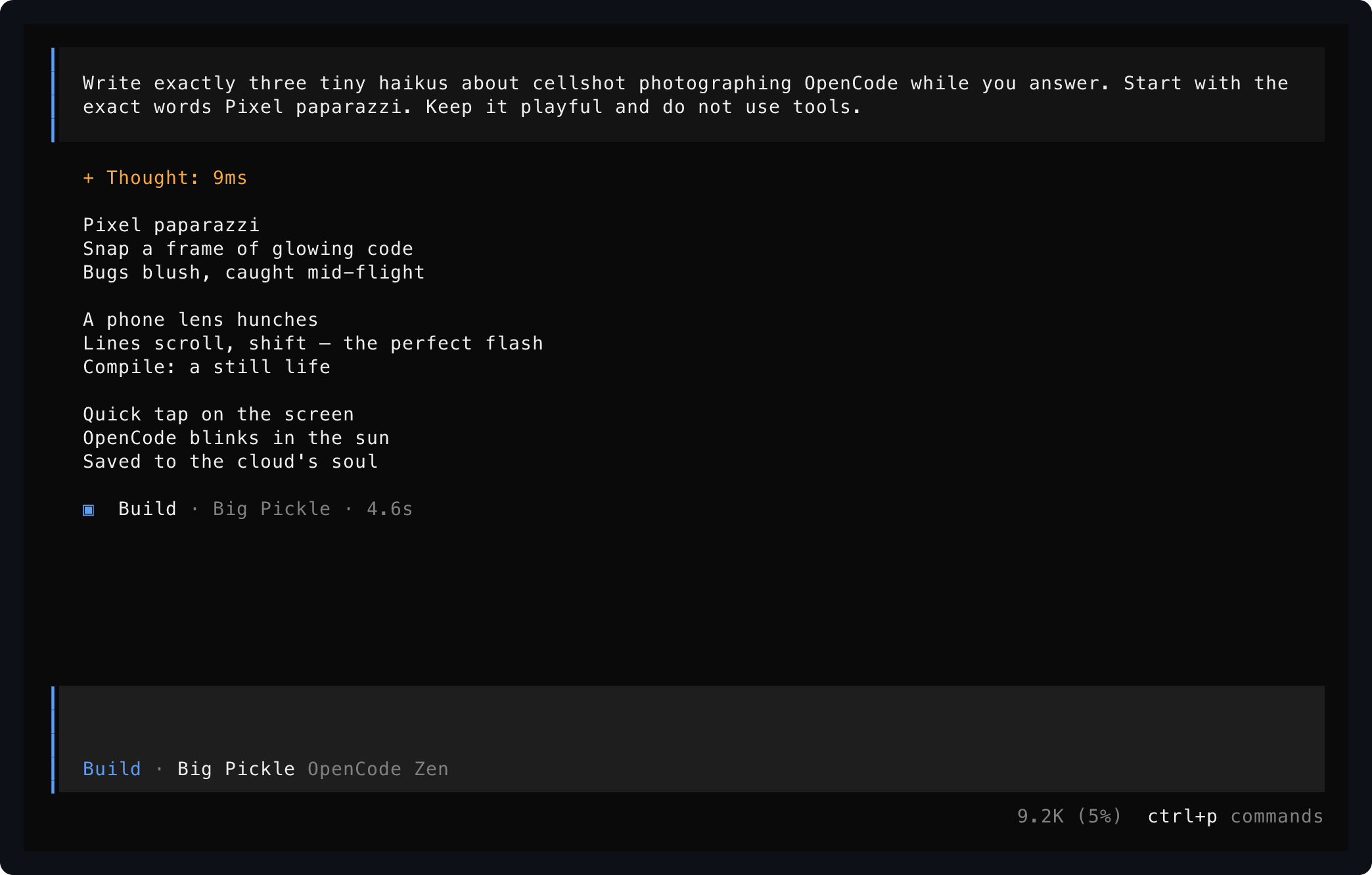
Saved from one live OpenCode session using `start`, `send`, and `save`.
## Install
Source builds require Rust 1.93 or newer, Zig 0.15.2, Git, and network access while the pinned
Ghostty terminal core is built. Video export also requires `ffmpeg`.
```bash
cargo install --locked terminal-control
termctrl --help
```
Or install the current repository head:
```bash
cargo install --locked --git https://github.com/anomalyco/terminal-control terminal-control
```
## Set Up Your Agent
Terminal Control is built for agents first. Install the skill so your coding agent knows the workflow:
```bash
npx skills add anomalyco/terminal-control --skill terminal-control
```
Or expose sessions as structured MCP tools instead of shell commands (stdio server):
```bash
termctrl mcp
```
MCP screen reads and interactions return the current frame immediately. Agents can opt into
quiet-output settling with `settleMs` and `deadlineMs` when a specific transition requires it.
`list_sessions` returns running sessions by default and accepts `state`, `command`, and `cwd`
filters for bounded server-side discovery.
| MCP task | Tools |
| --- | --- |
| Discover | `list_sessions`, `get_session_status` |
| Observe and drive | `get_screen`, `save_screen`, `send_input`, `send_mouse`, `interact`, `resize_session` |
| End processes | `stop_session` |
Then ask for terminal work in ordinary language:
```text
Use terminal-control to open my TUI, press through the setup flow, and save a screenshot of the final screen.
```
```text
Record yourself using the terminal app, mark the important moments, and export a short MP4 demo.
```
The skill teaches the safe workflow: start named sessions, wait for visible text, send exact input, inspect screens, save artifacts, record timelines, and stop sessions when finished.
## Read A Screen
`show` runs a program in a PTY and prints its settled visible screen to stdout. No files are created.
```bash
termctrl show --cols 100 --rows 32 -- my-terminal-app
```
Wait for the app to mount and interact before reading:
```bash
termctrl show --cols 100 --rows 32 --wait-for "Commands" \
-s ctrl-p text:model enter -- my-terminal-app
```
Other stdout representations are explicit:
```bash
termctrl show --format json -- my-terminal-app
termctrl show --format svg -- my-terminal-app
```
## Save Evidence
`save` writes only the artifact formats you request:
```bash
termctrl save --format png --out captures/home.png -- my-terminal-app
termctrl save --format png --format txt --out captures/model -- my-terminal-app
```
The second command writes `captures/model.png` and `captures/model.txt`. Raw ANSI artifacts can contain sensitive terminal data and require explicit `--format ansi`.
## Drive A Live Session
Use a named session when several interactions target the same running application:
```bash
termctrl start demo --host opentui --cols 112 --rows 34 -- my-terminal-app
termctrl wait demo "Ready"
termctrl send demo text:help enter
termctrl show demo
termctrl show demo --format semantic
termctrl save demo --format png --out captures/help.png
termctrl stop demo
```
- `send` accepts `text:<value>`, named keys (`enter`, `escape`, arrows, `tab`, `shift-tab`, `backspace`, `delete`, `home`, `end`, `page-up`, `page-down`), and `ctrl-a` through `ctrl-z`. Pipe exact bytes with `--stdin`.
- `mouse demo move 12 4` hovers at zero-based column 12, row 4; `mouse demo click 12 4` clicks. Use `down`, `move`, then `up` to drag; `--button right`, `--shift`, `--alt`, and `--ctrl` are supported. The app must enable mouse reporting (hover needs any-event tracking).
- `show NAME` reads immediately; `wait` returns as soon as text is visible. Its five-second default is a maximum, not a fixed delay. Use it instead of sleeping.
- `status` reports running/exited state, command, cwd, viewport, and recording path. `list` shows running sessions; use `--state`, `--command`, or `--cwd` to filter discovery, and `--all` to include every retained or unavailable entry.
- `prune --dry-run` previews retained exited sessions and stale sockets; `prune` removes them without deleting recording artifacts.
- `resize demo --cols 132 --rows 38` tests responsive layouts.
- `restart demo` relaunches with the stored command, cwd, viewport, and recording settings.
- An exited session keeps its final screen for `show` until stopped.
For fast automation, batch a known `send` → `wait` → `show` transition in one shell call, or use
MCP `interact` with `waitFor`. Leave typing unpaced unless the demo needs it; reserve PNG saves
for visual checks and export video after the interactions.
OpenTUI applications such as OpenCode need the opt-in host handshake:
```bash
termctrl start demo --host opentui --cols 112 --rows 34 -- opencode
termctrl wait demo "/connect"
```
For normal-screen tools and log-like processes, read retained scrollback with `logs`:
```bash
termctrl logs demo
termctrl logs demo --ansi > captures/demo-output.ansi
```
Full-screen alternate-screen TUIs do not produce useful logs; read their visible screen with `show`.
## Semantic UI Snapshots
Terminal Control gives applications launched with `--host opentui` a private
`TERMCTRL_SEMANTIC_SOCKET`. Cooperating applications can provide structured UI semantics without
changing terminal output:
```bash
termctrl start demo --host opentui -- my-tui
termctrl show demo --format semantic
```
Applications without a semantic provider return an empty snapshot. See
[docs/semantic-protocol.md](docs/semantic-protocol.md) for the protocol and the OpenTUI adapter.
## Share A Session With A Human
`run` keeps the application visible and interactive in your current terminal pane while agents control the same PTY through the named session commands:
```bash
termctrl run -- nvim
termctrl run editor --cwd ~/src/project -- nvim
```
Without `NAME`, the session name is the executable basename (`nvim` above); a name collision is an error, never a suffixed name. No tmux or multiplexer involved.
## Record And Export Video
Record a timeline, mark moments while it runs, then export an edited MP4:
```bash
termctrl start demo --record captures/demo.termctrl --host opentui -- opencode
termctrl wait demo "Ask anything"
termctrl mark demo before-prompt
termctrl send demo --pace-ms 35 'text:Write a terminal haiku. End with DONE.' enter
termctrl wait demo "DONE" --timeout 60000
termctrl mark demo after-answer
termctrl stop demo
termctrl markers captures/demo.termctrl
termctrl show --recording captures/demo.termctrl --at-marker after-answer
termctrl video captures/demo.termctrl --edit captures/demo.json --footer --out captures/demo.mp4
```
An edit plan selects marker ranges with per-clip speed, captions, and optional end holds:
```json
{
"clips": [
{
"from": "before-prompt",
"to": "after-answer",
"speed": 4,
"caption": "The agent answers inside the live terminal UI"
}
]
}
```
Without `--edit`, export preserves recorded timing. `--footer` renders captions, timecode, and branding in a bottom bar. `--tail-ms 0` removes the default one-second final hold. Keep speeds low enough for text to stay readable.
### Show Mouse Interactions
Mouse visualization is opt-in at export, independent of the terminal's text cursor:
```bash
termctrl start pointer-demo --record captures/pointer.termctrl -- my-mouse-enabled-tui
termctrl wait pointer-demo "Ready"
termctrl mouse pointer-demo move 12 4
termctrl mouse pointer-demo click 12 4
termctrl stop pointer-demo
termctrl video captures/pointer.termctrl --pointer-overlay --out captures/pointer.mp4
```
The overlay uses a neutral outlined arrow, smooth 220ms travel arriving at the input instant,
subtle press compression, and short fades. Pointer exports default to 60 fps (otherwise 20);
`--fps` overrides either default. `--pointer-reduced-motion` keeps fades without travel or scaling.
Edits preserve alignment through cuts, speed changes, holds, and resizes. No animation changes
the real input or adds delays. Only typed `mouse` operations provide pointer evidence; raw bytes
and human input forwarded by `run` are not inferred. `show` and `save` remain unadorned terminal state.
New recordings use format v2; current readers also accept v1. Older binaries must be updated to
read v2 recordings. Restart older named sessions before using the new mouse command.
Recordings are JSON Lines files containing terminal output and typed input; they can include prompts or secrets. Treat them as sensitive.
## Pipes And ANSI Streams
Capture piped command output, or render an existing ANSI/VT stream without launching a process:
```bash
termctrl save --pipe --format png --cols 100 --rows 16 --out captures/log -- my-command
printf '\033[44;97m terminal output \033[0m\n' | termctrl show --input -
```
One-off `show` and `save` own disposable processes: after the read or save, the launched process tree is terminated. Use `start` for long-running applications.
## TypeScript Testing
`@kitlangton/terminal-control` on npm wraps the driver as typed test sessions with bundled native binaries — no Rust toolchain needed:
```bash
bun add -d @kitlangton/terminal-control vitest
```
```ts
import { TerminalControl } from "@kitlangton/terminal-control"
await using terminal = await TerminalControl.make()
await using session = await terminal.launch({ command: ["my-tui"] })
await session.screen.waitForText("Ready")
await session.keyboard.press("Enter")
expect(await session.screen.text()).toMatchSnapshot()
```
See [docs/typescript-client.md](docs/typescript-client.md) for artifacts, recordings, Vitest matchers, and configuration.
## More Documentation
- [docs/rust-library.md](docs/rust-library.md) — embed the shot engine and sessions in Rust, plus versioned JSON schemas.
- [docs/driver-protocol.md](docs/driver-protocol.md) — the `termctrl driver` JSON Lines protocol for external tooling.
- [docs/semantic-protocol.md](docs/semantic-protocol.md) — the application semantic socket handshake and snapshot contract.
- [docs/typescript-client.md](docs/typescript-client.md) — the npm test client in full.
- [docs/releasing.md](docs/releasing.md) — aligned crates.io, npm, and GitHub release process.
## Notes
- Persistent sessions use owner-only local Unix sockets and are supported on macOS and Linux.
- `--host opentui` answers startup probes needed by current OpenTUI applications.
- Terminal state and reflow use the statically linked Ghostty terminal core; renderers export PNG, SVG, JSON, text, and raw ANSI artifacts.
- Run `termctrl <command> --help` for dimensions, timing, color, rendering, and output options.