# Amplifier Unified
Amplifier Unified is a local workspace for working with AI. Chat or talk with an
assistant, give it tasks, and follow its work across conversations, tools, and
shared visual surfaces. It uses your configured Amplifier bundles and model accounts.
Explore the [Amplifier Unified website](https://unified.amplifier.ms/) for examples and getting started.
## Install
Choose your computer: [macOS or Linux](#macos-and-linux), or
[Windows 11 (preview)](#windows-11-preview).
### macOS and Linux
The installer supports **macOS and Linux**, including **Windows through WSL with
systemd**.
You need Git, curl, and CA certificates. On Ubuntu or Debian, install them with:
```sh
sudo apt-get update && sudo apt-get install -y curl git ca-certificates
```
On macOS, run `xcode-select --install` if Git is not already available. Then run
the installer as your normal user, without sudo:
```sh
curl -fsSL https://raw.githubusercontent.com/microsoft/amplifier-unified/main/scripts/install.sh | bash
```
It finds or installs uv and Python, installs the latest stable release, starts
Amplifier Unified as a per-user service, and opens your browser. Existing Amplifier
configuration, accounts, and history are preserved. For manual installation, see
the [platform and recovery instructions](docs/DEPLOYMENT.md#manual-installation).
### Windows 11 (preview)
This is a preview. The setup file is not signed yet, so your browser asks you to
confirm the download. You do not need WSL, Python, Git or a terminal. The steps
below describe Microsoft Edge.
1. Download the setup file:
[AmplifierUnifiedSetup-windows-x64.exe](https://github.com/microsoft/amplifier-unified/releases/latest/download/AmplifierUnifiedSetup-windows-x64.exe).
2. Microsoft Edge holds the download and says that the file "isn't commonly
downloaded". In the Downloads list, point at the file and select
**More actions (…)**, then **Keep**. Edge then shows "Publisher: Unknown".
Select the small arrow next to **Delete**, then **Keep anyway**.
3. Open the file: select **Open file** in the Downloads list, or double-click
the file in your Downloads folder. Do not use "Run as administrator". Select
**OK** to install. Setup takes about 3 minutes. Select **OK** when it has
finished.
4. Amplifier starts. The first start can take a few minutes. Amplifier shows one
message; select **OK**. Windows then shows a "Security Warning" that asks
whether to install a certificate named "Amplifier Unified (this PC only)".
Select **Yes**. Windows preselects **No**, so do not only press Enter.
Amplifier uses this certificate only for the connection between your browser
and Amplifier on this PC. Amplifier then opens in your browser.
5. Connect an AI account in the app. If Microsoft Edge offers to save your key
as a password, select **Not now**.
Your first message takes longer than later ones (about a minute in our test).
Amplifier shows "Preparing chat…" during that time.
To open Amplifier later, use the Start menu: **Amplifier Unified**.
In these cases, setup or the first start does not finish. A message says what
to do:
- Setup says: "This Windows sign-in runs every program as administrator."
Sign in to Windows with a standard account, or turn User Account Control
on, and then run setup again.
- Setup says that the path of the Amplifier folder "is too long for Windows"
(the limit is 59 characters). Use a Windows account with a shorter name.
- In step 4, Amplifier says that "this PC's security settings do not let it
finish setting up its private connection to your browser". If your
organization manages this PC, ask its IT support to trust the certificate
file named in the message for your account.
Limits of this preview:
- **PC:** Windows 11 with an Intel or AMD processor. ARM processors are not
supported yet.
- **Account:** Amplifier installs for your own Windows account only. It does not
need administrator rights.
- **Folder:** Amplifier installs into `%LOCALAPPDATA%\Amplifier` and keeps your
chats, settings and accounts there. What a chat writes outside that folder
depends on the AI connection:
- **OpenAI API:** after a chat in our tests on a PC, we looked for a file
or folder with "amplifier" in its name. We looked directly in the usual
places of the Windows account, such as the profile folder, AppData,
Documents and the Desktop. Outside the folder, we found only one that
Amplifier made: the Start-menu entry from setup. We did not look inside
other folders there or on the rest of the disk.
- **Anthropic API:** up to version 0.106.2, a chat writes one small file
outside the folder: `%USERPROFILE%\.amplifier\rate-limit-state.json`. We
saw this in a test on a PC. From version 0.106.3 on, Amplifier writes
that file inside the folder instead. We tested a new installation of
version 0.106.3 on a PC with one chat and one "Send test message" check
of the connection. Both wrote the file inside the folder. The folder
`%USERPROFILE%\.amplifier` did not appear. A file that an earlier
version wrote stays where it is. Later versions do not use it, and
uninstall does not remove it. You can delete it.
- **GitHub Copilot Subscription:** its component makes two folders,
`%USERPROFILE%\.amplifier-provider-github-copilot` and
`%LOCALAPPDATA%\amplifier-provider-github-copilot`. We read this in its
source code. We have not tested it on a PC.
- **ChatGPT Subscription**, **Google Gemini API** and
**OpenAI Compatible API:** we have not tested this.
- **Uninstall:** open **Settings > Apps > Installed apps**, find
**Amplifier Unified (unsigned preview)**, select **More options (…)**, then
**Uninstall**, then **Uninstall** again. Amplifier first asks: "Do you also
want to delete your chats, settings and saved accounts?"
- **No** uninstalls Amplifier and keeps the folder. Your chats, settings and
accounts stay there, together with the program files (1.4 GB to 1.9 GB in
our tests).
- **Yes** leads to a second question: "Delete everything that Amplifier keeps
in this folder?" **Yes** there uninstalls Amplifier and deletes your chats,
settings, saved accounts and stored keys, the files that Amplifier or you
saved in its workspace folder, and the program files. This cannot be
undone. **No** there changes nothing.
- **Cancel** changes nothing. Amplifier stays installed.
These are the results of an uninstall that finishes. If Amplifier finds that
it is working on a chat, it asks before it stops that work. An uninstall
stops Amplifier and removes it from the Start menu and the Apps list. If
Windows asks whether to delete a certificate, select **Yes** each time.
After a delete, Amplifier says "Amplifier is uninstalled." When you close
that message, it starts to remove its last program files and then the
folder. A file or folder directly in the Amplifier folder whose name
Amplifier does not use stays, and then the folder stays too. If that last
step does not finish, the folder stays, and some program files can stay in
it.
An uninstall can stop before its end. If Amplifier then shows a message,
the message says what happened and what to do next. If it says that
Amplifier "could not begin to delete its folder", that uninstall deleted
nothing in the folder. If it says that Amplifier "could not finish its
removal from this PC", or that some of your chats, settings or saved
accounts "could not be deleted", a part of the folder can already be
deleted: do not open Amplifier, and uninstall again. At that next uninstall,
the first question can be another one: "The removal of Amplifier from this
PC did not finish." **Yes** there leads to the second question above, and
**No** changes nothing.
Amplifier can also ask only "Uninstall Amplifier?" with **Yes** and **No**,
for example in an installation from an earlier setup file. There, **Yes**
uninstalls and leaves the folder, and **No** changes nothing.
The [native Windows design and status](docs/design/native-windows-installation.md)
records what is tested.
## Start a conversation
1. Sign in to Amplifier Unified in the browser and connect a model account if needed.
2. Choose a workspace and start a chat. You can finish setup with an assistant
or use **Settings**.
3. Describe the outcome you want. Review progress and results in the conversation.
The first message can take a few minutes while Amplifier Unified prepares its runtime.
On macOS and Linux, you can reopen the workspace at
[http://127.0.0.1:8941](http://127.0.0.1:8941). On Windows 11, open
**Amplifier Unified** from the Start menu.
Use **Enter** to send and **Shift+Enter** for a new line. You can format messages
with Markdown and attach files or images. In a code block, Enter inserts a line;
use the Send button to submit the message.
## Use Amplifier Unified your way
- **Settings:** choose models, bundles, and capabilities. [Settings guide](docs/SETTINGS.md).
- **Updates:** open **Settings → Updates** to check for a release or configure automatic checks. [Update guide](docs/UPDATES.md).
- **Another device:** configure a trusted HTTPS address for LAN or Tailscale access. [Deployment guide](docs/DEPLOYMENT.md).
- **An app window:** use your browser's install option, Safari's **Add to Dock**, or **Add to Home Screen**. Amplifier Unified must remain running at the same address.
- **Recovery:** use the [reset guide](docs/RESET.md) to repair an installation while preserving your data.
## Develop Amplifier Unified
See [development setup and contribution guidance](CONTRIBUTING.md) to work from
source. Published packages include the web client; only frontend development
requires Node.js and npm. Browser client source is maintained in
[amplifier-client-web](https://github.com/microsoft/amplifier-client-web).
For integrations, see [Amplifier Unified as an ACP backend](docs/architecture/unified-acp-backend.md)
and the [architecture guide](docs/architecture/README.md).
<!-- ecosystem-map:start -->
## Where this fits
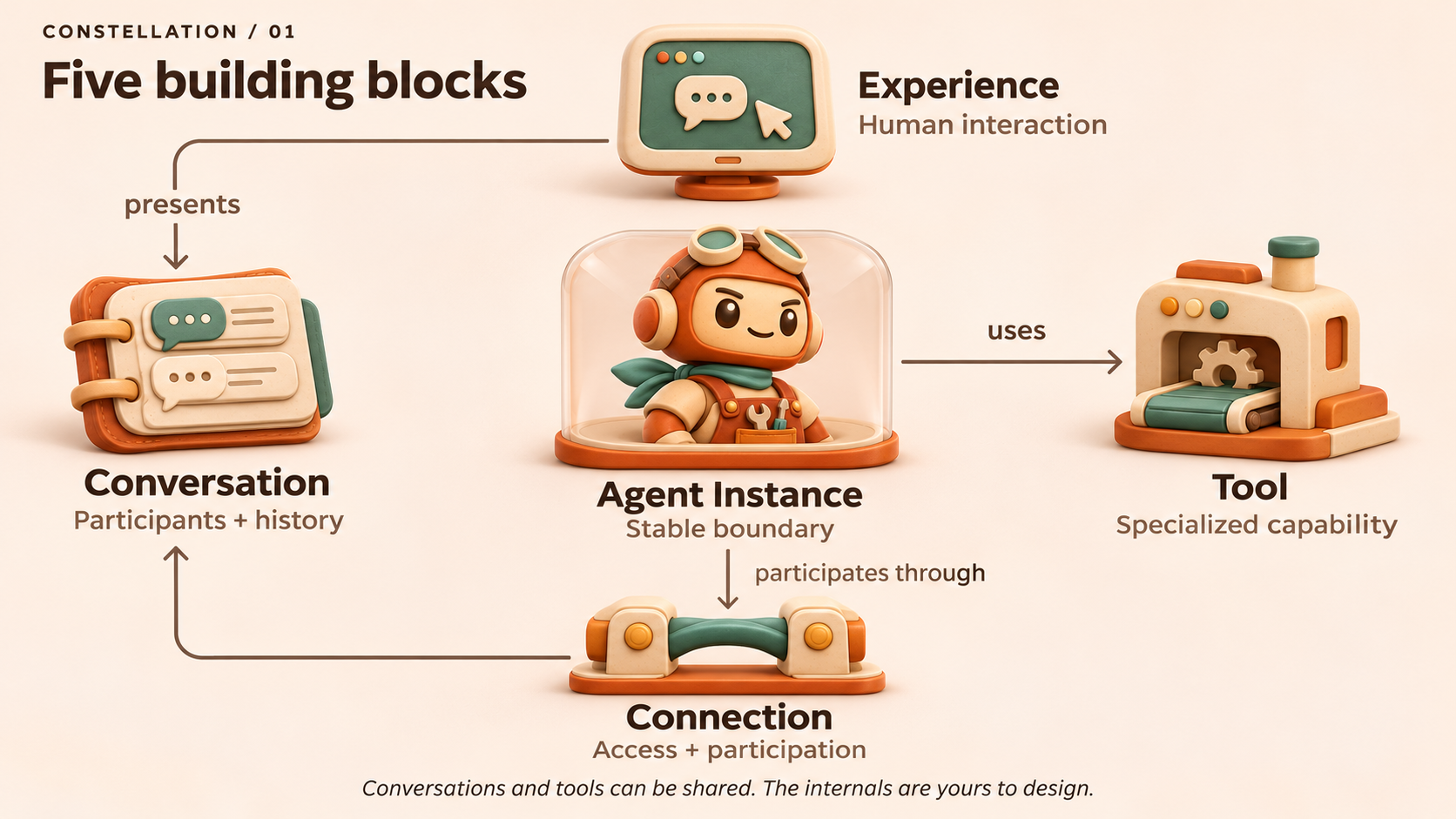
A complete AI workspace with its own web host, selected browser client, and configurable Amplifier execution.
Roles: Experience, Conversation. Supports: Agent Instance, Tool, Connection.

[Product website](https://unified.amplifier.ms/) · [Ecosystem map](https://microsoft.github.io/amplifier-constellation/projects/amplifier-unified/) · [Open the map](docs/ecosystem-map.svg) · [Map guide](https://github.com/microsoft/amplifier-constellation/blob/main/docs/ecosystem-maps.md)
<details>
<summary>The five shared building blocks</summary>
[](https://microsoft.github.io/amplifier-constellation/)
</details>
<!-- ecosystem-map:end -->
## Contributing
> [!NOTE]
> This project is not currently accepting external contributions, but we're actively working toward opening this up. We value community input and look forward to collaborating in the future. For now, feel free to fork and experiment!
Most contributions require you to agree to a
Contributor License Agreement (CLA) declaring that you have the right to, and actually do, grant us
the rights to use your contribution. For details, visit [Contributor License Agreements](https://cla.opensource.microsoft.com).
When you submit a pull request, a CLA bot will automatically determine whether you need to provide
a CLA and decorate the PR appropriately (e.g., status check, comment). Simply follow the instructions
provided by the bot. You will only need to do this once across all repos using our CLA.
This project has adopted the [Microsoft Open Source Code of Conduct](https://opensource.microsoft.com/codeofconduct/).
For more information see the [Code of Conduct FAQ](https://opensource.microsoft.com/codeofconduct/faq/) or
contact [opencode@microsoft.com](mailto:opencode@microsoft.com) with any additional questions or comments.
## Trademarks
This project may contain trademarks or logos for projects, products, or services. Authorized use of Microsoft
trademarks or logos is subject to and must follow
[Microsoft's Trademark & Brand Guidelines](https://www.microsoft.com/legal/intellectualproperty/trademarks/usage/general).
Use of Microsoft trademarks or logos in modified versions of this project must not cause confusion or imply Microsoft sponsorship.
Any use of third-party trademarks or logos are subject to those third-party's policies.