# Kubernetes dashboard for Podman Desktop
[](LICENSE)

Monitor Kubernetes clusters from Podman Desktop.
## Topics
- [Technology](#technology)
- [Use case](#use-case)
- [Requirements](#requirements)
- [Installation](#installation)
- [Usage](#usage)
- [Advanced usage](#advanced-usage)
- [Preferences](#preferences)
- [Known issues](#known-issues)
- [Contributing](#contributing)
## Technology
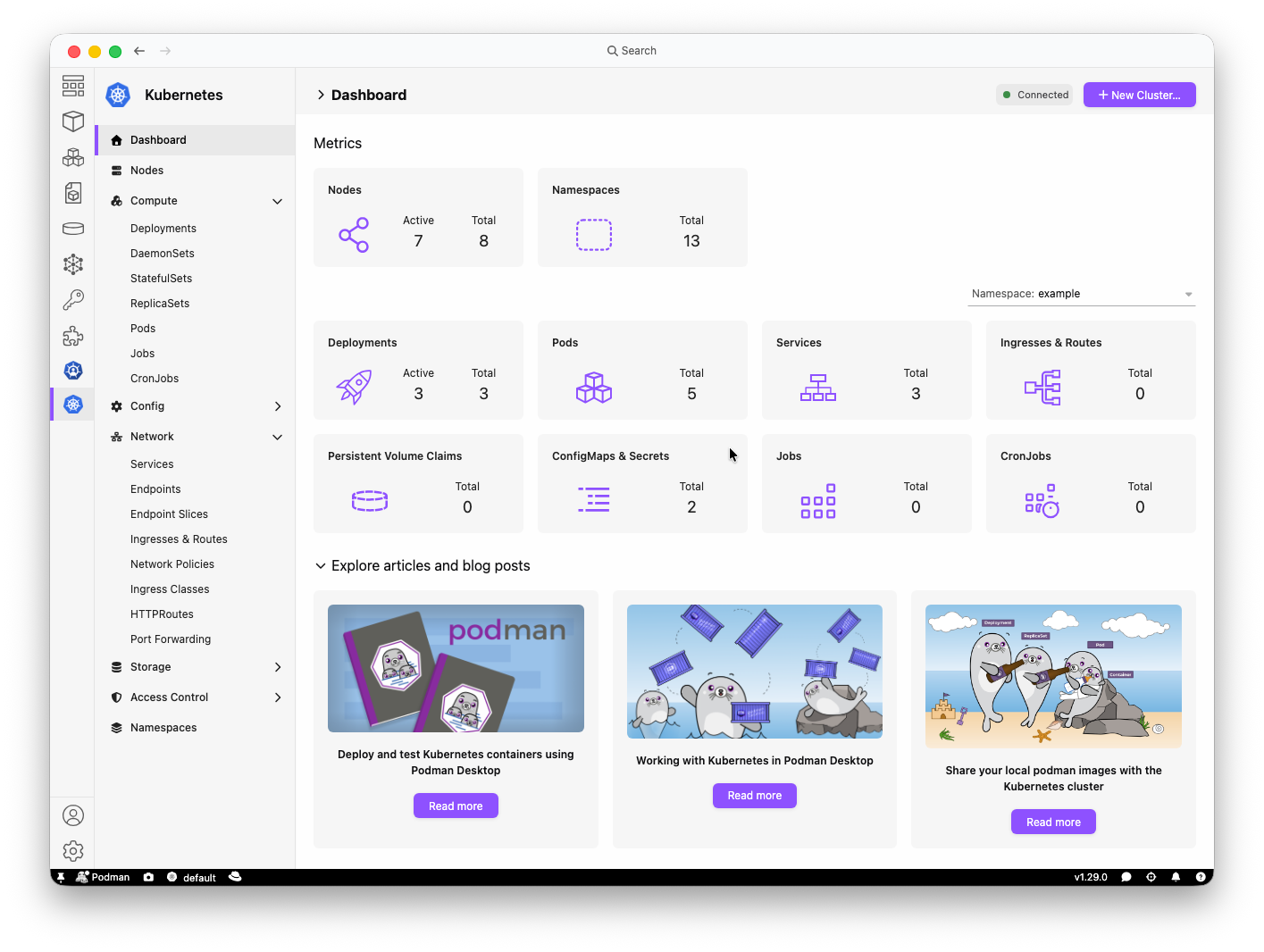
Kubernetes dashboard uses
[`@kubernetes/client-node`](https://github.com/kubernetes-client/javascript) to access
the current Kubernetes context. Resource watches keep the dashboard current after
cluster changes.
The extension service sends state through an RPC layer. A Svelte 5 webview presents
the cluster resources in Podman Desktop.
```text
Kubernetes API
↕
@kubernetes/client-node
↕
Extension service ↔ RPC ↔ Svelte webview
```
## Use Case
The Kubernetes dashboard extension is intended to provide an overview / informative peak to your Kubernetes cluster with some light administration work.
- Review cluster workloads without a separate dashboard, done all within Podman Desktop.
- Inspect resource status, events, YAML files, and permissions.
- Apply YAML, patch resources, and delete resources.
- Read pod logs and open container terminals.
- Create and manage port forwards for local access.
## Requirements
- [Podman Desktop 1.26.0+](https://github.com/podman-desktop/podman-desktop)
- Valid `~/.kube/config` connected to a cluster.
**Note:** The native built-in Kubernetes dashboard is "replaced" when this extension is installed and active.
## Installation
### Stable release
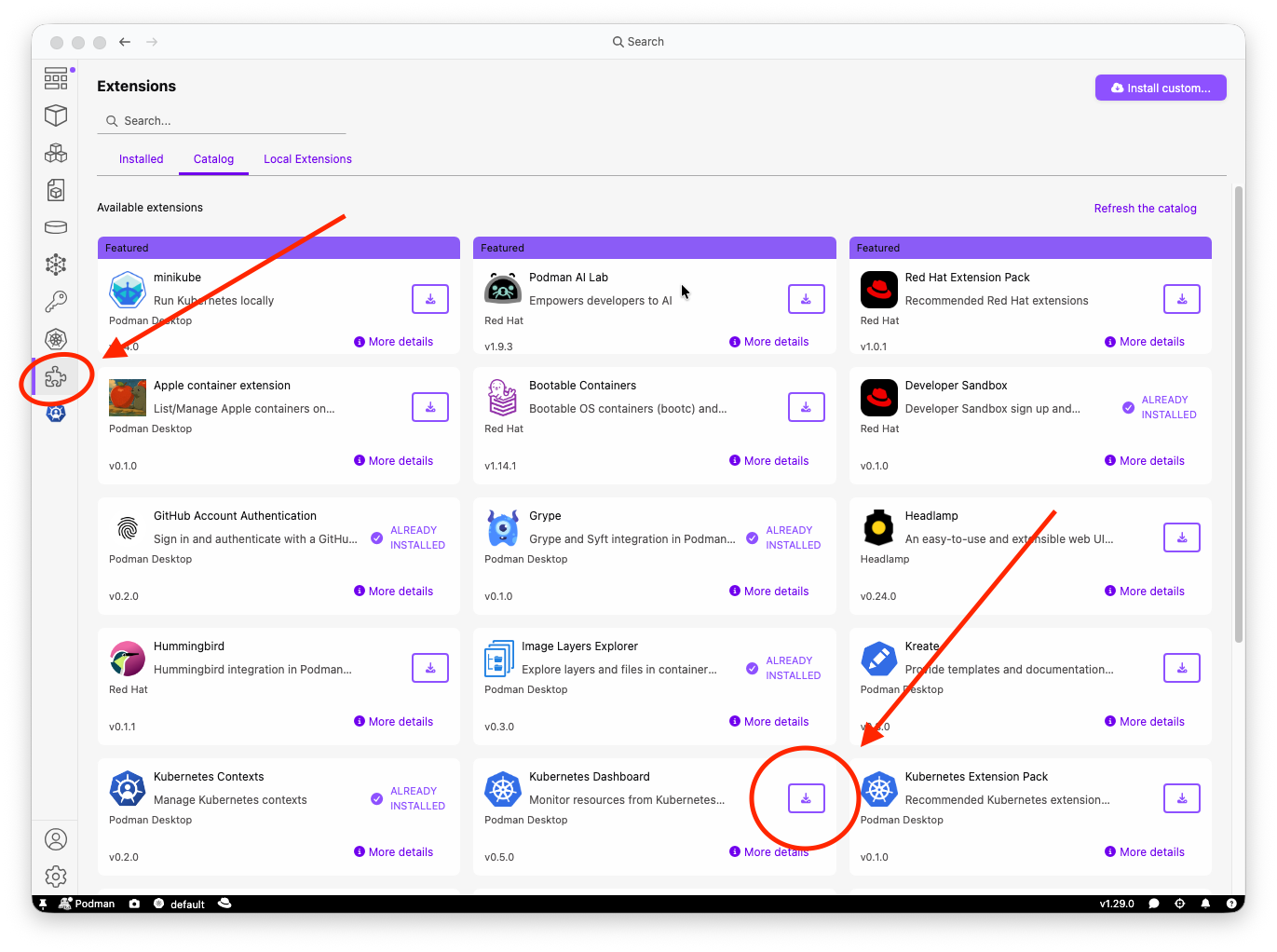
1. Open **Extensions** in Podman Desktop.
2. Select the **Catalog** tab.
3. Look for **Kubernetes dashboard**.
4. Select **Install**.
### Nightly version
The `next` image contains unreleased changes from the default branch.
1. Open **Extensions** in Podman Desktop.
2. Select the **Catalog** tab.
3. Select **Install custom...**.
4. Enter this image reference:
```text
ghcr.io/podman-desktop/podman-desktop-extension-kubernetes-dashboard:next
```
5. Select **Install**.
## Usage
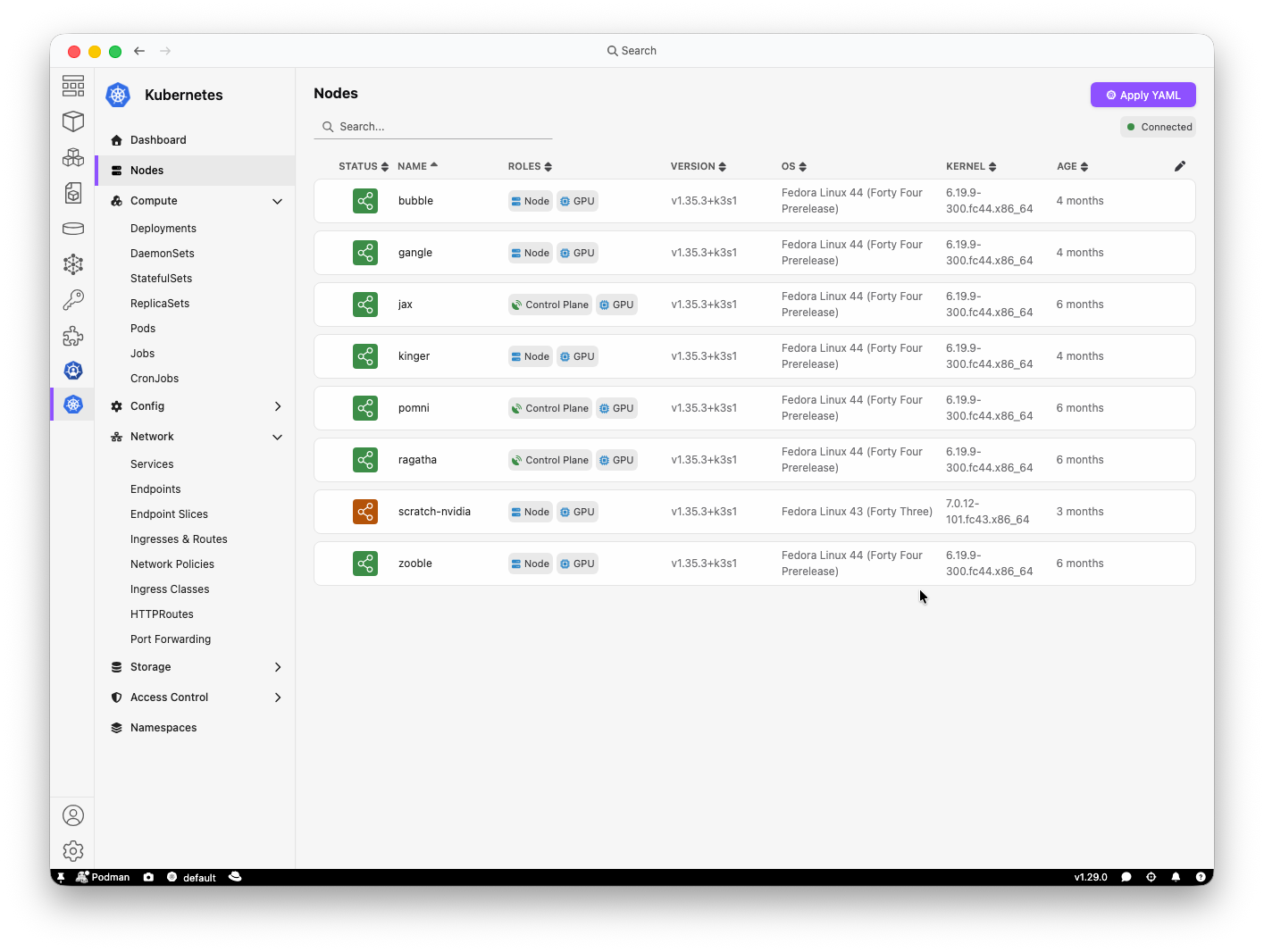
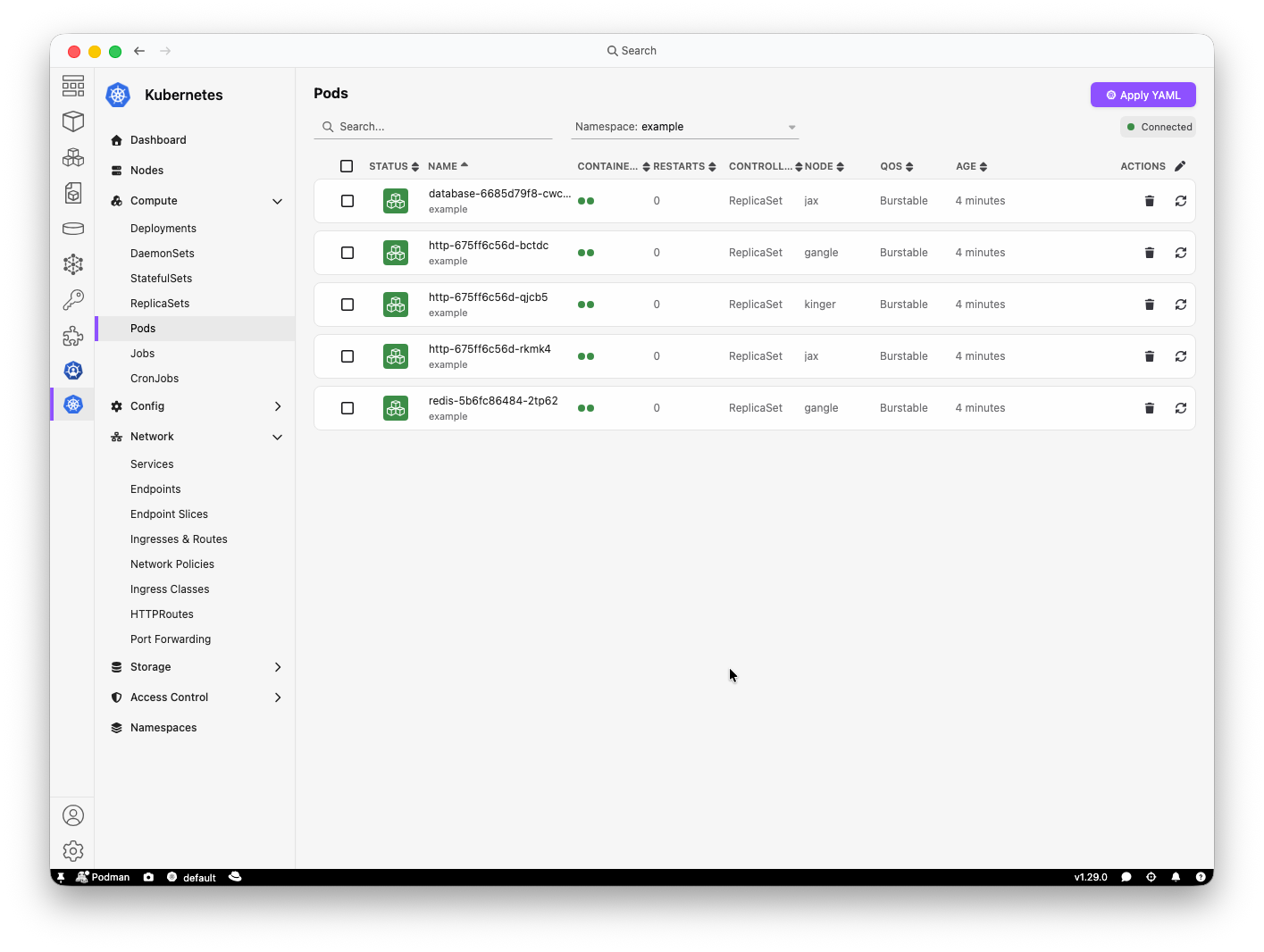
1. Add a Kubernetes cluster to kubeconfig (or configure one with Kind/Minikube/etc.)
2. Open **Kubernetes dashboard** in Podman Desktop.
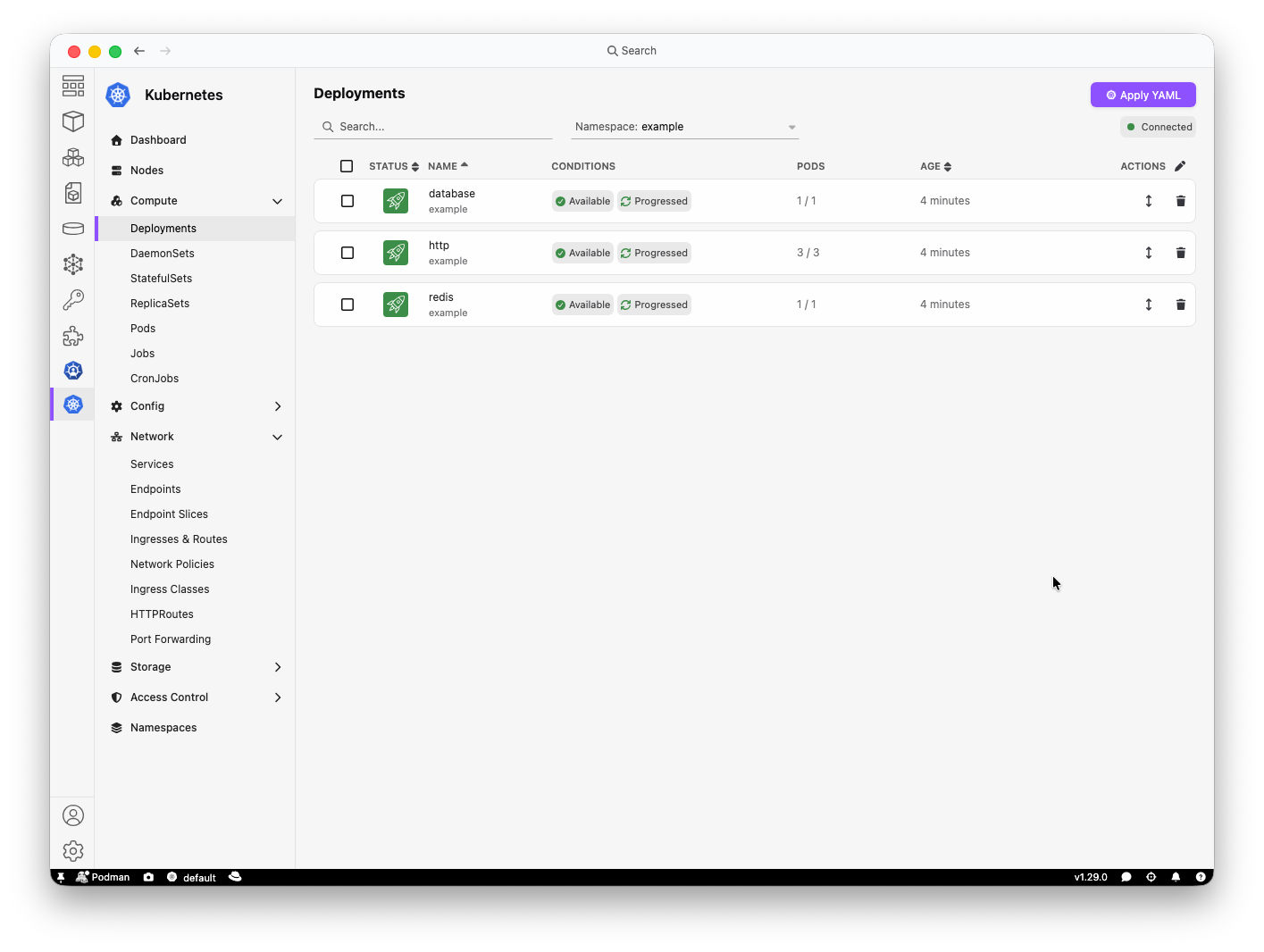
3. Select a namespace for namespaced resources, view your cluster.
4.
### Supported resources
| Group | Resources |
| -------------- | ------------------------------------------------------------------------------------------------------------------------------------------------------------------------------------------------------------------------------ |
| Cluster | Nodes and Namespaces |
| Compute | CronJobs, DaemonSets, Deployments, Jobs, Pods, ReplicaSets, and StatefulSets |
| Config | ConfigMaps, Secrets, HorizontalPodAutoscalers, Leases, LimitRanges, MutatingWebhookConfigurations, PodDisruptionBudgets, PriorityClasses, ResourceQuotas, RuntimeClasses, ServiceAccounts, and ValidatingWebhookConfigurations |
| Network | EndpointSlices, Endpoints, GatewayClasses, Gateways, HTTPRoutes, IngressClasses, Ingresses, OpenShift Routes, NetworkPolicies, and Services |
| Storage | PersistentVolumeClaims, PersistentVolumes, and StorageClasses |
| Access Control | ClusterRoleBindings, ClusterRoles, RoleBindings, and Roles |
**Note:** The dashboard marks resources that the current credentials cannot read.
## Advanced Usage
### Inspect, update and apply resources
1. Open a resource from its list page.
2. **Summary** to review status and events.
3. **Inspect** to review the resource as JSON.
4. **Patch** to edit supported fields as YAML.
Select **Apply YAML** from a resource list to create or update resources
### Pod logs and terminals
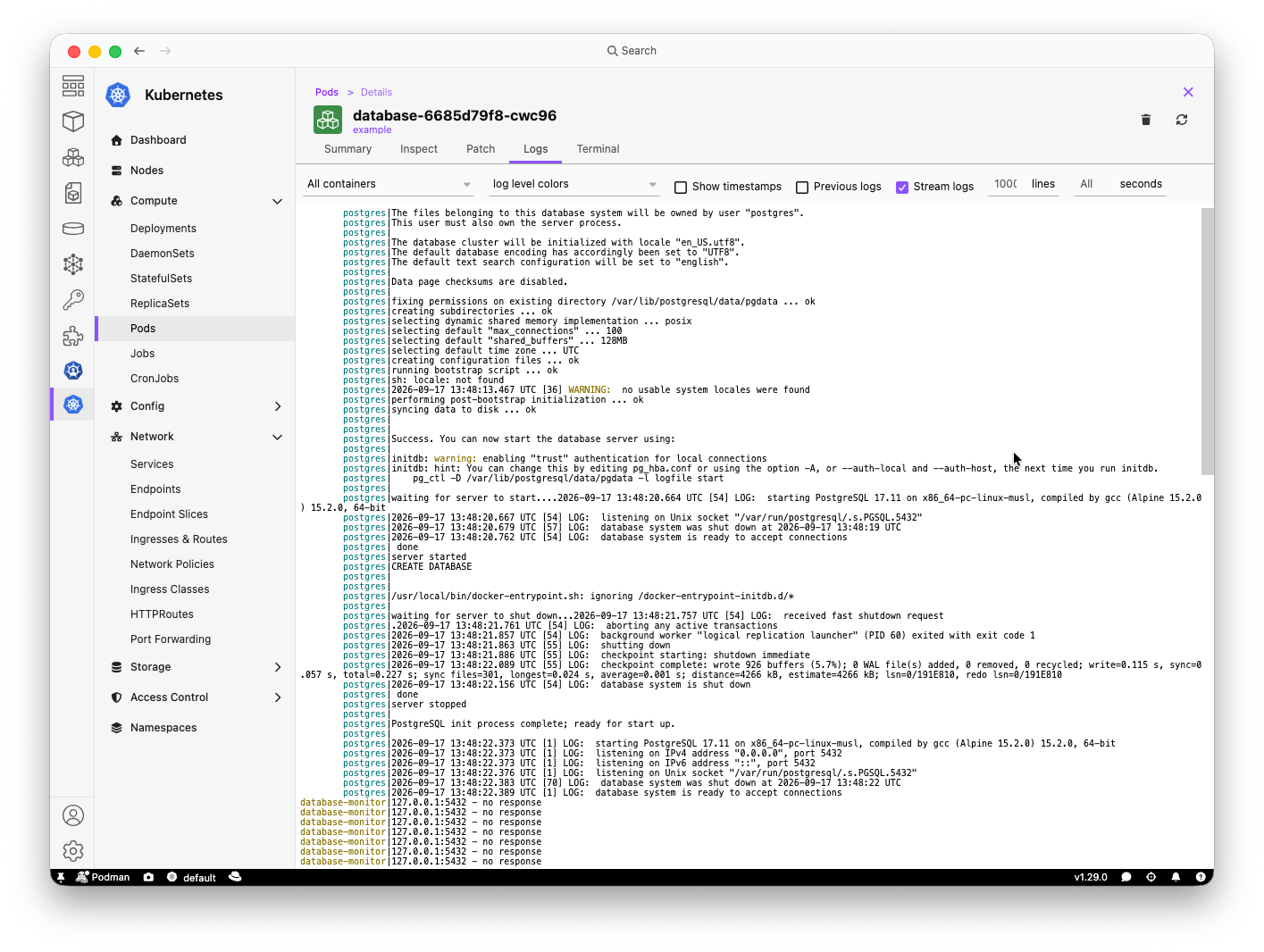
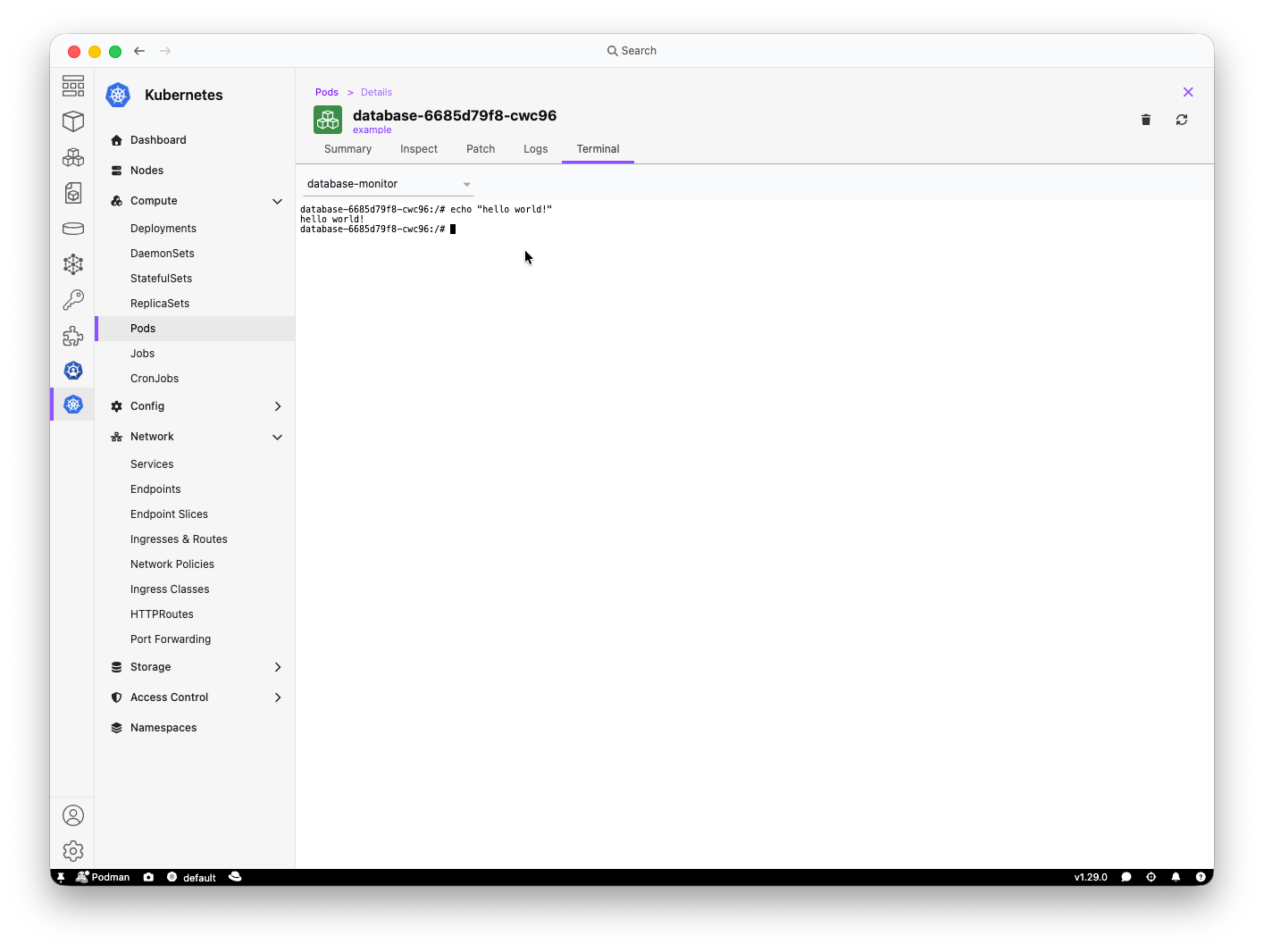
1. Open a pod.
2. Select **Logs** to read logs from one container or all containers.
3. Set the colorizer, timestamps, previous logs, stream, line count, or time range.
4. Select **Terminal** to open a shell in an active container.
### Port forwarding
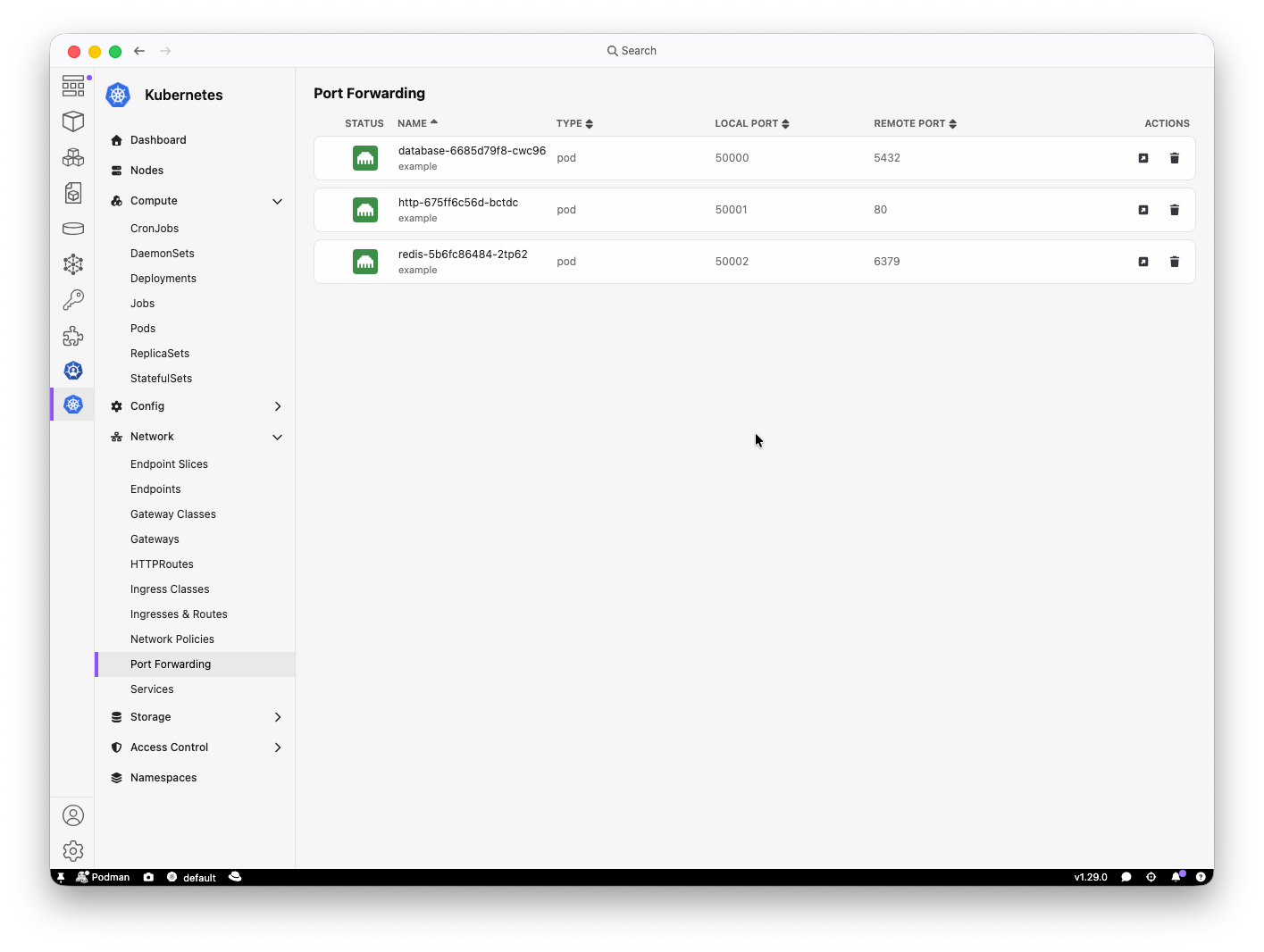
1. Open a Deployment, Pod, or Service.
2. Select the **Summary** tab.
3. Add a local port for an exposed port.
4. Open **Network > Port Forwarding** to open or remove the port forward.
#### Pod log annotations
Pod annotations can define the initial log options without having to configure anything within the Kubernetes dashboard.
| Annotation | Effect |
| ----------------------------------------------------------- | ----------------------------------------------------------------------------------------------- |
| `kubernetes-dashboard.podman-desktop.io/logs-colors` | Sets the colorizer. The default value is `log level colors`. Use `no colors` to disable colors. |
| `kubernetes-dashboard.podman-desktop.io/logs-timestamps` | Set this value to `true` to show timestamps. |
| `kubernetes-dashboard.podman-desktop.io/logs-tail-lines` | Sets the initial number of recent lines. |
| `kubernetes-dashboard.podman-desktop.io/logs-since-seconds` | Sets the initial time range in seconds. |
The log view also supports JSON and logfmt colorizers.
## Preferences
At the moment, the extension does not add entries under **Settings > Preferences**. The current
Kubernetes context and selected namespace control all resource views.
## Known Issues
Review the repository's
[open issues](https://github.com/podman-desktop/extension-kubernetes-dashboard/issues)
for current limitations and workarounds.
## Contributing
Clone this repository, install dependencies, then watch the webview for changes:
```sh
git clone git@github.com:podman-desktop/extension-kubernetes-dashboard.git
cd extension-kubernetes-dashboard
pnpm i
cd packages/webview
pnpm watch
# Do not stop this command. It waits for changes to rebuild the webview.
```
### Using the production version of Podman Desktop
1. Enable **Development mode** under **Settings > Preferences > Extensions**.
2. Open **Extensions > Local Extensions**.
3. Select **Add a local folder extension...** and select the `packages/extension` directory.
The project has two parts that are built separately: the extension code and the webview code. Podman Desktop rebuilds the extension code after each change. The `pnpm watch` command rebuilds the webview part.
> When you change code in the webview part only, the webview is built and the result is included in the extension. This triggers the rebuild of the extension.
Restart the extension from the **Extensions > Local Extensions** page after each change.
### Running e2e tests
#### On macOS (Apple Silicon)
##### Pre-requisites
Install Go and kubectl:
```sh
brew install go kubectl
```
Add Go binaries to your PATH (also add this to your `~/.zshrc`):
```sh
export PATH="$PATH:$(go env GOPATH)/bin"
```
Install envtest tools:
```sh
go install github.com/feloy/envtest-start@v0.3.0
go install sigs.k8s.io/controller-runtime/tools/setup-envtest@release-0.24
```
##### Run the tests
###### Step 1: Install a Podman Desktop testing binary
Download and install the latest nightly build from https://github.com/podman-desktop/testing-prereleases:
```sh
LATEST_TAG=$(gh api repos/podman-desktop/testing-prereleases/releases \
--jq 'sort_by(.created_at) | reverse | first(.[] | select(.assets | length > 0)) | .tag_name')
gh release download "$LATEST_TAG" \
--repo podman-desktop/testing-prereleases \
--pattern 'podman-desktop-[0-9]*-arm64.dmg'
hdiutil attach podman-desktop-[0-9]*-arm64.dmg -mountpoint /tmp/podman-desktop-dmg
mkdir -p tests/playwright/tests/PodmanDesktop
cp -R "/tmp/podman-desktop-dmg/Podman Desktop.app" "tests/playwright/tests/PodmanDesktop/Podman Desktop.app"
hdiutil detach /tmp/podman-desktop-dmg
codesign --force --deep --sign - "tests/playwright/tests/PodmanDesktop/Podman Desktop.app"
```
###### Step 2: Build the extension plugin
```sh
pnpm install
pnpm build
podman build -t local_image -f Containerfile ./
CONTAINER_ID=$(podman create localhost/local_image --entrypoint "")
mkdir -p tests/playwright/tests/playwright/output/kubernetes-dashboard-tests/plugins
podman export $CONTAINER_ID | tar -x -C tests/playwright/tests/playwright/output/kubernetes-dashboard-tests/plugins/
podman rm -f $CONTAINER_ID
podman rmi -f localhost/local_image:latest
```
###### Step 3: Start the envtest Kubernetes cluster
```sh
export KUBEBUILDER_ASSETS=$(setup-envtest use -p path)
envtest-start --fake-kubelet --users 1 /tmp/envtest-kubeconfig &
ENVTEST_START_PID=$!
while [ ! -f /tmp/envtest-kubeconfig ]; do sleep 1; done
"$KUBEBUILDER_ASSETS/kubectl" --kubeconfig /tmp/envtest-kubeconfig get all | grep "service/kubernetes"
```
###### Step 4: Run the tests
```sh
cp /tmp/envtest-kubeconfig tests/resources/envtest-kubeconfig
cp /tmp/user1-kubeconfig tests/resources/envtest-kubeconfig-user1
EXTENSION_PREINSTALLED=true \
PODMAN_DESKTOP_BINARY="$(pwd)/tests/playwright/tests/PodmanDesktop/Podman Desktop.app/Contents/MacOS/Podman Desktop" \
KUBEBUILDER_ASSETS="$KUBEBUILDER_ASSETS" \
NODE_OPTIONS=--no-experimental-strip-types \
pnpm test:e2e:integration
```
###### Step 5: Stop the cluster when done
```sh
kill $ENVTEST_START_PID
```
##### Restarting the tests
**Quick restart** -- the extension is already installed in the Podman Desktop profile; only the cluster needs a restart: redo steps 3 and 4, keeping `EXTENSION_PREINSTALLED=true`.
**Full clean restart** (for example, after modifying extension sources) -- after stopping the cluster, reset the Podman Desktop profile and reinstall the extension from scratch:
```sh
rm -rf tests/playwright/tests/playwright/
```
Then redo steps 2, 3, and 4.
##### Cleanup
After stopping the cluster (step 5), remove all generated files:
```sh
rm -rf tests/playwright/tests/
rm -f tests/resources/envtest-kubeconfig tests/resources/envtest-kubeconfig-user1
rm -f /tmp/envtest-kubeconfig /tmp/user1-kubeconfig
```
This project uses the [Apache License 2.0](LICENSE).